9
1
2
3
4
5
6
7
8
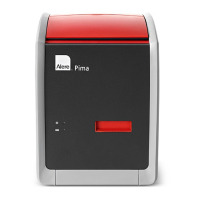
Pima™ ANALYSER USER GUIDE
25
Print Results from Archive
For prinng, a USB Printer needs to be aached to the Pima Analyser
via the USB port.
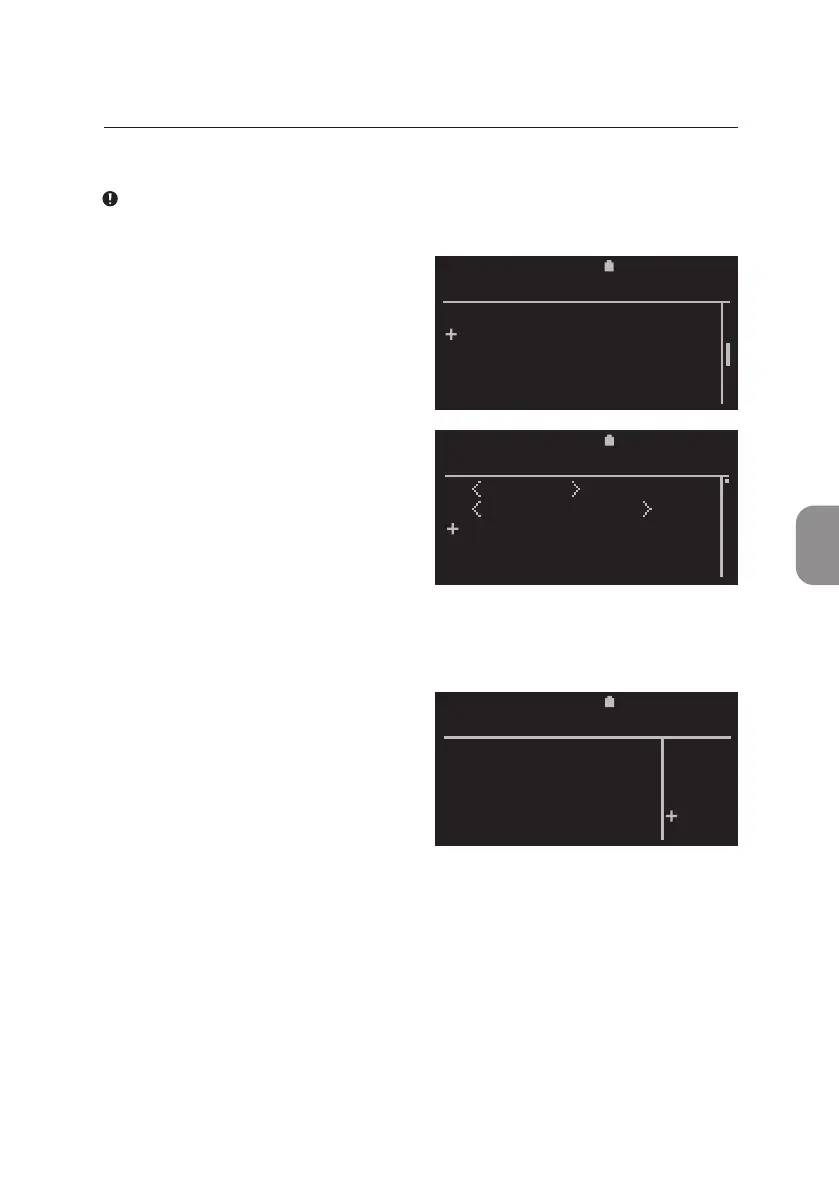
• To print results select «Print» from
the «Results» window and conrm
with 〈.
• The «Print Results» window with
all archived Sample IDs is displayed
by Test ID in reverse chronological
order. Select results to be printed
and conrm with 〈. Conrmed
results are marked by a (x).
If only one result is selected, prinng will start immediately aer inial
conrmaon.
• If more than one result was
selected, the «Print» window
appears and «NO» is selected by
default. Select «YES» and conrm
with 〈 to print selected results
from the Pima Analyser archive.
Press ⌨ or select «NO» to exit this
window and return to the «Print
Results» window.
The prinng status is indicated by a progress bar.
The «Pima Test Report» contains all informaon displayed on the four result
windows of the Pima Analyser.
Aer successful print, the display automacally returns to the «Results» window.
11:302020-11-01
Print All
Print Selected
36 67352
35 55687
34 48951
PRINT RESULTS
2020-11-01 11:30
Do you want to
print 2
results ?
PRINT
YES
NO
2020-11-01 11:30
View
Print
Export
Export and Delete
Delete
RESULTS


 To Next Page