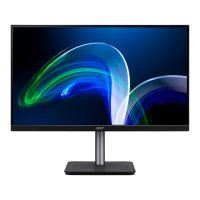
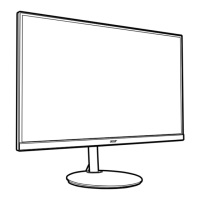
8CG48 User Guide English
Connecting the cables
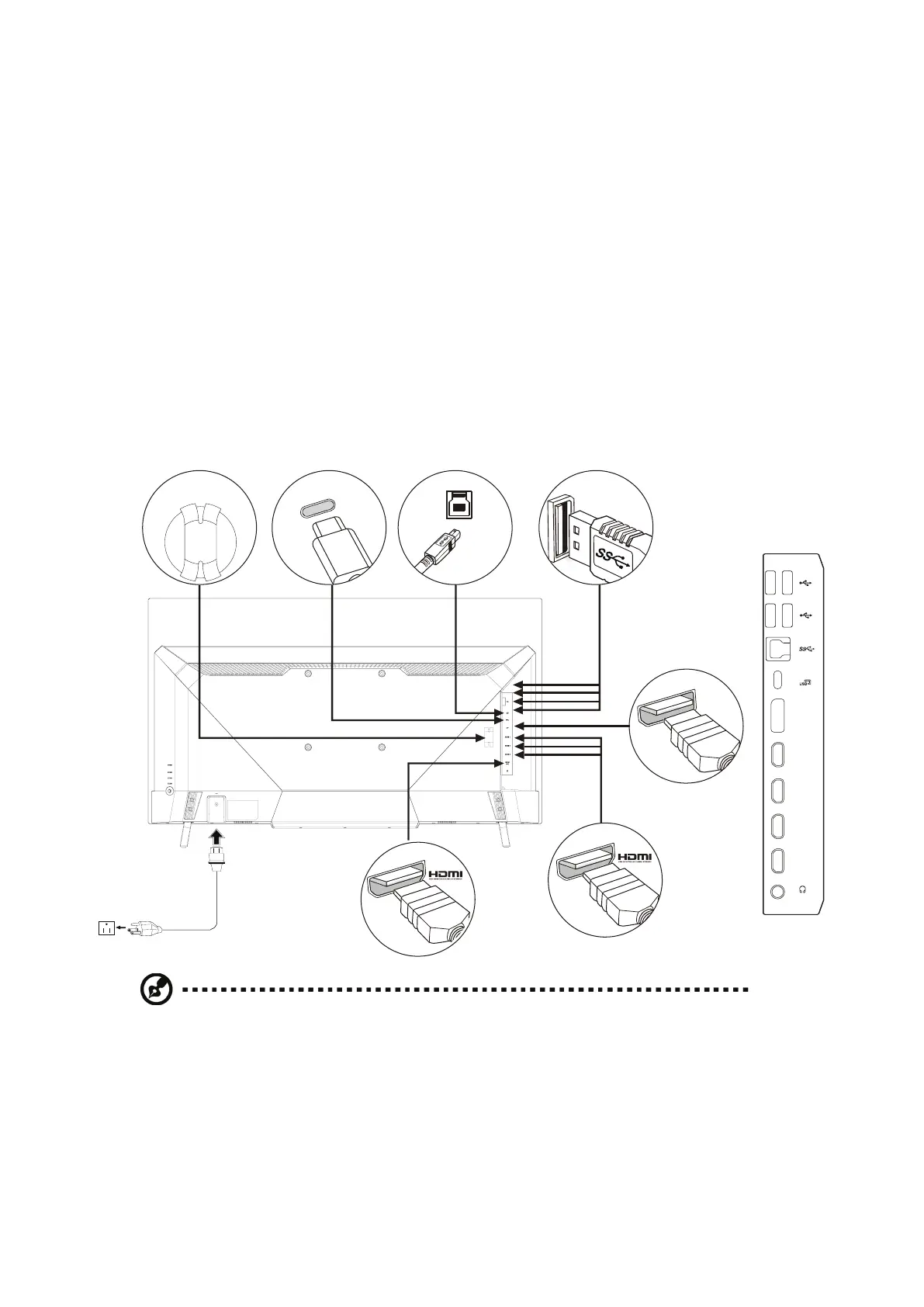
To install the monitor on your host system, please follow the steps below:
1. Turn o your computer and unplug your computer’s power cord.
2. Connect the signal cable to the DP (optional) and/or HDMI (optional) input
socket of the monitor, and the DP (optional) and/or HDMI (optional) output
socket of the graphics card on the computer.
3. Connect the USB Cable (optional):
Connect the USB 3.0 cable to port.
4. Connect the Type-C Cable (optional):
Connect the Type-C Cable to port for fast charge.
Connect the Type-C Cable to port.
5. Insert the monitor power cable into the power port at the back of the monitor.
6. Plug the power cords of your computer and your monitor into a nearby
electrical outlet.
(2.1)
Google
TV rubber
HDMI 1
HDMI 2
HDMI 3
HDMI 3
(2.1)
DP
()
2.0
2.0
2.0
2.0
Note:
• Audio output is only for audio output model. Please check user manual for
more instruction.
• Charging USB devices just in DC on mode.
• Type-C Port can support power delivery charging up to 20V/3.25A.
• All of standard downstream port USB-A support 5V / 0.9A.


 To Next Page