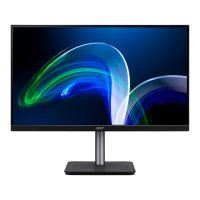
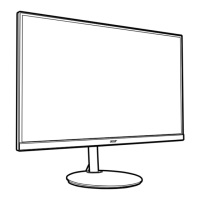
14CG48 User Guide English
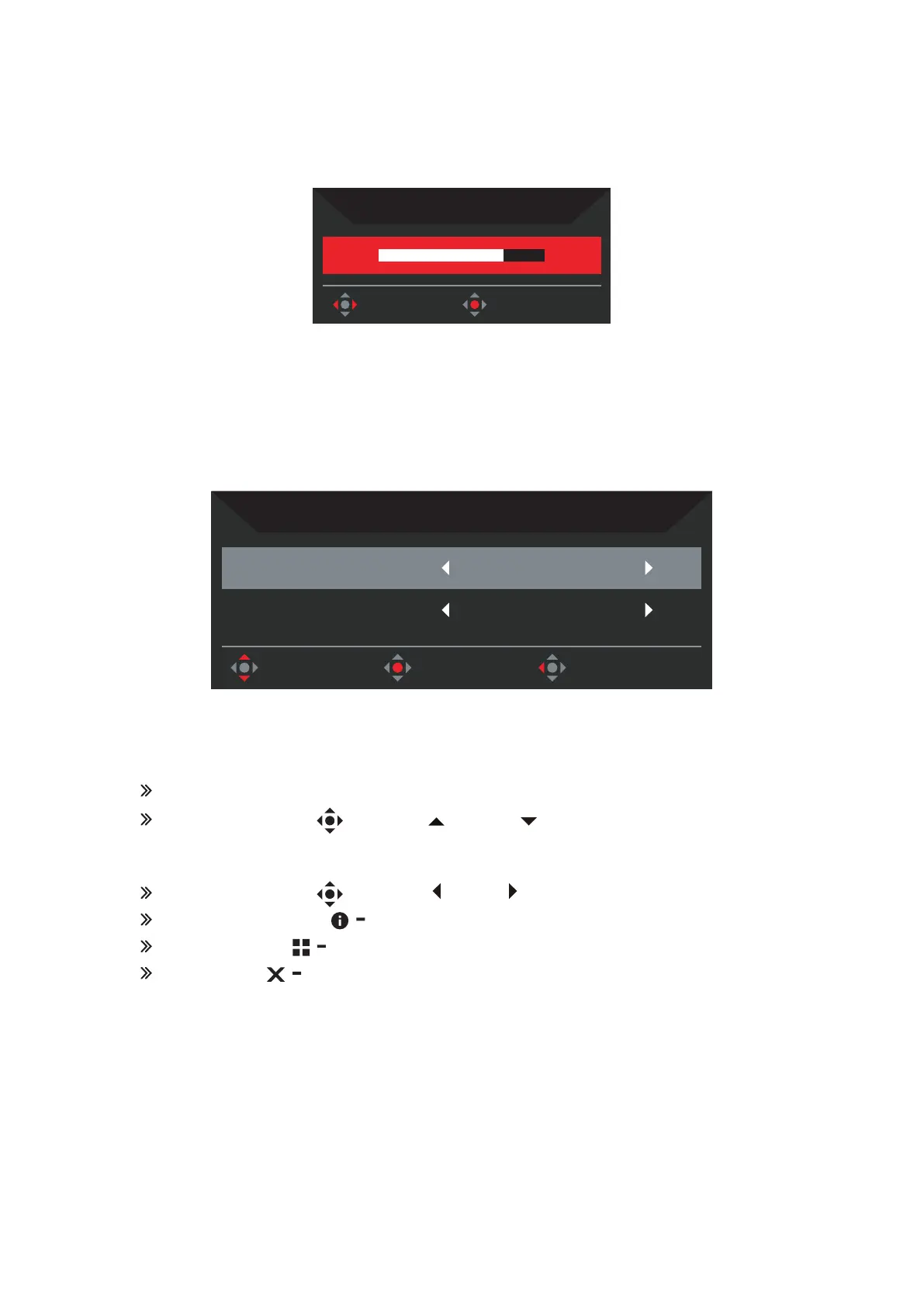
Hot key2 (default: Brightness)
Open the Brightness control and select your preferred brightness setting. When you
are done, press the joystick to quit current page and store.
Adjust OK
Brightness
75
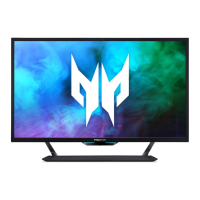
Hot key3 (Selecting the input)
Open the Input control and select HDMI1(2.0), HDMI2(2.0), HDMI3(2.0),
HDMI4(2.1), DP, Type C or turn On Auto Source. When you are done, press the
joystick to exit current page and store.
Move Enter Exit
Input
HDMI1 (2.0)Input
OnAuto Source
Main Menu
Press the MENU key to open the OSD.
Toggle the joystick to the up or down to select Picture from the OSD.
Then toggle to the right to navigate to the element you wish to adjust and press
the joystick to enter it.
Toggle the joystick to the left or right to adjust the sliding scales.
Information Hot Key : Show Monitor Information and Reset control function.
Modes Hot Key : To change Modes Hot Key menu.
Exit Hot Key to exit current page and store.


 To Next Page