EasyManua.ls Logo

Acer KA220Q - User Manual

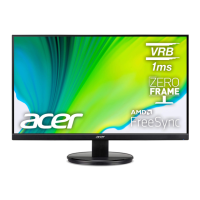
Acer KA220Q
38 pages
Print Icon
To Next Page IconTo Next Page
Loading...
Acer LCD Monitor
User's Guide

Questions and Answers

  • L
    Linda JacksonAug 7, 2025
    What to do if my Acer KA220Q has no picture?
    • W
      wcarlsonAug 7, 2025
      If your Acer monitor is not displaying a picture, here are some troubleshooting steps depending on the LED status: * If the LED is on, use the On-Screen Display (OSD) menu to adjust the brightness and contrast to the maximum settings, or reset them to their default values. * If the LED is off, check the power switch and ensure the AC power cord is properly connected to the monitor. * If the LED is flashing, make sure the video signal cable is securely connected to the back of the monitor and verify that the computer system is powered on.
  • E
    Elizabeth GomezAug 14, 2025
    How to fix abnormal sound on Acer KA220Q?
    • R
      Robin TerrellAug 15, 2025
      If you are experiencing abnormal sound issues with your Acer monitor (only for Audio-Input models), here are a couple of things to check: * First, ensure that the audio cable is properly connected between the monitor and the host PC. * Also, verify that the volume level on the host PC is not set to the minimum. Try increasing the volume level on your computer.
  • A
    Amy ClayAug 22, 2025
    What to do if the display on my Acer KA220Q is missing, shifted, or the wrong size?
    • P
      Paula ValenzuelaAug 22, 2025
      If the display on your Acer monitor is missing, shifted, or too small or large, use the On-Screen Display (OSD) to adjust the RESOLUTION, CLOCK, CLOCK-PHASE, H-POSITION, and V-POSITION settings, especially when using non-standard signals. Also, if the full-screen image is missing, try selecting a different resolution or vertical refresh timing.
  • W
    William TannerAug 30, 2025
    Why does my Acer KA220Q Monitor have an unstable picture?
    • N
      Nicholas JohnsonAug 30, 2025
      An unstable picture on your Acer monitor may be due to a mismatch in specifications between the graphics adapter and the monitor, leading to an input signal frequency mismatch. Check if the specifications are in compliance.

Summary

Special Notes on LCD Monitors

Information for Your Safety and Comfort

Safety Instructions

Read carefully and keep for future reference. Follow all warnings.

Cleaning Your Monitor

Guidelines for cleaning the monitor, including unplugging and using a soft cloth.

Connecting;Disconnecting the Device

Guidelines for connecting and disconnecting power from the monitor.

Accessibility

Safe Listening

Warnings

Using Electrical Power

Product Servicing

Potentially Explosive Environments

IT Equipment Recycling Information

Disposal Instructions

LCD Pixel Statement

Tips and Information for Comfortable Use

Finding Your Comfort Zone

Tips for adjusting monitor viewing position and posture for comfort.

Taking Care of Your Vision

Eyes

Suggestions for reducing eyestrain, including resting eyes and blinking.

Display

Tips for display setup to reduce glare and improve readability.

Developing Good Work Habits

Recommendations for relaxing and productive computer use.

Unpacking

Attaching;Removing the Base

Screen Position Adjustment

Tilt

Information on adjusting the tilt range of the monitor screen.

Connecting the Power Cord

Safety Precaution

Cleaning Your Monitor

Power Saving

DDC

Connector Pin Assignment

Standard Timing Table

Installation

User Controls

Using the Shortcut Menu

The Function Page

Details on accessing and using the function page for modes and settings.

Adjusting the Settings

Adjusting the Picture

Adjusting the Color

Adjusting the Audio

Adjusting the Performance

Adjusting the OSD

Adjusting the System

Product Information

Troubleshooting

EU Declaration of Conformity

Federal Communications Commission Declaration of Conformity

Acer KA220Q Specifications

General IconGeneral
Screen Size21.5 inches
Resolution1920 x 1080 (Full HD)
Panel TypeTN
Refresh Rate75 Hz
Brightness250 cd/m²
Contrast Ratio1000:1
Ports1 x VGA, 1 x HDMI
Aspect Ratio16:9
Color Support16.7 million colors
VESA Mount100 x 100 mm
Power Consumption18 W (typical)
Weight2.4 kg

Related product manuals