EasyManua.ls Logo

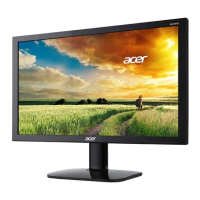
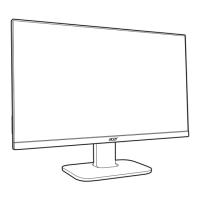
Acer KA222Q - User Manual

Acer KA222Q
34 pages
Print Icon
To Next Page IconTo Next Page
Loading...
Acer LCD Monitor
User's Guide

Questions and Answers

  • C
    Caitlin BentonAug 13, 2025
    Why does my Acer KA222Q have no picture and the LED is displaying amber color?
    • I
      ihuntAug 13, 2025
      If your Acer Monitor shows no picture and the LED displays an amber color, check the video signal cable to ensure it is properly connected to the back of the monitor.
  • S
    steven73Aug 17, 2025
    Why does my Acer KA222Q have no picture and the LED is off?
    • C
      Christopher FergusonAug 17, 2025
      If your Acer Monitor has no picture and the LED is off, check the power switch to ensure the monitor is turned on.
  • T
    terry66Aug 21, 2025
    What to do if there is no sound from my Acer Monitor (Audio-Input model)?
    • C
      Christopher GuzmanAug 21, 2025
      If you are not getting any sound or the sound level is too low on your Acer Monitor (Audio-Input model), first check that the audio cable is properly connected to the host PC. Also, verify that the volume setting on your host PC is not set to the minimum; increase the volume level if needed.
  • B
    Brandon WardAug 25, 2025
    What to do after adjusting the image size on my Acer KA222Q Monitor?
    • N
      nicholas61Aug 25, 2025
      After adjusting the size of the image on your Acer Monitor, wait a few seconds before changing or disconnecting the signal cable, or powering off the monitor.
  • M
    Mrs. Heidi RamosAug 28, 2025
    What to do if my Acer Monitor has no picture but the LED is on?
    • J
      Jason SwansonAug 28, 2025
      If your Acer Monitor displays no picture but the LED is on, use the On-Screen Display (OSD) menu to adjust the brightness and contrast to the maximum settings. Alternatively, reset these settings to their default values.
  • D
    Danielle GardnerSep 1, 2025
    What to do if my Acer KA222Q Monitor display is missing, shifted, too small, or too large?
    • M
      Mrs. Hannah Ware MDSep 1, 2025
      If your Acer Monitor's display is missing, shifted from the center, or the image size is incorrect, use the OSD to adjust the RESOLUTION, CLOCK, CLOCK-PHASE, H-POSITION, and V-POSITION settings, especially when using non-standard signals.
  • S
    Samantha McknightSep 4, 2025
    How to fix an unstable picture on my Acer KA222Q?
    • K
      Kimberly BassSep 5, 2025
      If you are experiencing an unstable picture on your Acer Monitor, verify that the specifications of your graphics adapter and monitor are compatible. A mismatch in the input signal frequency could be the cause.
  • M
    Maria HinesSep 8, 2025
    What to do if my Acer KA222Q Monitor is missing a full-screen image?
    • R
      rossdonaldSep 8, 2025
      If your Acer Monitor is missing a full-screen image, use the OSD to select another resolution or vertical refresh timing.

Summary

Safety and Comfort Information

Safety Instructions

Read and follow all safety warnings and instructions for future reference.

General Warnings and Power Usage

Product Warnings

Important warnings regarding water, stability, ventilation, and electrical hazards.

Product Servicing Information

Environmental and Safety Precautions

Potentially Explosive Environments

Safety measures for operating the monitor in hazardous atmospheric conditions.

Comfortable Use and Ergonomics

Vision Care and Work Habits

Base Installation and Removal

Attaching the Monitor Base

Step-by-step instructions for attaching the monitor stand arm and base.

Removing the Monitor Base

Instructions for detaching the monitor stand base using a screwdriver.

Screen Position Adjustment

Connection and Safety Precautions

Connecting the Power Cord

Proper procedures for connecting the power cord to the monitor and AC outlet.

General Safety Precautions

Important guidelines to prevent damage, ensure ventilation, and avoid hazards.

Monitor Installation Steps

User Controls Overview

OSD Settings and Configuration

Brightness and Input Selection

Picture and Color Adjustments

Adjusting Picture Settings

Detailed guide to adjusting picture quality parameters like brightness, contrast, and color.

Adjusting Color Settings

Guide to adjusting color temperature, gamma, modes, and hue for optimal color display.

Audio and Performance Settings

OSD and System Configuration

Troubleshooting (VGA Mode)

Troubleshooting (HDMI Mode)

Acer KA222Q Specifications

General IconGeneral
Color depth8 bit
Pixel pitch0.25 x 0.25 mm
Screen shapeFlat
Display diagonal21.5 \
Display technologyLED
Native aspect ratio16:9
Vertical scan range48 - 75 Hz
Maximum refresh rate75 Hz
Horizontal scan range30 - 85 kHz
NTSC coverage (typical)72 %
Contrast ratio (dynamic)100000000:1
Contrast ratio (typical)1000:1
Display number of colors16.7 million colors
AMD FreeSyncYes
AMD FreeSync typeFreeSync
HDMI version1.4
Product colorBlack
Country of originChina
Market positioningHome
Cables includedAC, VGA
Power consumption (off)0.3 W
Power consumption (standby)0.5 W
Tilt angle range-5 - 15 °
Panel mounting interface100 x 100 mm
Package depth128 mm
Package width542 mm
Package height368 mm
Package weight5000 g
Harmonized System (HS) code85285210
Weight and Dimensions IconWeight and Dimensions
Depth (with stand)164 mm
Width (with stand)490 mm
Height (with stand)391 mm
Weight (with stand)3440 g

Related product manuals