Need help?
Do you have a question about the Acer KG241 and is the answer not in the manual?
Read instructions carefully and follow warnings on the product for safe operation.
Guidelines for safely cleaning the monitor screen and cabinet using a soft cloth.
Important safety warnings regarding product placement, ventilation, liquids, and electrical hazards.
Information on proper power cord usage, outlet grounding, and extension cords.
Instructions on when to seek qualified service personnel for repairs.
Safety precautions for using the monitor in areas with explosive atmospheres.
Instructions for removing and attaching the monitor base carefully.
How to adjust the monitor's tilt for optimal viewing position.
Step-by-step guide for physically installing the monitor and connecting cables.
Troubleshooting steps for no picture visible based on LED status.
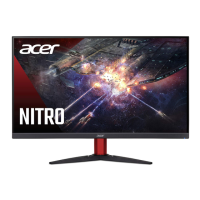
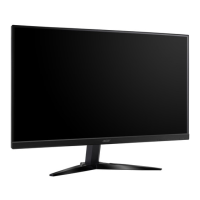
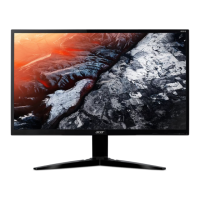
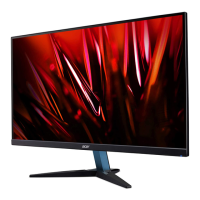
This document is a user guide for an Acer LCD Monitor, providing essential information for safe operation, comfort, and maintenance. It covers various aspects from initial setup to troubleshooting, ensuring users can maximize their monitor's performance and longevity.
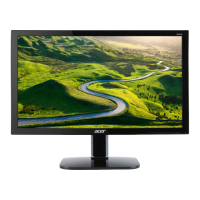
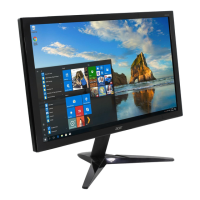
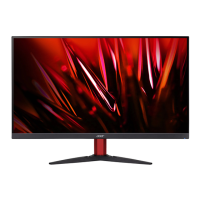
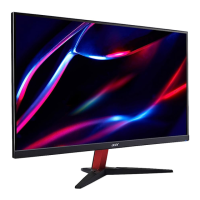
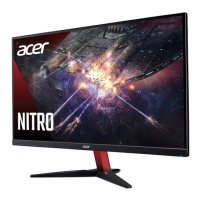
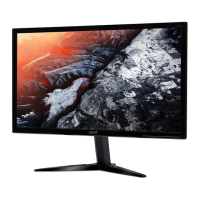
The Acer LCD Monitor is a display device designed to present visual information from a computer or other compatible sources. It supports various display resolutions and refresh rates, making it suitable for a range of applications from general computing to gaming. The monitor is equipped with multiple input options, including VGA and HDMI, allowing for flexible connectivity with different devices. It also incorporates power-saving features to reduce energy consumption when not in active use. The monitor's on-screen display (OSD) menu provides a comprehensive interface for adjusting picture quality, color settings, and system preferences, allowing users to customize their viewing experience.
The monitor offers several features to enhance user experience and comfort.
Upon unpacking, users should verify the presence of all components, including the LCD monitor, quick start guide, audio cable, VGA cable (optional), HDMI cable (optional), and AC power cord. The monitor base is designed for easy attachment; users are advised to carefully place the monitor face-down on a stable, cloth-covered surface to prevent scratching during installation.
For optimal viewing, the monitor's tilt can be adjusted. Users can hold the edges of the monitor with both hands to tilt it up to 15 degrees upward or 5 degrees downward, allowing for personalized ergonomic positioning.
The monitor supports both HDMI and VGA input signals. Users connect the appropriate signal cable from their computer's graphics card to the monitor's input socket. For audio output models, an audio cable can be connected from the computer's line-out port to the monitor's audio input. The monitor uses a universal power supply, compatible with both 100/120 V AC and 220/240 V AC voltage areas, with no user adjustment required. The power cord connects to an adapter, which then plugs into a properly grounded AC outlet.
The monitor features a "Power Saving" mode, indicated by an amber-colored power LED. This mode is activated by a control signal from the display controller, reducing energy consumption. The monitor recovers from this state and returns to active (blue LED) within approximately 3 seconds upon detecting a control signal or user input (keyboard/mouse activation).
The monitor supports the DDC2B standard, enabling plug-and-play functionality. This protocol allows the monitor to automatically communicate its capabilities, such as supported resolutions and timing, to the host system, simplifying installation.
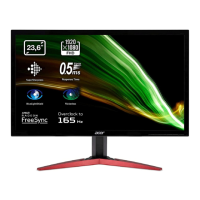
For users with FreeSync-supported graphics sources, this feature dynamically adjusts the display refresh rate based on content frame rates. This results in power-efficient, virtually stutter-free, and low-latency display updates, particularly beneficial for gaming.
The monitor's external controls include a power button and several function keys. The power button turns the monitor on/off, with a blue LED indicating power on and an amber LED for standby/power saving mode. The function keys provide quick access to various settings:
The OSD menu is accessed by pressing the MENU key. Users navigate through the menu using arrow keys and confirm selections. The OSD allows adjustments to:
The guide emphasizes the importance of comfortable computer use to prevent eyestrain, headaches, and musculoskeletal disorders. It provides tips for:
To maintain the monitor's appearance and functionality, users are advised to:
The manual strongly advises against attempting to service the product oneself, as opening covers can expose users to dangerous voltage points and other risks. All servicing should be referred to qualified service personnel. Specific instances requiring professional servicing include:
A troubleshooting section helps users self-diagnose common issues before seeking professional service. For example, if there is no picture visible and the LED status is blue, remedies include adjusting brightness/contrast via the OSD, checking the power switch, ensuring the AC power cord is connected, verifying the video signal cable connection, and confirming the computer system is on and not in power-saving mode.
Acer is committed to environmental protection, encouraging recycling of used equipment. Information on WEEE regulations and Acer's sustainability initiatives is provided, guiding users on proper disposal instructions to minimize pollution.
The guide includes comprehensive safety instructions, covering accessibility of power outlets, safe listening practices to protect hearing, and warnings against using the product near water, on unstable surfaces, or blocking ventilation openings. It also cautions against inserting objects into the product, spilling liquids, placing it on vibrating surfaces, or using it in environments with unexpected short currents. The use of the supplied power supply cord set is emphasized, with specifications for replacement cords.
Users are instructed to switch off the device in potentially explosive atmospheres, such as near depots, chemical plants, or during blasting operations, to prevent explosions or fires.
The device may contain small parts, which should be kept out of reach of small children.
This comprehensive guide ensures users have all the necessary information to safely and effectively use, maintain, and troubleshoot their Acer LCD Monitor, promoting both optimal performance and user well-being.
 General
| Screen Size | 23.6 inches |
|---|---|
| Resolution | 1920 x 1080 (Full HD) |
| Refresh Rate | 75 Hz |
| Response Time | 1 ms |
| Panel Type | TN |
| Aspect Ratio | 16:9 |
| Brightness | 300 cd/m² |
| Contrast Ratio | 1000:1 |
| Viewing Angle | 170° (H) / 160° (V) |
| Color Support | 16.7 million colors |
| VESA Mount | 100 x 100 mm |
| Tilt | -5° to 15° |
| Input Ports | HDMI, VGA |
| Ports | 1 x HDMI, 1 x VGA |

 To Next Page