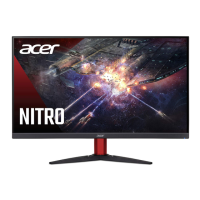
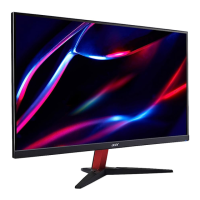
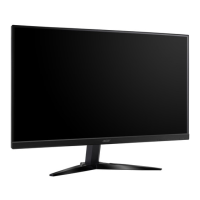
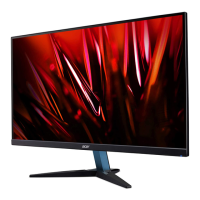
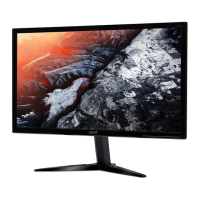
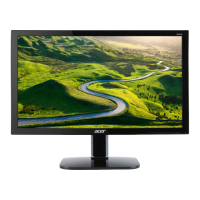
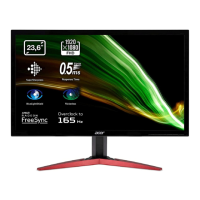
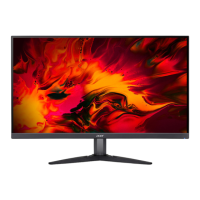
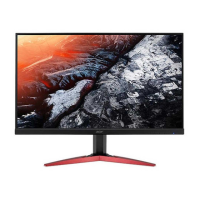
This document is a user guide for an Acer LCD Monitor, providing comprehensive information on its safe use, setup, operation, and troubleshooting. It emphasizes user comfort and environmental responsibility, ensuring a positive and sustainable experience with the device.
The primary function of the Acer LCD Monitor is to provide video and visual display of information from electronic devices. It is designed for general computing and gaming purposes, offering various features to enhance the visual experience and user comfort.
Usage Features:
The monitor offers a range of features to optimize display and user interaction:
- Screen Position Adjustment: Users can adjust the tilt of the monitor to achieve the best viewing position. The monitor base is designed for easy attachment, and the tilt range allows for an elevation angle of up to 15 degrees.
- Power Management: The monitor supports power-saving modes, indicated by an amber-colored power LED. It enters "Power Saving" mode when a control signal from the display controller is detected and recovers to "ON" state within approximately 3 seconds when a control signal is detected or the keyboard/mouse is activated.
- Display Data Channel (DDC): The monitor is plug-and-play compatible, supporting the DDC2B standard. This protocol allows the monitor to automatically communicate its capabilities, such as supported resolutions and timing, to the host system, simplifying installation.
- Input Connectivity: The monitor supports multiple input options, including HDMI and DisplayPort (DP), allowing connection to various electronic devices.
- User Controls (OSD Menu): The monitor features an On-Screen Display (OSD) menu, accessible via a joystick-like toggle button on the backside of the display bezel. This menu provides extensive control over display settings:
- Main Page: Offers quick access to the Menu OSD, Hot Key1 (Modes, Brightness, Gamma, Contrast, Blue Light, Over Drive, VRB), Hot Key2 (Modes, Brightness, Gamma, Contrast, Blue Light, Over Drive, VRB), and Input selection.
- Hot Key1 (Default: Standard Mode): Allows selection of game modes (G1, G2, G3) or scenario modes (User, Standard, ECO, Graphics, Movie).
- Hot Key2 (Default: Brightness): Provides direct control over screen brightness, adjustable from 0 to 100.
- Input Selection: Enables users to choose between HDMI 1, HDMI 2, DP, or Auto Source inputs.
- Picture Settings:
- Brightness: Adjusts the balance between light and dark shades (0-100).
- Contrast: Sets the degree of difference between light and dark areas (0-100).
- Black Boost: Enhances shadows by increasing brightness without affecting lighter shades (0-10).
- Blue Light: Filters out blue light to protect eyes, with adjustable levels (80%, 70%, 60%, 50%). A 50% setting is recommended for optimal eye protection and meets TÜV Rheinland's "Low Blue Light Content" standard.
- ACM (Adaptive Contrast Management): Dynamically adjusts contrast based on the current screen content.
- HDR (High Dynamic Range): Can be set to Off or Auto. When set to Auto, it automatically detects and processes HDR signals. Note that when HDR is Auto, some parameters (ACM, Gamma, Contrast, Blue Light, Black Boost) are disabled, and the "Modes" setting defaults to "HDR".
- Super Sharpness: Enhances image clarity by boosting the pixel density of the original source.
- Color Settings:
- Gamma: Adjusts luminance tone (default 2.2).
- Color Temperature: Offers options like Cool, Normal, Warm, Bluelight, or User-defined.
- Modes: Allows selection of scenario modes.
- Grayscale Mode: Enables grayscale display.
- sRGB: Toggles sRGB mode for better color matching with peripheral devices.
- 6-axis Hue: Adjusts the hue of red, green, blue, yellow, magenta, and cyan.
- 6-axis Saturate: Adjusts the saturation of red, green, blue, yellow, magenta, and cyan.
- Audio Settings:
- Volume: Adjusts audio output level.
- Mute: Toggles audio mute on/off.
- Gaming Settings:
- Over Drive: Controls pixel response time (Off, Normal, Extreme).
- AMD FreeSync Premium: Toggles support for AMD FreeSync Premium (default On). If FreeSync Premium is ON, Over Drive is automatically set to "Normal". If OFF, users can manually select Over Drive settings.
- VRB (Visual Response Boost): Supports dynamic picture control for cleaner images (default Off). Note that VRB is not supported with HDR "Auto" setting, and if VRB is "On" while AMD FreeSync Premium is enabled, VRB will automatically turn "Off". Adjusting Brightness, Blue Light, or ACM also turns VRB "Off". VRB does not affect the brightness of the Logo, Aim Point, Message, and Input Icon. VRB automatically turns "Off" and grays out if the input timing is less than 75Hz. VRB (Normal or Extreme) darkens the overall brightness.
- Refresh Rate Num: Displays the panel's current refresh rate.
- Ultra-Low Latency: Speeds up display switching processing time (On/Off). If AMD FreeSync Premium is On, Ultra-Low Latency is automatically set to On and unavailable for adjustment. Not supported at resolutions below 800x600.
- Aim Point: Displays an aim point on the screen for shooting games.
- OSD Settings:
- Language: Sets the OSD menu language.
- OSD Timeout: Adjusts the delay before the OSD menu turns off.
- Transparency: Sets the transparency of the OSD menu in gaming mode (0%, 20%, 40%, 60%, 80%).
- OSD Lock: Locks/unlocks the OSD menu to prevent accidental changes. When locked, an "OSD Locked" message appears, and LED lights change from blue to orange. To unlock, press the "Navi Key" in the middle for more than 3 seconds.
- System Settings:
- Input: Selects the source from HDMI1, HDMI2, DP.
- Auto Source: Automatically searches for signal sources (default On). Must be Off for surround applications.
- Wide Mode: Selects screen aspect ratio (Aspect, 1:1, Full).
- Hot Key Assignment: Assigns functions to shortcut keys 1 and 2 (Modes, Volume, Brightness, Gamma, Contrast, Blue Light, Over Drive).
- DDC/CI: Allows monitor settings to be controlled via software on the PC.
- HDMI Black Level: Sets the HDMI black level.
- Quick Start Mode: Speeds up boot time (On/Off).
- Save Settings: Allows users to save their preferred settings into three user-defined profiles for future recall.
Maintenance Features:
The user guide provides clear instructions for maintaining the monitor:
- Cleaning:
- Always unplug the monitor before cleaning.
- Use a soft cloth to wipe the screen and cabinet front and sides.
- Troubleshooting: A dedicated section helps users self-diagnose common issues before seeking service. It covers problems like "No picture visible" and suggests remedies based on LED status (Blue, Off, Amber), including adjusting brightness/contrast, checking power connections, and verifying video signal cables.
- Product Servicing: Users are advised not to attempt self-service due to potential risks. All servicing should be referred to qualified personnel, especially if the power cord is damaged, liquid has spilled, the product has been exposed to water, dropped, or exhibits a distinct change in performance.
- Environmental Responsibility: Acer is committed to environmental protection and recycling. The guide provides links to Acer's sustainability website for information on IT equipment recycling and disposal instructions, emphasizing the importance of recycling electronic devices to minimize pollution.
The guide includes important information for user safety and comfort:
- General Safety Instructions: Emphasizes reading and following all warnings and instructions marked on the product.
- Special Notes on LCD Monitors: Explains normal LCD monitor characteristics that are not indicative of a problem, such as slight flickering during initial use, uneven brightness, presence of effective pixels (99.99% or more), and afterimages from prolonged display of the same image.
- Accessibility: Highlights that the power outlet should be easily accessible for disconnecting power.
- Safe Listening: Advises users to gradually increase volume, take breaks, and avoid prolonged exposure to loud volumes.
- Warnings: Includes critical warnings regarding:
- Water Exposure: Do not use near water.
- Ventilation: Ensure proper ventilation and avoid blocking openings.
- Object/Liquid Entry: Prevent objects or liquids from entering the product.
- Battery Leakage: Avoid damage to internal components and battery leakage.
- Vibrating Surface: Do not place on a vibrating surface.
- Physical Injury: Avoid using the product if it has been dropped or damaged.
- Using Electrical Power: Provides guidelines for power cord usage, including checking the correct cord type, using UL-listed or VDE-approved cords, and ensuring proper grounding to prevent electric shock. It also warns against overloading power outlets or strips.
- Potentially Explosive Environments: Instructs users to switch off the device in areas with potentially explosive atmospheres, such as near fuel depots, chemical plants, or during blasting operations.
- Additional Safety Information: Advises keeping small parts out of reach of children.
- Tips and Information for Comfortable Use: Offers advice to prevent eyestrain, headaches, and musculoskeletal disorders, including:
- Eye Care: Resting eyes frequently, looking away from the monitor, blinking often, and avoiding bright light sources.
- Display Adjustments: Keeping the display clean, positioning the head higher than the display's top edge, adjusting brightness/contrast, and eliminating glare/reflections using drapes, task lights, or glare-reduction filters.
- Good Work Habits: Taking short breaks, performing stretching exercises, breathing fresh air, and exercising regularly.
This comprehensive guide ensures users can effectively set up, operate, and maintain their Acer LCD Monitor while prioritizing safety, comfort, and environmental responsibility.

 Need help?
 General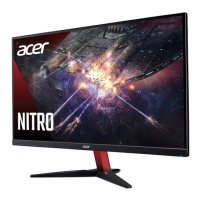

 To Next Page