2 Entering data in your Acer n30
Recording a message
22
Recording a message
In any program where you can write or draw on the screen, you can also quickly
capture thoughts, reminders, and phone numbers by recording a message.
• In Calendar, Tasks, and Contacts, you can include a recording in the Notes
tab.
• In Notes, you can either create a stand-alone recording or include a recording
in a written note. If you want to include the recording in a note, open the
note first.
• In Inbox, you can add a recording to an email message.
To create a recording
1 Hold your handheld's microphone near your mouth or other source of sound.
NOTE: Refer to "Top view" on page 5 for the location of your handheld’s microphone.
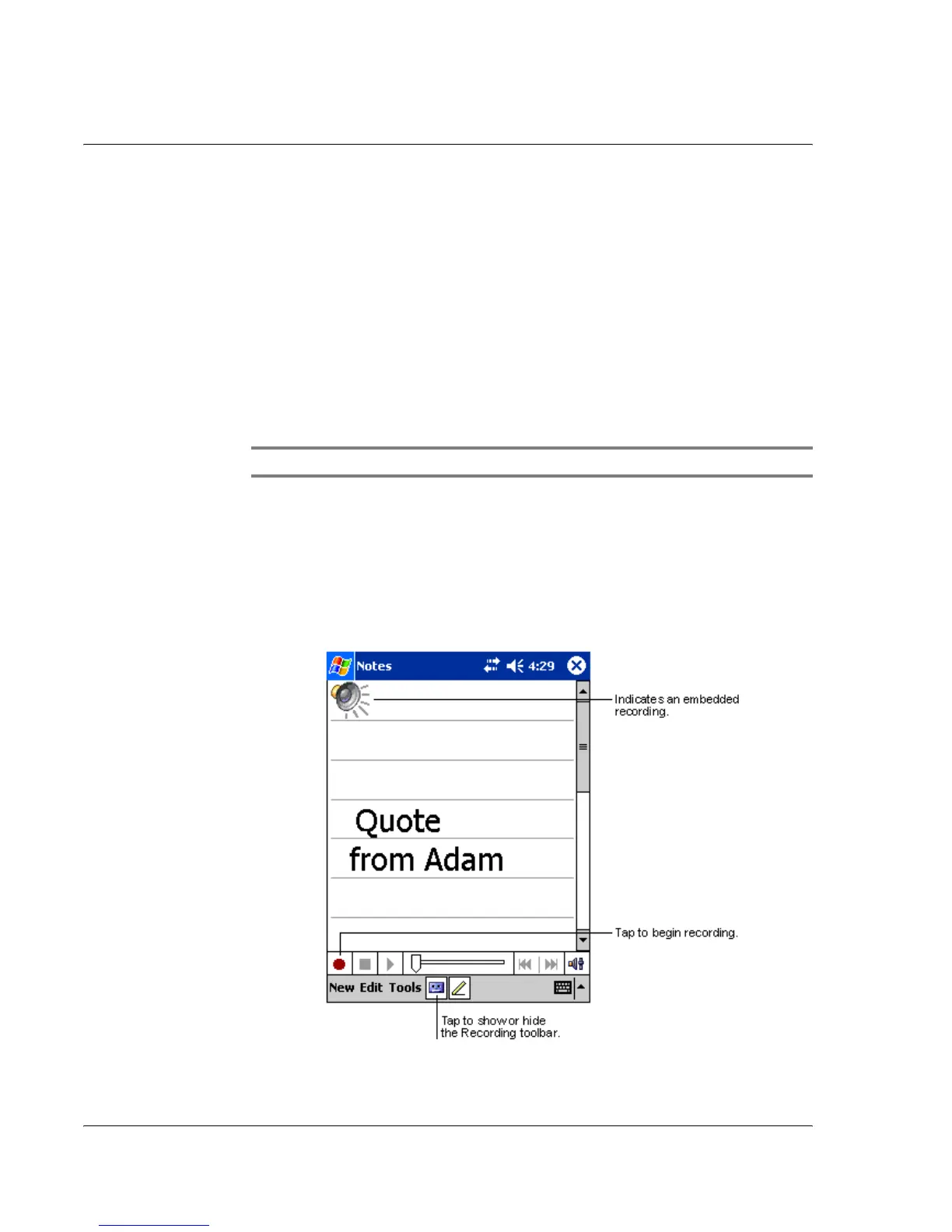
2 Start recording by tapping the Record button on the Recording toolbar.
3 Make your recording.
4 To stop recording: Tap the Stop button on the Recording toolbar.
The new recording appears in the note list or as an embedded icon.
To play a recording
• Tap it in the list or tap its icon in the note.


 To Next Page