EasyManua.ls Logo

Acer P5271 Series - User Manual

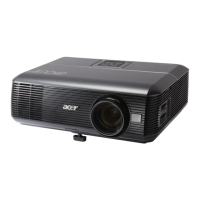
Acer P5271 Series
71 pages
Print Icon
To Next Page IconTo Next Page
Loading...
Acer Projector
P5271/P5271i/P5271n/P5390W/
P5290 Series
User's Guide

Questions and Answers

  • M
    michael14Sep 23, 2025
    Why is my Acer Projector image stretched?
    • M
      molly24Sep 23, 2025
      When you play a DVD encoded in anamorphic or 16:9 aspect ratio on your Acer Projector, you may need to adjust the following settings: * If you play a 4:3 format DVD title, change the format to 4:3 in the projector OSD. * If the image is still stretched, adjust the aspect ratio. Set up the display format to 16:9 (wide) aspect ratio on your DVD player.
  • M
    Mr. Kevin Torres MDAug 25, 2025
    Why is my notebook screen not displaying on Acer P5271 Projector?
    • B
      Brandon JensenAug 25, 2025
      If you are using a Microsoft® Windows® based notebook, some PCs may deactivate their own screens when a second display device is in use. Refer to your computer's manual for details on how to reactivate it. If you are using an Apple® Mac® OS based notebook, open Display in System Preferences and select Video Mirroring "On".
  • S
    Shawn HudsonAug 25, 2025
    How do I flip the image on my Acer Projector?
    • C
      Carmen SwansonAug 26, 2025
      Select "Image --> Projection" on the OSD of your Acer Projector and adjust the projection direction.
  • E
    Erin BeckAug 27, 2025
    How to adjust focus on Acer Projector?
    • M
      Michelle BerryAug 27, 2025
      If the image from your Acer Projector is out of focus, first ensure that the lens cap is removed. Then, adjust the focus ring on the projector lens. Also, make sure the projection screen is within the required distance: 4.9 to 32.4 feet (1.5 to 9.9 meters) for P5271/P5271i/P5271n/P5290 models, or 4.9 to 27.6 feet (1.5 to 8.4 meters) for P5390W models.
  • C
    Christine SampsonAug 27, 2025
    Why is my Acer P5271 not displaying my notebook screen?
    • M
      michaelmillsAug 27, 2025
      If the screen of your notebook computer is not displaying your presentation through the Acer Projector, and you are using a Microsoft® Windows® based notebook, your notebook PC may deactivate its own screen when a second display device is in use. Refer to your computer's manual for detailed information on how to reactivate it. If you are using an Apple® Mac® OS based notebook, open Display in System Preferences and select Video Mirroring "On".
  • C
    Christopher WalkerSep 16, 2025
    Why does my Acer P5271 Projector lamp make a popping sound?
    • B
      Brittany JensenSep 16, 2025
      When the lamp in your Acer Projector reaches the end of its useful life, it will burn out and may make a loud popping sound. If this happens, the projector will not turn on until the lamp module has been replaced. Follow the procedures in the "Replacing the Lamp" section to replace the lamp.
  • J
    Jose PriceSep 12, 2025
    How to flip image on Acer P5271?
    • D
      Daniel FrazierSep 13, 2025
      If the image from your Acer Projector is reversed, select "Image --> Projection" on the OSD and adjust the projection direction.
  • D
    Deanna DavisSep 15, 2025
    How to fix scrolling image on Acer P5271 Projector?
    • C
      Christopher VegaSep 15, 2025
      If you are experiencing a partial, scrolling, or incorrectly displayed image with your Acer Projector when using notebooks, try the following: * Press "RESYNC" on the remote control or control panel. * Follow the steps for item 2 (above) to adjust the resolution of your computer. * Press the toggle output settings. Example: [Fn]+[F4], Compaq [Fn]+[F4], Dell [Fn]+[F8], Gateway [Fn]+[F4], IBM [Fn]+[F7], HP [Fn]+[F4], NEC [Fn]+[F3], Toshiba [Fn]+[F5 ]. * If you experience difficulty changing resolutions or your monitor freezes, restart all equipment including the projector.
  • J
    John KirbySep 5, 2025
    How to remove vertical flickering bar from Acer Projector image?
    • J
      Jeremy DavisSep 5, 2025
      Use the "Frequency" setting to make an adjustment. Refer to the "Image" section for more information. Additionally, check and reconfigure the display mode of your graphics card to ensure it is compatible with the Acer Projector.
  • M
    Michelle ReeseSep 3, 2025
    How to correct slanted image sides on Acer P5271 Projector?
    • L
      Laura JacksonSep 3, 2025
      If possible, reposition the Acer Projector so that it is centered on the screen. Alternatively, press the "Keystone / " button on the OSD or the remote control until the sides are vertical.

Acer P5271 Series Specifications

General IconGeneral
Native ResolutionXGA (1024 x 768)
Display TechnologyDLP
Brightness4000 lumens
Aspect Ratio4:3
Projection Lensf = 21.8 mm ~ 24 mm
Zoom Ratio1.1x
Throw Ratio1.95 ~ 2.15 (50"@2m)
Keystone Correction+/-40 Degrees (Vertical)
Output InterfaceVGA
Projection Size30" to 300"
Lamp Life5000 hours (Eco)

Related product manuals