EasyManua.ls Logo

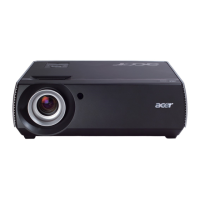
Acer P7270/ series - User Manual

Acer P7270/ series
62 pages
Print Icon
To Next Page IconTo Next Page
Loading...
Acer Projector
P7270/P7270i/P7280/P7280i/
P7290 Series
User's Guide
Downloaded From projector-manual.com Acer Manuals

Questions and Answers

  • P
    Paul GrantAug 17, 2025
    How to fix Acer Projector when no image appears on screen?
    • E
      Edward FieldsAug 17, 2025
      If no image appears on the screen of your Acer Projector, ensure the connections are correct as described in the "Getting Started" section, and that none of the connector pins are bent or broken. Also, check if the projector lamp is securely installed. Make sure you have removed the lens cap and that the projector is switched on.
  • J
    Jesse WhiteheadAug 20, 2025
    How to adjust Acer P7270 screen size?
    • A
      Andrew MackAug 20, 2025
      If the image from your Acer Projector is too small or too large, try the following: * Adjust the zoom lever on the top of the projector. * Move the projector closer to or further from the screen. * Press "MENU" on the remote control or on the control panel, go to "Image setting --> Aspect Ratio" and try different settings.
  • M
    Michelle BrooksAug 22, 2025
    How to correct slanted sides on Acer P7270 Projector image?
    • P
      Philip EvansAug 22, 2025
      If the image from your Acer Projector has slanted sides: * If possible, reposition the projector so that it is centered on the screen. * Press the "Keystone / / / " on the OSD or the remote control until the sides are vertical.
  • J
    James PooleAug 26, 2025
    How to fix Acer Projector image when it is unstable or flickering?
    • P
      Paul BrownAug 26, 2025
      If the image from your Acer Projector is unstable or flickering: * Adjust the "Tracking" to correct it. * Change the display color depth settings on your computer.
  • C
    Christopher GarzaAug 28, 2025
    How to eliminate vertical flickering bar on Acer P7270 image?
    • M
      Marissa KellyAug 28, 2025
      If the image from your Acer Projector has a vertical flickering bar: * Use "Frequency" to make an adjustment. * Check and reconfigure the display mode of your graphics card to make it compatible with the projector.
  • A
    albert24Aug 30, 2025
    What to do if Acer P7270 Projector image is partial, scrolling, or incorrectly displayed on PC?
    • E
      Erika BooneAug 31, 2025
      If you are seeing a partial, scrolling, or incorrectly displayed image on your Acer Projector (connected to a PC): * Press "RESYNC" on the remote control or control panel. * Verify that your display resolution setting is lower than or equal to UXGA (1600 x 1200). * If the problem still appears, change the monitor display you are using and follow the steps below: * Verify that the resolution setting is lower than or equal to UXGA (1600 x 1200). * Click "Show all devices". Next, select "Standard monitor types" under the SP box, and choose the resolution mode you need under the "Models" box. * Verify that the resolution setting of the monitor display is lower than or equal to UXGA (1600 x 1200).
  • S
    Suzanne Owen MDSep 2, 2025
    What to do if Acer Projector image is partial, scrolling, or incorrectly displayed on notebooks?
    • J
      Jessica BerrySep 2, 2025
      If you are seeing a partial, scrolling, or incorrectly displayed image on your Acer Projector (connected to a notebook): * Press "RESYNC" on the remote control or control panel. * Follow the steps for PC to adjust the resolution of your computer. * Press the toggle output settings. Example: [Fn]+[F4], Compaq [Fn]+[F4], Dell [Fn]+[F8], Gateway [Fn]+[F4], IBM [Fn]+[F7], HP [Fn]+[F4], NEC [Fn]+[F3], Toshiba [Fn]+[F5 ] * If you experience difficulty changing resolutions or your monitor freezes, restart all equipment including the projector.
  • F
    flemingrobertSep 5, 2025
    What to do if notebook screen isn't displaying presentation on Acer Projector?
    • D
      danielwhiteSep 5, 2025
      If the screen of your notebook computer is not displaying your presentation when connected to your Acer Projector: * If you are using a Microsoft® Windows® based notebook: Some notebook PCs may deactivate their own screens when a second display device is in use. Each has a different way to be reactivated. Refer to your computer's manual for detailed information. * If you are using an Apple® Mac® OS based notebook: In System Preferences, open Display and select Video Mirroring "On".
  • D
    David LopezSep 7, 2025
    What to do if Acer P7270 Projector stops responding to controls?
    • L
      Lori ToddSep 8, 2025
      If your Acer Projector stops responding to all controls, turn off the projector, unplug the power cord, and wait at least 30 seconds before reconnecting the power.
  • D
    Dawn WoodSep 12, 2025
    How to correct a reversed image on Acer P7270?
    • M
      melodypachecoSep 12, 2025
      If the image on your Acer Projector is reversed, select "Image --> Projection" on the OSD and adjust the projection direction.

Acer P7270/ series Specifications

General IconGeneral
Native ResolutionXGA (1024 x 768)
Contrast Ratio2000:1
Display TechnologyDLP
Lamp Life2000 Hour(s) (Standard), 3000 Hour(s) (Economy Mode)
Weight6.8 kg
Brightness4000 lumens
Projection Size30" to 300"
Input ConnectorsS-Video, Composite

Related product manuals