3-2 Adjusting the Monitor
Selecting page and making adjustments
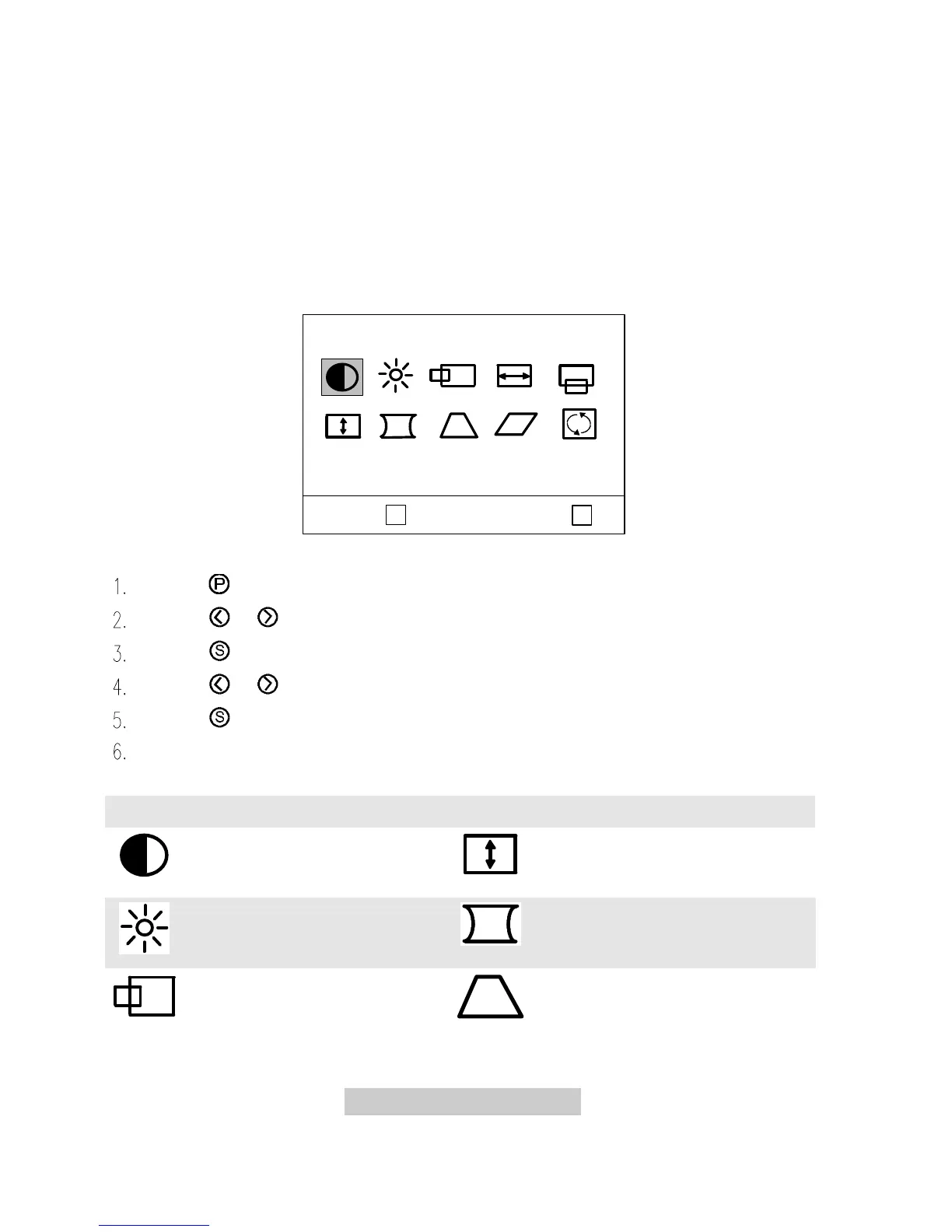
Grouped by functions, the OSD offers three pages for making adjustments: Display
Control, Degaussing and Color Weighting, and User Mode display. Following
describes the contents of each page and how you can make adjustments.
Page 1 Display control
This page contains 10 control functions represented by different icons. Follow steps
below to make your favorite adjustments. For description of each function, see
below.
< P2 > : P
Select :
s
< P1 >
Contrast
Press to locate the page.
Press or to locate the desired function icon.
Press to select the icon.
Press or to adjust the setting.
Press to save the setting.
Repeat the steps above to change other settings.
Function Icons
Contrast adjusts the
difference between the light
and dark areas.
V. Size adjusts the vertical
display height.
Brightness adjusts the
brightness of the display.
Pincushion controls the
straightness of the vertical edges
of the display.
H. Position adjusts the
horizontal position of the
display.
Trapezoid makes the vertical
edges of the display parallel.



 To Next Page