ENGLISH
SOPROCARE • User’s manual
17
CONNECTING TO A VIDEO SCREEN
6.1. CONNECTION OF DOCK M_USB2 OR DOCK M_VIDEO
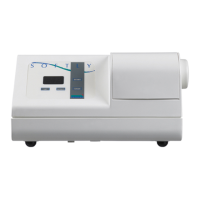
• Connect the video cable (preferably Y/C “S-video”) between the connection box and the monitor video input
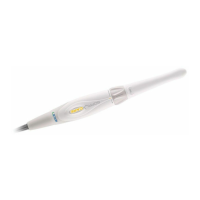
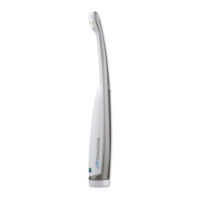
• Connect the connecting cable between the connection box and the handpiece.
• If you prefer using a footswitch rather than SoproTouch to
freeze the image, you just have to connect the footswitch
(optional) to the connection box. With this confi guration, SoproTouch
is inhibited.
• Connect the power supply to the outlet, and then to the connection box (the green indicator light should be on).
• Only use the power supply provided with the connection box.
6.2. CONNECTION OF DOCK MU_USB2 OR DOCK MU_VIDEO
• Please refer to DOCK MU_USB2/DOCK MU_VIDEO integration manual for its connections.
• Connect the connecting cable to the handpiece.
• Connect the video cable (preferably Y/C “S-video”) between the connection box and the monitor video input.
6.3. OPERATION OF SOPROTOUCH IMAGE FREEZE ON CAMERA
• When powering on, the camera automatically selects the one-image mode.



 To Next Page