Hardware Manual
75
This way, a User may have full access to a Workspace, while having limited Read-Only access
to another Workspace. Therefore, you can create flexible structures that allow you to delegate
access based on your exact needs.
Note that you cannot assign a User more than 1 Role per Workspace. If you need to do so, you
might need to create a Custom Role (see next section).
Custom Roles
NOTE: This feature is for Enterprise account only.
If you need to provide a User with customized Permissions, then you need to create a Custom
Role.
IMPORTANT: Keep in mind that if a new feature with a new permission is added, then your
Custom Roles will not have this new permission.
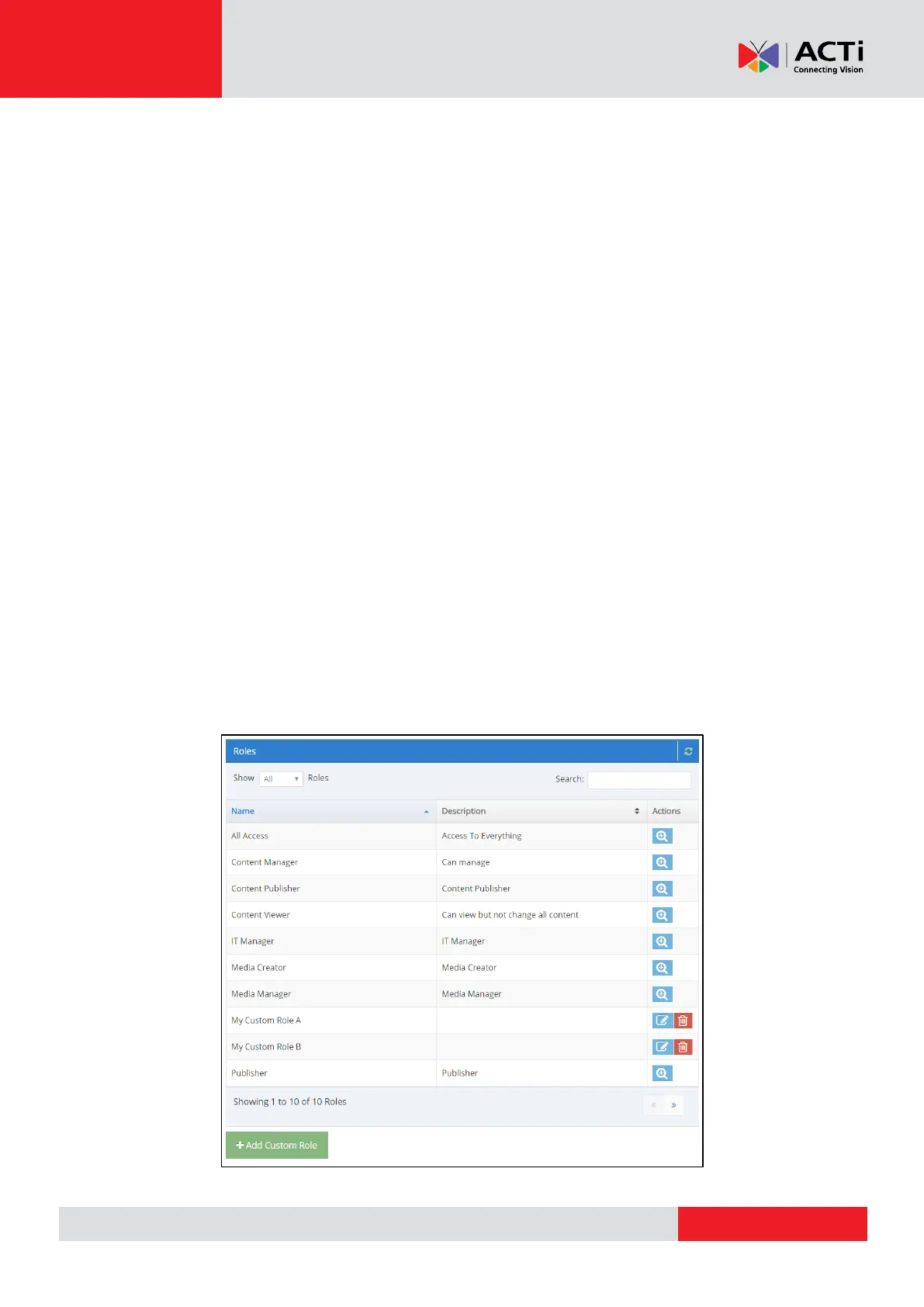
To access the Role Management screen:
1. Go to the “Users” section, accessible from the top-menu of the user interface.
2. Click “+User”
3. In the “Workspace Permissions” section, click the “Add” button.
4. In the pop-up window that appears, click on the “Manage Roles” link.
In this section you can see all the Standard Roles as well as the Custom Roes that you have
created.



 To Next Page