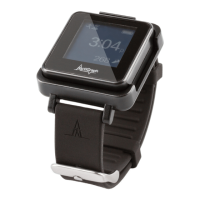
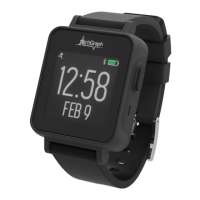
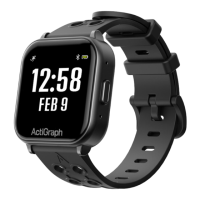
Participants are instructed to bring the LEAP with them to every site visit, during which sites can upload activity data and
review wear compliance.
2.
Verify that ActiSync is running on the PC by checking for small icon in the taskbar.
Connect the charger to the computer using the provided USB cable and place the LEAP on the charger. The ActiSync
icon will turn yellow and the data will begin to upload automatically to the system.
4.
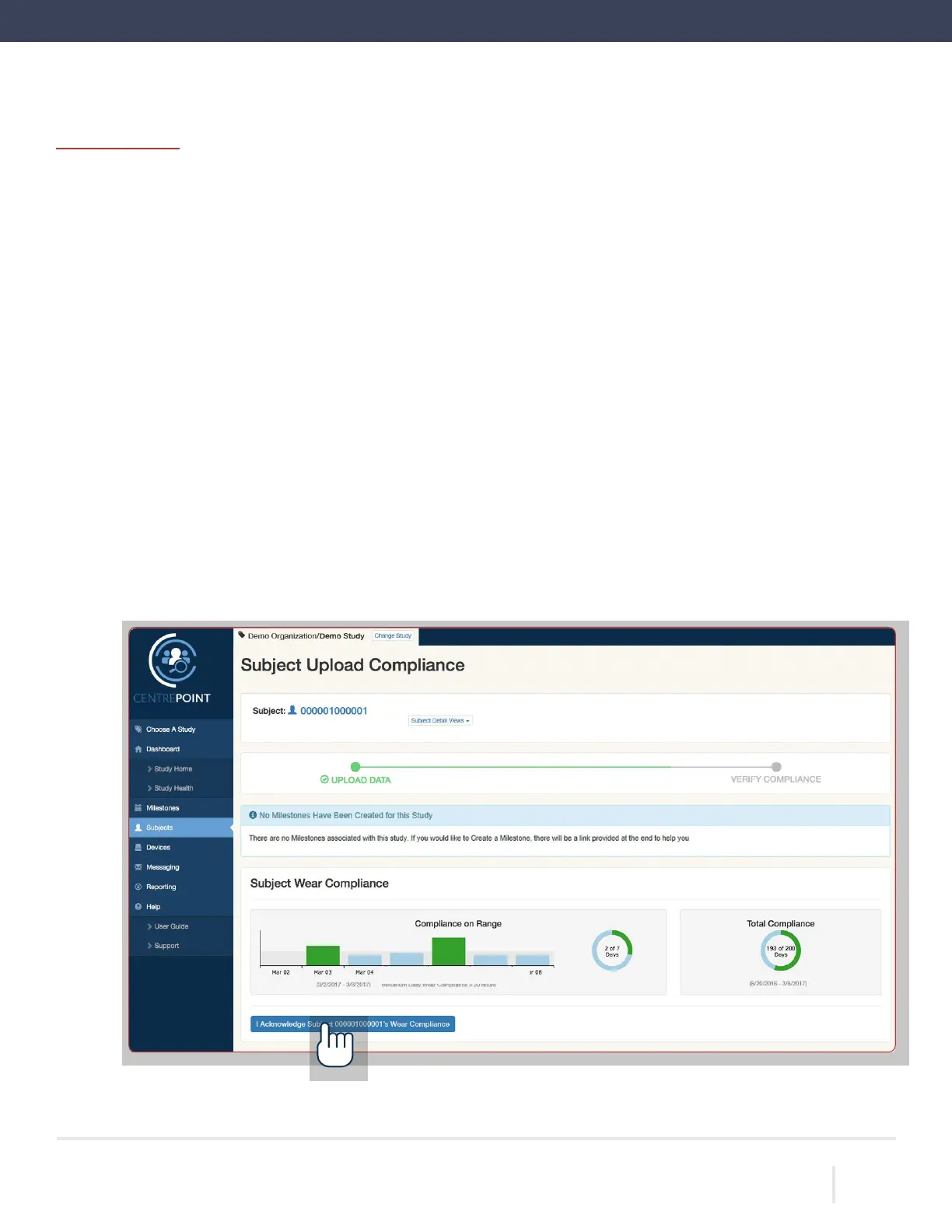
Once the upload is complete, a browser window will open to display the
“Subject Upload Compliance”
page.
Enter your CentrePoint login information.
Following an ActiSync upload, you will be prompted to acknowledge wear compliance. Please note wear compliance
results may take up to 1-2 hours to be processed by CentrePoint. For this study, a day is consider compliant if the
LEAP was worn for at least 80% of the time in a 24 hour period. If the wear compliance summary does not appear, we
ask that you still select “I Acknowledge Wear Compliance.”
Remove the LEAP from the charger, and return it to the participant for continued monitoring.
ACTIGRAPH LEAP™ | E.200.6025 | RELEASED: 10/09/2023 | REV: 0
THEACTIGRAPH.COM


 To Next Page