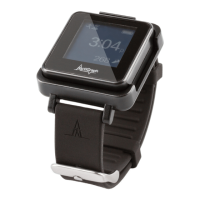
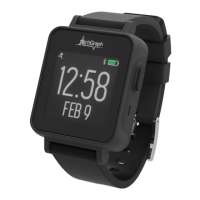
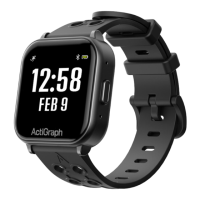
At the Final Visit, the LEAP will be uploaded and unassigned from the participant. Sites will then collect
the LEAP(s), charging docks, and all accessories and return them to inventory.
Final data upload and LEAP unassignment
Verify that ActiSync is running on the PC by checking for small icon in the taskbar.
Connect the charger to the computer using the provided USB cable and place the LEAP on the charger. The ActiSync
icon will turn yellow and the data will upload automatically to the system.
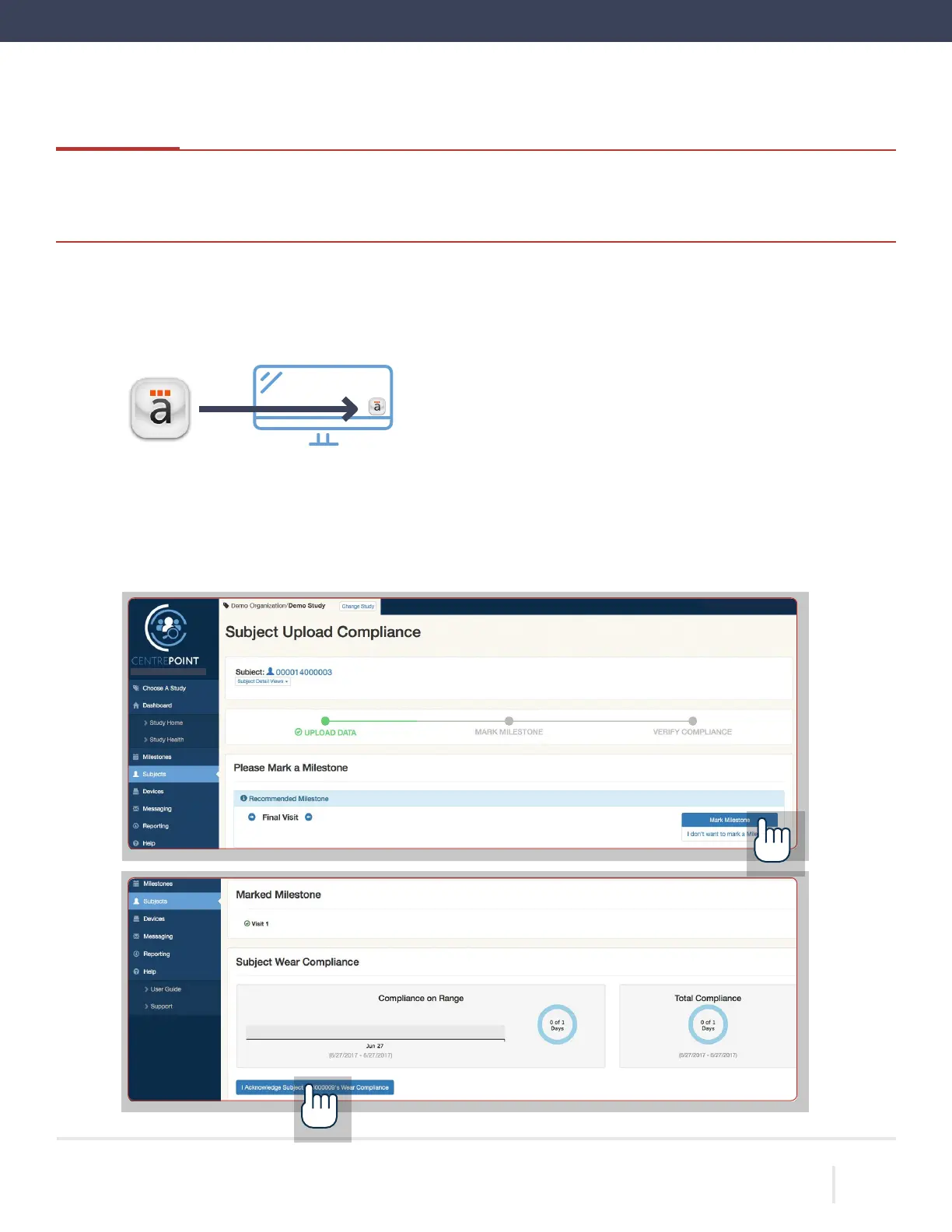
Once the upload is complete, a browser window will open to display the “Subject Upload Compliance” page. Mark the
corresponding milestone and select “I Acknowledge Subject’s Wear Compliance.”
ACTIGRAPH LEAP™ | E.200.6025 | RELEASED: 10/09/2023 | REV: 0
THEACTIGRAPH.COM


 To Next Page