EasyManua.ls Logo

AcuRite 592TXR - User Manual

AcuRite 592TXR
22 pages
Print Icon
To Next Page IconTo Next Page
Loading...
Instruction Manual
Temperature & Humidity Sensor
model 06002 / 592TXR
Printed in China
06002M INST 082516
It’s More than Accurate, it’s
AcuRite offers an extensive assortment of precision instruments,
designed to provide you with information you can depend on to
Plan your day with confidence
.
www.AcuRite.com
Weather
Stations
Temperature
& Humidity
Weather
Alert Radio
Kitchen
Thermometers
& Timers
Clocks
Features & Benets
4
3
2
1
5
SENSOR
1. Integrated Hanger
For easy placement.
2. Wireless Signal Indicator
Flashes when data is being
wirelessly transmitted.
3. Battery Compartment
4. A-B-C Switch
5. Battery Compartment Cover
SETUP
Set the A-B-C Switch
The A-B-C switch is located inside
the battery compartment. It can be
set to A, B or C.
NOTE:
If being used with a
companion product that has an
A-B-C channel, you must select the
same letter choice for both the
sensor and the product it is being
paired with in order for the units to
synchronize.
Install or Replace Batteries
AcuRite recommends high quality
alkaline or lithium batteries in
the sensor for the best product
performance. Heavy duty or
rechargeable batteries are not
recommended.
Sensor Setup
FCC Information
This device complies with part 15 of FCC rules. Operation is subject to the following two conditions:
1- This device may NOT cause harmful interference, and
2- This device must accept any interference received, including interference that may cause undesired operation.
WARNING: Changes or modications to this unit not expressly approved by the party responsible for compliance could void the
user’s authority to operate the equipment.
NOTE: This equipment has been tested and found to comply with the limits for a Class B digital device, pursuant to Part 15 of the FCC
rules. These limits are designed to provide reasonable protection against harmful interference in a residential installation. This equip
-
ment generates, uses and can radiate radio frequency energy and, if not installed and used in accordance with the instructions, may
cause harmful interference to radio communications. However, there is no guarantee that interference will not occur in a particular
installation. If this equipment does cause harmful interference to radio or television reception, which can be determined by turning
the equipment off and on, the user is encouraged to try to correct the interference by one or more of the following measures:
• Reorient or relocate the receiving antenna.
• Increase the separation between the equipment and the receiver.
• Connect the equipment into an outlet on a circuit different from that to which the receiver is connected.
• Consult the dealer or an experienced radio/TV technician for help.
NOTE: The manufacturer is not responsible for any radio or TV interference caused by unauthorized modications to this equipment.
Such modications could void the user authority to operate the equipment.
This device complies with Industry Canada licence-exempt RSS standard(s).
Operation is subject to the following two conditions:
(1) This device may not cause interference, and
(2) This device must accept any interference received, including interference that may cause undesired operation of the device.
©Chaney Instrument Co. All rights reserved. AcuRite is a registered trademark of the
Chaney Instrument Co., Lake Geneva, WI 53147. All other trademarks and copyrights
are the property of their respective owners. AcuRite uses patented technology.
Visit www.AcuRite.com/patents for details.
1
2
The sensor requires lithium
batteries in low temperature
conditions. Cold temperatures
can cause alkaline batteries
to function improperly. Use
lithium batteries in the sensor for
temperatures below -4ºF / -20ºC.
1. Slide off the battery
compartment cover.
2. Insert 2 x AA batteries into
the battery compartment, as
shown. Follow the polarity
(+/-) diagram in the battery
compartment.
3. Replace the battery cover.

Questions and Answers

Summary

Features & Benefits

SENSOR

Details specific components of the sensor like hanger, indicator, and battery.

FCC Information

SETUP

Sensor Setup

Instructions for setting up the wireless sensor, including A-B-C switch and batteries.

Specifications

Customer Support

Product Registration

Limited 1-Year Warranty

Weather Overview Dashboard Features

Weather Overview Dashboard

Describes the main display screen and its various indicators and readings.

Unpacking and Package Contents

Indoor Overview Dashboard Features

Indoor Overview Dashboard

Explains indoor readings, daily records, and comfort recommendations.

All Locations Dashboard Features

All Locations Dashboard

Describes how to view data from multiple sensors or locations.

Display Unit Features

Display

Covers the physical components and buttons on the front and back of the display.

Display Setup Procedure

Settings and Placement

Settings

Instructions for initial display setup, including time zone, units, and dimming.

Display Placement

Guidelines for placing the display unit for optimal performance.

Expand System Options

Compatible Monitors

Lists compatible monitors and their ideal applications.

Monitor + Wired Sensor

Lists compatible wired sensors and their specific uses.

OPERATION

Using the Weather Station

Overview of navigating the weather station's main menu and functions.

Display Settings and Controls

Display

Adjusts display settings like brightness, contrast, tint, and backlight.

Monitors

Allows adding, removing, or renaming monitor locations.

Units

Changes measurement units for pressure and temperature.

Calibrate

Adjusts display or sensor readings for accuracy.

Factory Reset

Reverts the display to its original factory settings.

Weather Dashboard Information

Weather Forecast

Explains AcuRite's Self-Calibrating Forecasting technology.

Moon Phase

Describes the display of moon phases and their icons.

How-to-Dress Character

Details weather recommendations based on forecast, shown as character icons.

Message Display and Alerts

Messages

Explains how the display shows real-time weather information and alert messages.

Indoor Humidity Messages

Provides recommendations for high or low indoor humidity levels.

Indoor Dashboard Details

Humidity Level Indicator

Explains the humidity indicator meter and text readout.

Recommendations

Offers advice on opening/closing windows based on outdoor conditions.

Troubleshooting Common Issues

No reception

Solutions for when the wireless signal indicator shows no bars.

Temperature is showing dashes

Explains dashes indicate wireless interference and how to resolve.

Inaccurate forecast

Reasons for forecast inaccuracies and how to improve accuracy.

Inaccurate temperature or humidity

Troubleshooting steps for incorrect temperature or humidity readings.

Display screen not working

Basic check for power connection if the display screen is unresponsive.

Troubleshooting Sensor Issues

Sensor not recognized

Steps to resolve issues when a wireless sensor is not detected by the display.

Care & Maintenance

Display Care

Instructions for cleaning and maintaining the display unit.

Technical Specifications Summary

Overview

This document describes the AcuRite Temperature & Humidity Sensor, model 06002 / 592TXR, and the AcuRite High Resolution Weather Station Display, model 06027.

The AcuRite Temperature & Humidity Sensor (model 06002 / 592TXR) is a precision instrument designed to provide accurate temperature and humidity readings. It features an integrated hanger for easy placement, a wireless signal indicator that flashes during data transmission, a battery compartment, and an A-B-C switch for channel selection. The sensor is water-resistant and suitable for both indoor and outdoor use, though it's recommended to place it in an area protected from direct weather elements to extend its lifespan. For optimal performance, the sensor should be hung 4 to 8 feet above the ground in a permanently shaded area with good air circulation, away from direct sunlight and heat sources. It communicates wirelessly with a companion display unit, and for best results, it should be placed within 330 feet (100 meters) of the display, away from large metallic items, thick walls, metal surfaces, or other objects that might limit wireless communication. To prevent wireless interference, it should also be at least 3 feet (0.9 meters) away from electronic devices like TVs, computers, microwaves, and radios. The A-B-C switch inside the battery compartment allows for channel selection, which is crucial for synchronizing with a companion product that also has an A-B-C channel. High-quality alkaline or lithium batteries are recommended for the sensor, with lithium batteries being necessary for temperatures below -4°F / -20°C, as cold temperatures can cause alkaline batteries to function improperly. The battery compartment cover slides off for easy battery insertion, following the polarity diagram.

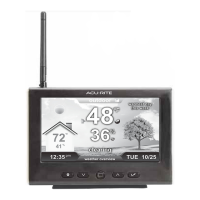
The AcuRite High Resolution Weather Station Display (model 06027) is a comprehensive weather station that requires at least one AcuRite Monitor or Sensor (sold separately) to be operational. It features a high-resolution display that provides a wealth of weather information and allows for extensive customization. The display includes a tabletop stand and a mounting bracket for versatile placement options. Before powering on the display, batteries for all external monitors and/or sensors should be installed to ensure synchronization. The display automatically enters setup mode upon first power-on, guiding the user through initial settings such as time zone, DST, clock, date, pressure units, temperature units, auto dim, auto cycle, indoor readings/how-to-dress character, and alert volume. The display can be placed in a dry, dirt-free, and dust-free area, and it stands upright for tabletop use or can be wall-mounted. For accurate temperature measurement, it should be kept out of direct sunlight and away from heat sources or vents. The display and any add-on monitors/sensors must be within 330 feet (100 meters) of each other for optimal wireless range. Similar to the sensor, it should be placed at least 3 feet (0.9 meters) away from electronic devices to prevent wireless interference.

The display offers several dashboards: The Weather Overview Dashboard presents real-time weather information and alert messages. It includes an alarm ON indicator, indoor conditions or a how-to-dress character (selectable during setup), a clock, current outdoor humidity with a trending arrow, weather forecast and indoor humidity messages, day of the week, date, weather forecast and current conditions (utilizing Self-Calibrating Forecasting), current indoor temperature with a trending arrow, general messages, and outdoor sensor signal strength. Self-Calibrating Forecasting uses a unique algorithm to analyze pressure changes over a 14-day "Learning Mode" period to determine altitude and provide a personalized, pinpoint-accurate forecast. For accurate precipitation forecasts, a weather-resistant monitor or sensor must be placed outdoors and labeled "OUTDOOR." The dashboard also displays moon phases between 7:00 p.m. and 5:59 a.m. when conditions allow. The How-to-Dress Character provides 22 different weather recommendations based on the forecast, appearing in place of indoor readings if selected.

The Indoor Overview Dashboard focuses on indoor conditions, featuring a humidity level indicator that shows high, low, or ideal comfort levels, along with a text readout. It also displays daily high and low temperature records, current indoor humidity with a trending arrow, daily high and low humidity records, and recommendations based on outdoor conditions. These recommendations, such as "Open Windows" or "Close Windows," are triggered by specific indoor and outdoor temperature and humidity ranges.

The All Locations Dashboard allows users to monitor conditions from multiple external monitors or sensors. For each location, it shows wireless signal strength, a low battery indicator, an alarm ON indicator, water detector readings (if applicable), a wired sensor indicator (if applicable), humidity readings, temperature readings, and a customizable location name.

The display's main menu, accessible via a dedicated button, provides access to various functions:

  • Records: View high and low values for each location by date and analyze trends on a graphic chart.
  • Alarms: Set and edit alarm values for different conditions.
  • Setup: Re-enter the initial setup process to adjust display settings.
  • Display: Adjust display settings such as brightness, contrast, tint, display mode (screen cycle), and backlight (auto dim). The auto dim mode automatically adjusts brightness based on the time of day and year.
  • Monitors: Add, remove, or rename monitor locations. The "OUTDOOR" label is crucial for forecast information.
  • Units: Change measurement units for barometric pressure (hPa, inHg) and temperature (°F, °C).
  • Calibrate: Adjust display or monitor/sensor data for temperature, humidity, and pressure.
  • Factory Reset: Revert the display back to factory defaults.

The display can be expanded to track additional conditions by using compatible monitors and sensors (optional, sold separately), allowing up to 3 monitors and sensors to observe conditions in additional locations within 330 feet (100 meters). Compatible monitors include Temperature & Humidity Monitors (model 00275 for outdoor applications, model 06002 for indoor/outdoor applications), Room Monitors (model 00276 for indoor applications), and Temperature & Humidity Sensors (model 06044 for indoor applications). Monitor + Wired Sensor options include Water Detectors (model 06010), Liquid & Soil Temperature Sensors (model 06011), and Spot Check Temperature & Humidity Sensors (model 06012), suitable for various applications like basement flooding, pool temperature, or monitoring hard-to-reach places.

Maintenance features for the display include cleaning with a soft, damp cloth, avoiding caustic cleaners or abrasives, and keeping it away from dust, dirt, and moisture. Regular cleaning of ventilation ports with a gentle puff of air is also recommended. Troubleshooting tips are provided for common issues such as no wireless reception, dashes in temperature readings, inaccurate forecasts, inaccurate temperature or humidity, and a non-working display screen. For sensor recognition issues, especially when using multiple sensors, it's important to ensure each sensor has a different A-B-C channel selected and to re-install batteries and power adapter after making adjustments. If problems persist, customer support can be contacted for assistance.

AcuRite 592TXR Specifications

General IconGeneral
Sensor TypeTemperature and Humidity Sensor
Temperature Range-40°F to 158°F (-40°C to 70°C)
Humidity Range1% to 99%
Battery TypeAA
DisplayNo
Wireless Frequency433 MHz
Wireless Range330 feet (100 meters)
Operating Temperature-40°F to 158°F (-20°C to 70°C)
Power SourceBattery
CompatibilityAcuRite weather stations

Related product manuals