ADOBE AUDITION 3.0
User Guide
109
Freeze effects and improve performance
After you apply effects to a track in Multitrack View, you can freeze them to conserve processing power, improving
system performance for complex mixes. When a track is frozen, you can’t edit effects, clips, or envelopes it contains.
However, you can quickly defrost a track if you need to change it. (Although freezing tracks takes a small amount of
processing time, defrosting tracks is instantaneous.)
❖ In the Main panel, Effects Rack, or Mixer, click the Freeze button .
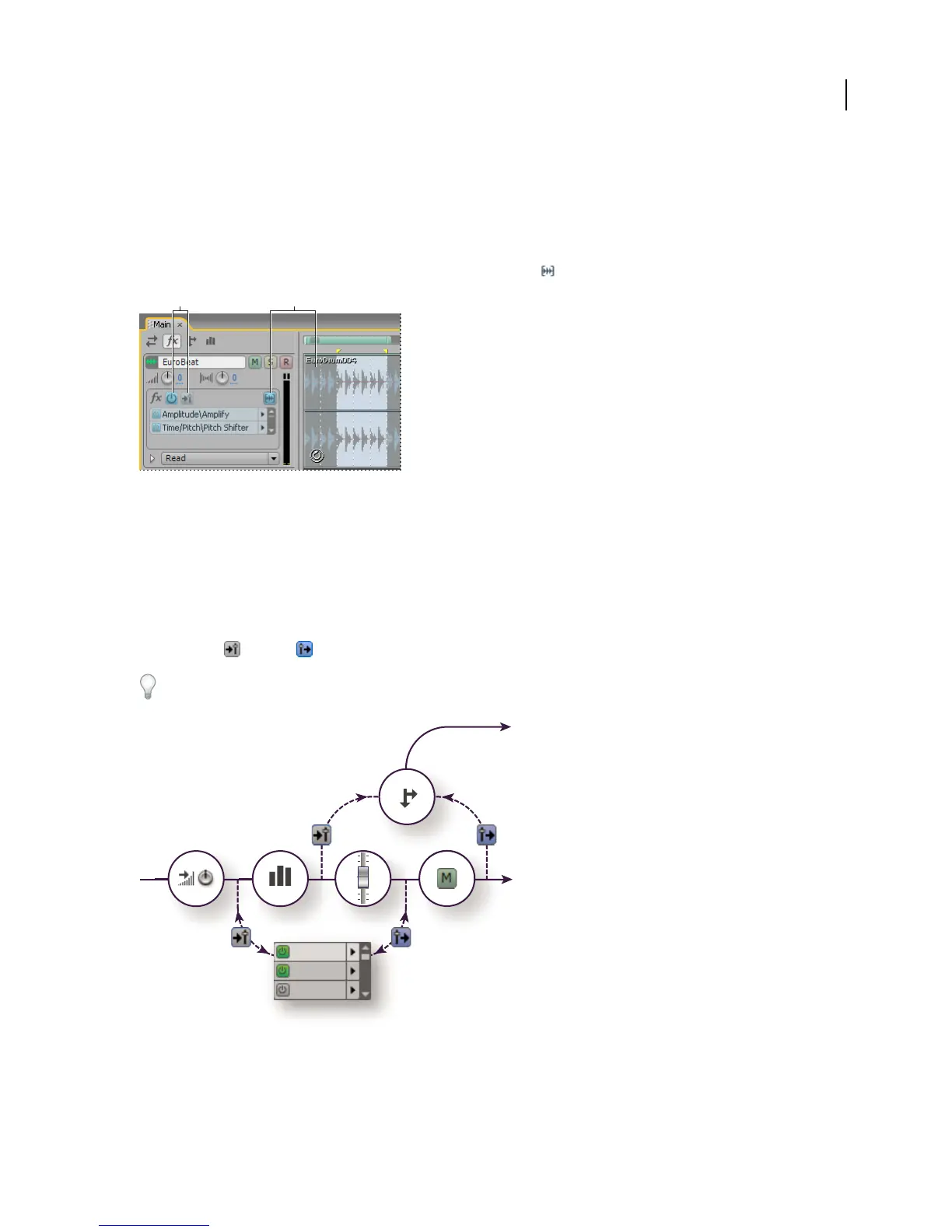
Identifying a frozen track in the Main panel:
A. Unavailable FX Power and Pre-Fader/Post-Fader buttons B. Freeze Track button and clips colored blue
Insert effects before or after sends and EQ
On each track, you can insert effects either pre- or post-fader. Pre-fader effects process audio before sends and EQ.
Post-fader effects process audio after sends and EQ. For most mixes, the default, pre-fader setting works well. The
post-fader setting offers signal-routing flexibility for particularly complex mixes.
❖ In the FX section of the Main panel or Mixer, click the Pre-Fader/Post-Fader button to insert effects either before
sends and EQ , or after .
If you’re editing effect settings in the Effects Rack, click the Pre-Fader/Post-Fader button in the lower-left corner.
Pre- and post-fader effect and send routing for each track:
A. Input gain B. EQ C. Volume D. Mute E. Send F. Effects Rack
BA
ABCD
F
E



 To Next Page