ADOBE AUDITION 3.0
User Guide
192
Select and move clips
❖ Do any of the following:
• To select an individual clip, click the clip in the Main panel.
• To select all clips in a track, select the track, and then choose Edit > Select All Clips In Track [number].
If space exists between clips, double-click that space to quickly select all clips in a track.
• To select all clips in a session, choose Edit > Select All.
• To move selected clips, select the Move/Copy Clip tool in the toolbar, and then drag the clips.
Ifyouprefer,selecttheHybridtool,andthenright-clickanddragtheclips.
Grouping clips
Group clips to more efficiently organize, edit, and mix a session. For example, group related guitar clips together to
easily identify, select, and move them. Grouped clips appear with the group icon and share a common color.
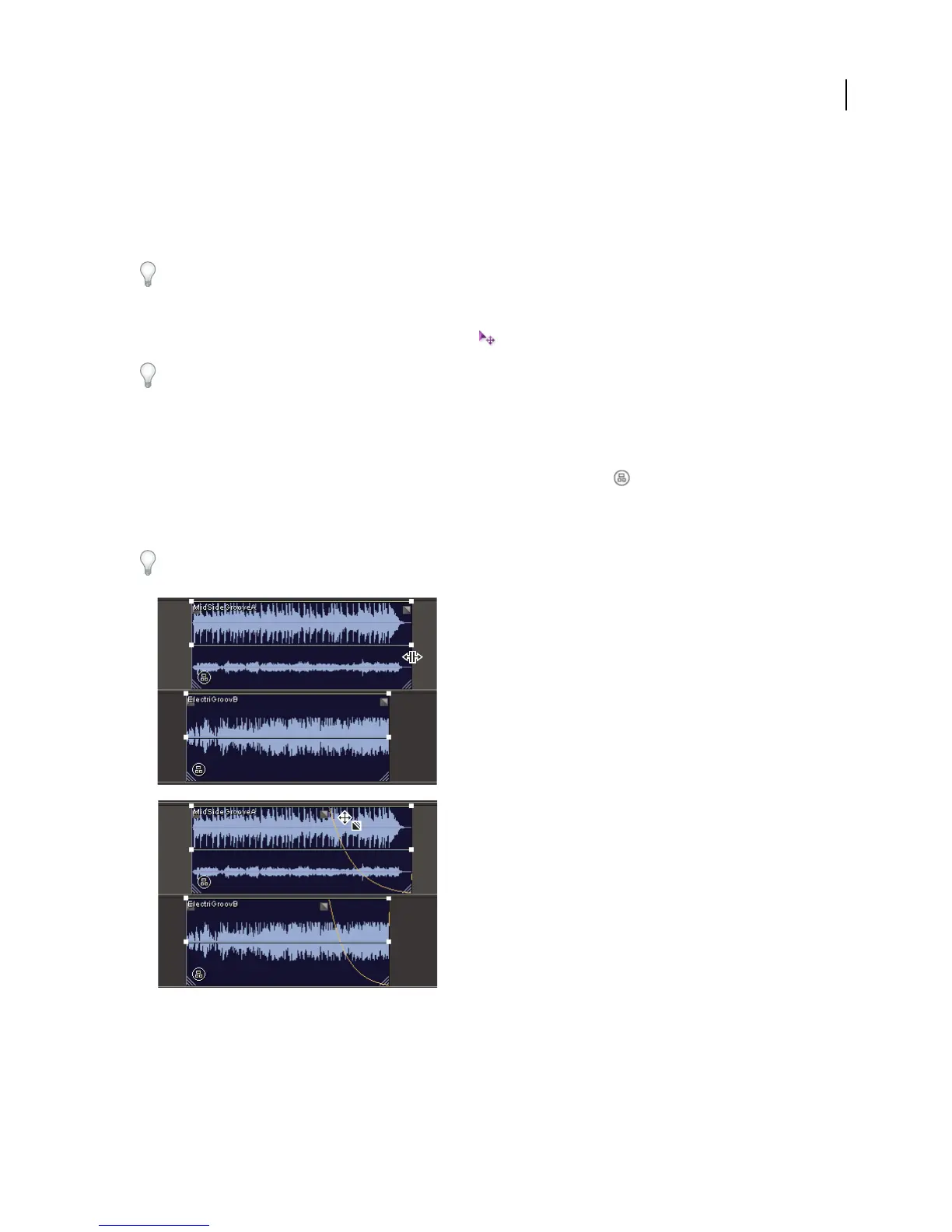
You can quickly edit grouped clips as a unit. To trim a group, simply drag its outermost edges. To fade a group, drag
an on-clip icon.
Changes to clip mute and lock properties affect all audio clips in a group. (See “Set audio clip properties” on page 202.)
Collectively editing grouped clips
A. Drag outermost edge to trim group B. Drag on-clip icon to fade group
A
B



 To Next Page