ADOBE AUDITION 3.0
User Guide
53
Record from a CD internally
1 Preview the CD Audio input level to make sure that clipping won’t occur. (See “Preview the CD Audio input level”
on page 53.)
2 In Edit View, create a new file.
3 In the Transport panel, click the Record button .
4 Start the desired track in your CD player application.
5 When desired, stop recording in both Adobe Audition and the CD player application.
Preview the CD Audio input level
1 Open your favorite third-party CD player application (such as Windows Media Player).
2 Start playing the loudest part of the CD. Then, switch to Edit View in Adobe Audition, and choose Options >
Metering > Monitor Record Level.
3 Use the Levels panel to monitor the amplitude of the incoming signal. You want the input level to be as loud as
possible without exceeding 0 dB. If the input level exceeds 0 dB, clipping occurs. (See “Level meters overview” on
page 62.)
4 If you need to adjust the CD Player input level, choose Options > Windows Recording Mixer to open the
Windows Recording Control mixer. Adjust the CD Player input level as desired.
5 In Adobe Audition, deselect Options > Metering > Monitor Record Level.
Getting ready for recording and playback
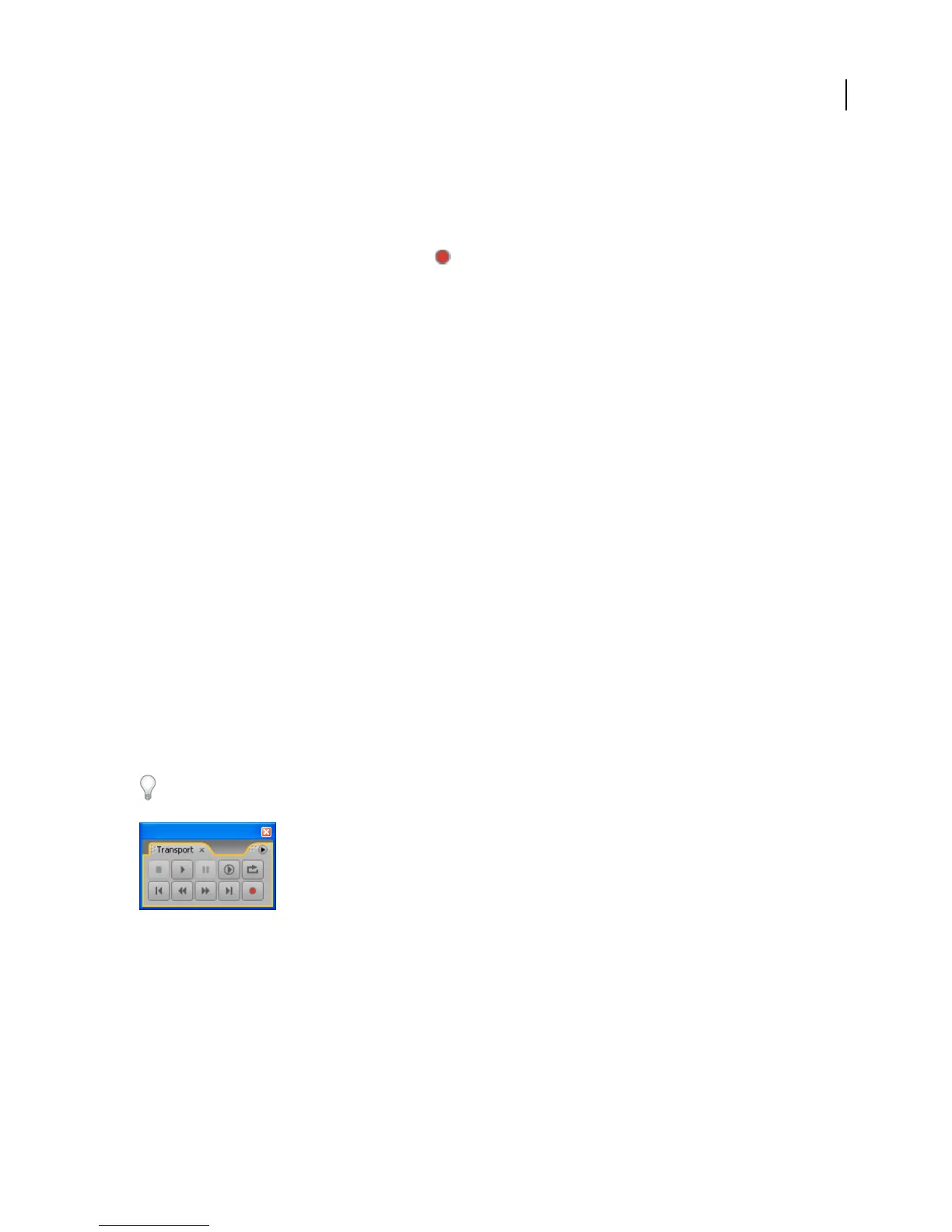
Transport panel overview
Just like many hardware-based audio recording and playback devices, Adobe Audition provides transport controls
for playing, recording, stopping, pausing, fast forwarding, and rewinding waveforms and sessions. Choose
Window > Transport Controls to show or hide the Transport panel.
Right-click buttons in the panel to set options for playing, recording, fast forwarding, and rewinding audio.
Transport panel
See also
“Playing audio” on page 60



 To Next Page