65
Chapter 6: Editing audio files
Displaying audio in Edit View
Choose an audio display
In Edit View, you can choose any of four displays for audio data. Each shows you a different visual representation of
soundwaves.Ifyouopenastereofile,theleftchannelappearsatthetopandtherightchannelappearsatthebottom.
If you open a mono file, its single channel fills the total height of the Main panel.
❖ In the toolbar, select Waveform Display , Spectral Frequency Display , Spectral Pan Display , or
Spectral Phase Display .
See also
“Sound fundamentals” on page 8
“Comparing Edit View and Multitrack View” on page 20
About Waveform Display
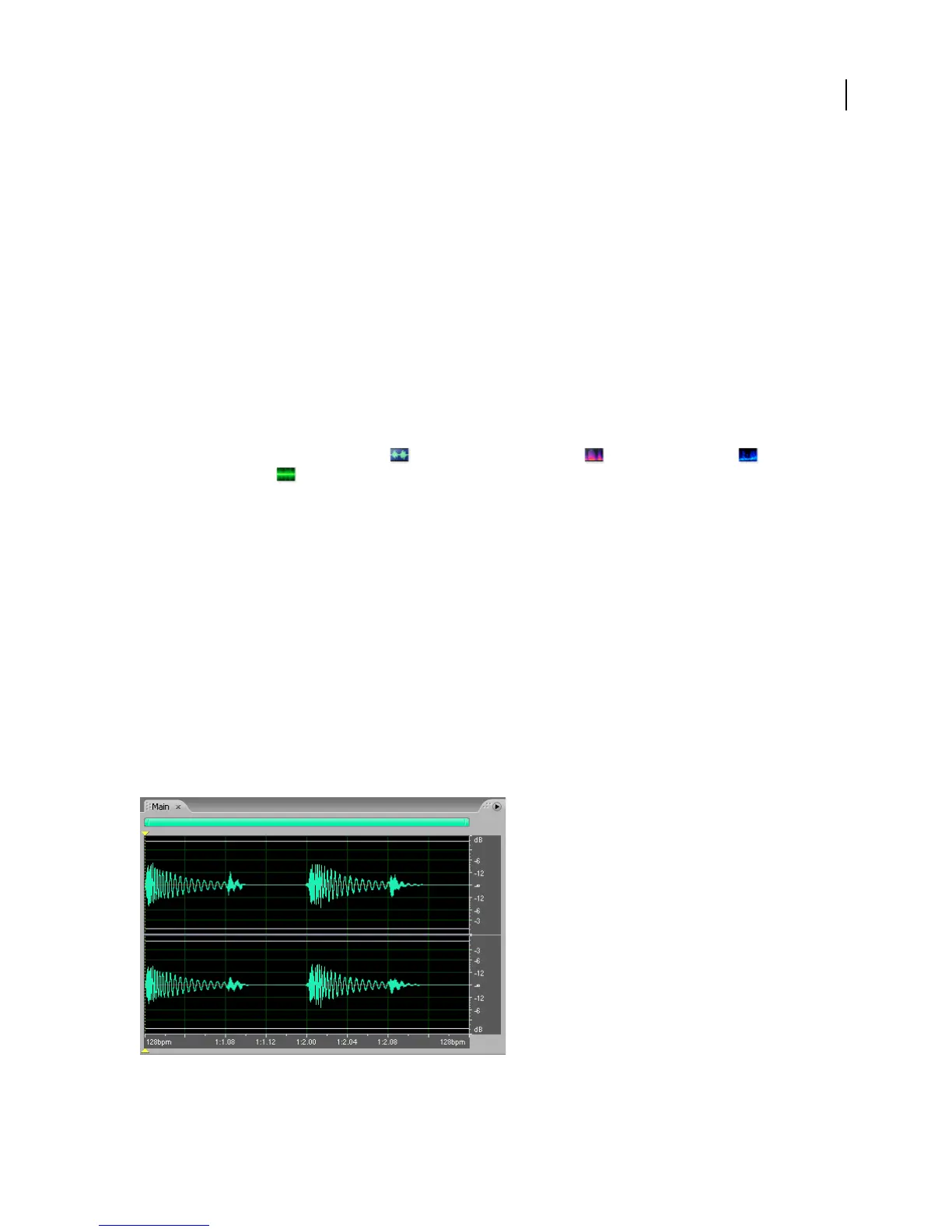
Waveform Display shows a waveform as a series of positive and negative peaks. The x-axis (horizontal ruler)
measures time, and the y-axis (vertical ruler) measures amplitude—the loudness of the audio signal. Quiet audio has
bothlowerpeaksandlowervalleysthanloudaudio.YoucancustomizeWaveformDisplaybychangingthevertical
scale, colors, and line visibility.
With its clear indication of amplitude changes, Waveform Display is perfect for identifying percussive changes in
vocals,drums,andmore.Tofindaparticularspokenword,forexample,simplylookforthepeakatthefirstsyllable
and the valley after the last.
Stereo file in Waveform Display



 To Next Page