256
Chapter 15: Automating tasks
Favorites
Apply favorites to audio files
Favorites are effects, scripts, and even third-party tools that you can save for easy access. The Favorites panel lists some
defaults to get you started, plus any additional favorites you create. The same items appear in the Favorites menu.
❖ In Edit View, double-click the favorite in the Favorites panel, or choose it from the Favorites menu.
See also
“About scripts” on page 261
“Applying effects in Edit View” on page 106
Create, edit, and organize favorites
1 In Edit View, choose Favorites > Edit Favorites.
2 Do any of the following:
• To create a new favorite, click New. If you want to base the new favorite on an existing favorite, select the existing
favorite first.
• To edit a favorite, select the favorite, and click Edit.
• To delete a favorite, select the favorite, and click Delete.
• To change the order of favorites, select a favorite, and click Up or Down.
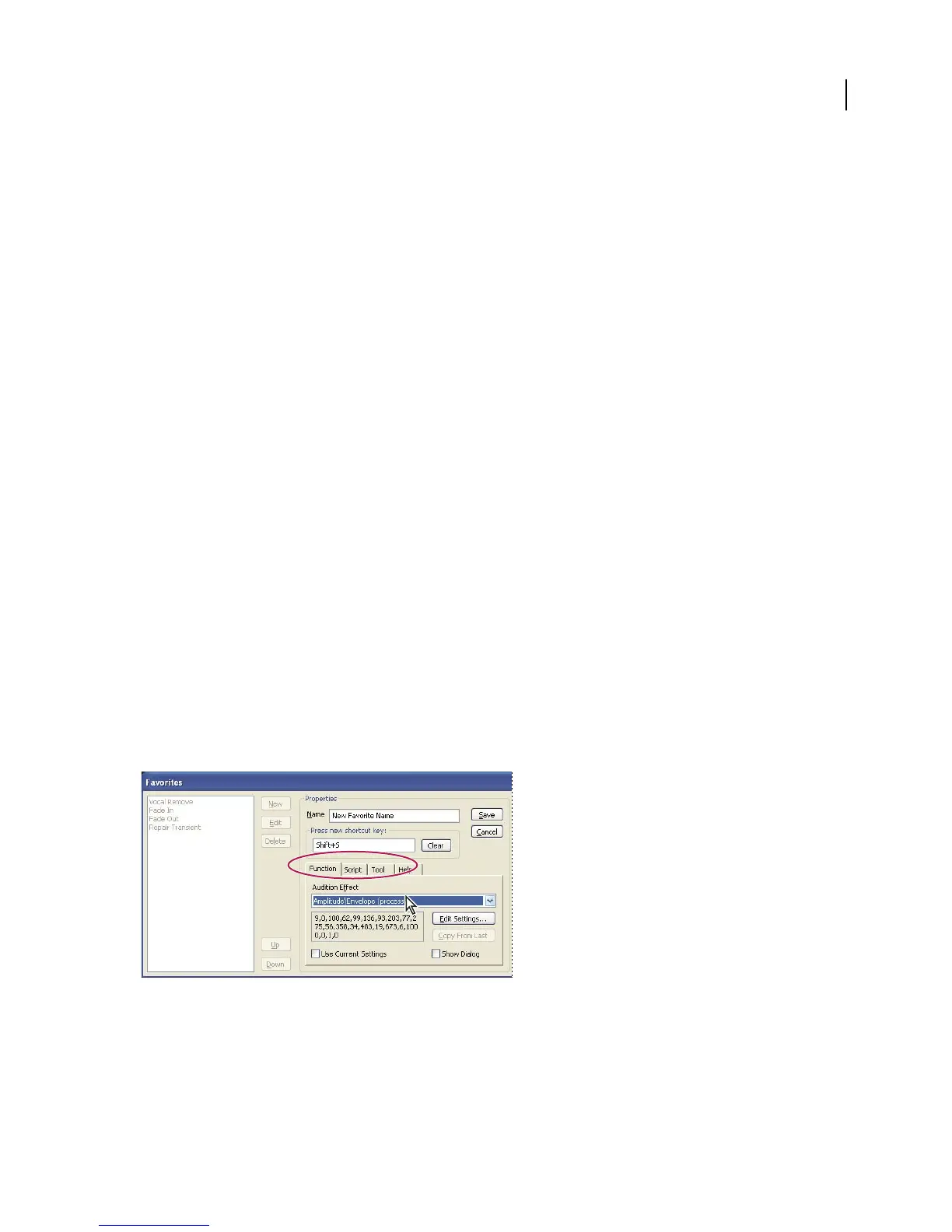
3 If you are creating or editing a favorite, set options on the right side of the dialog box. Click the Function, Script,
or Tool tab to access specific favorite options.
Click tabs in the Favorites dialog box to access specific settings.
4 When you finish setting options, click Save, and then click Close.



 To Next Page