ADOBE AUDITION 3.0
User Guide
197
Splitting and rejoining clips
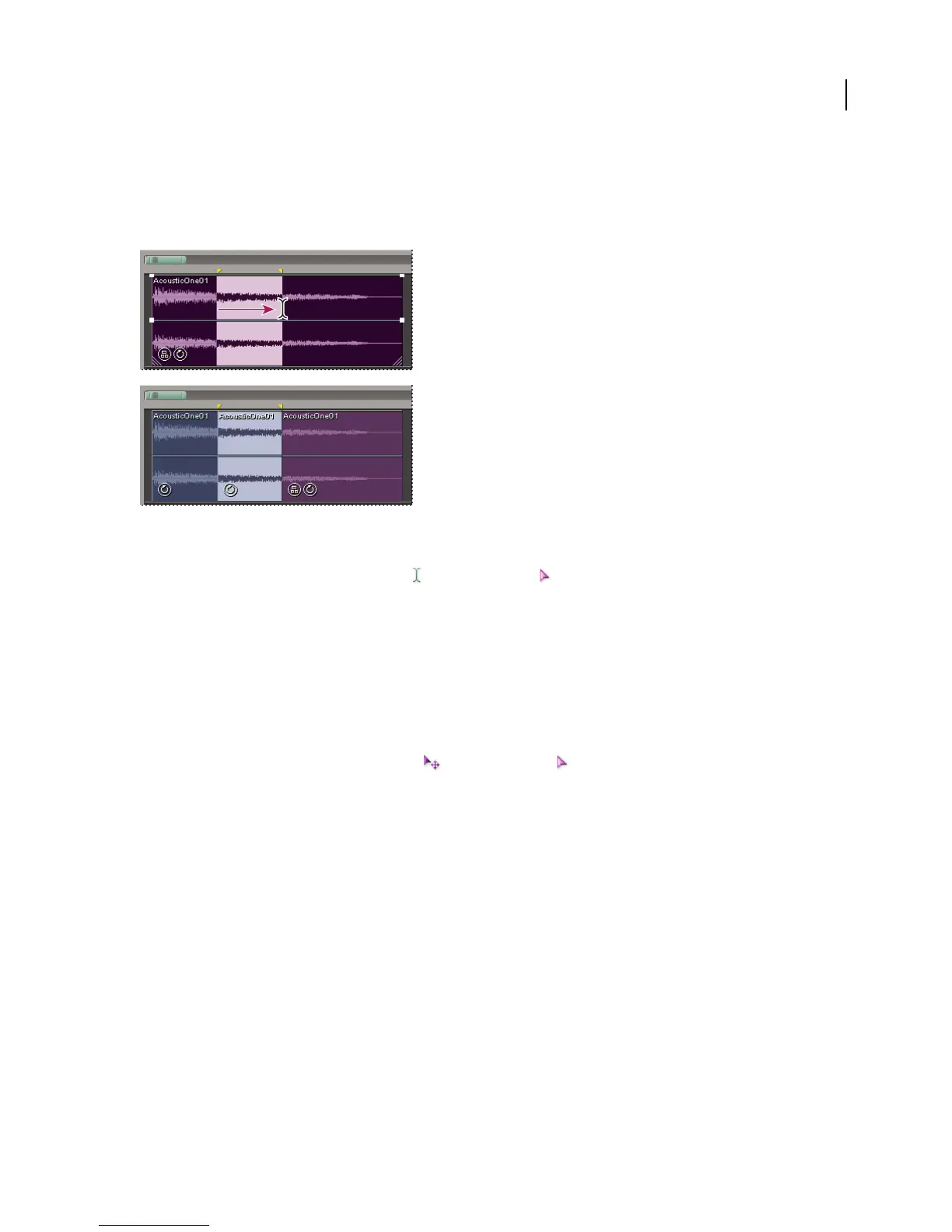
The Split command functions like a traditional tape splice; it cuts audio clips into parts. When a clip is split, each
part becomes a new clip that can be independently moved or deleted. Splitting is nondestructive, so you can rejoin
split clips with the Merge/Rejoin Split command.
Selecting a range and splitting one clip into three independent clips
Split a clip
1
In the toolbar, click the Time Selection tool or the Hybrid tool .
2 Do either of the following:
• To split the clip in two, click where you want the split to occur.
• To split the clip into three, drag across it to specify two split points (one at the beginning of the selection; one at
the end).
3 Choose Clip > Split.
Rejoin split clips
1
In the toolbar, click the Move/Copy Clip tool or the Hybrid tool .
2 Position the clips beside each other on the same track.
3 Select one of the clips, and choose Clip > Merge/Rejoin Split.
Fade or crossfade clips in a track
On-clip fade and crossfade controls let you visually adjust fade curves and duration. Controls for fade ins and fade
outs always appear in the upper-left and upper-right corners of clips. Controls for crossfades appear only when you
overlap clips.



 To Next Page