ADOBE AUDITION 3.0
User Guide
22
To change the placement of a horizontal scroll bar, right-click it, and choose Above Display or Below Display. This
sets the position of the scroll bar for only the current view (Edit View or Multitrack View).
Scrolling devices
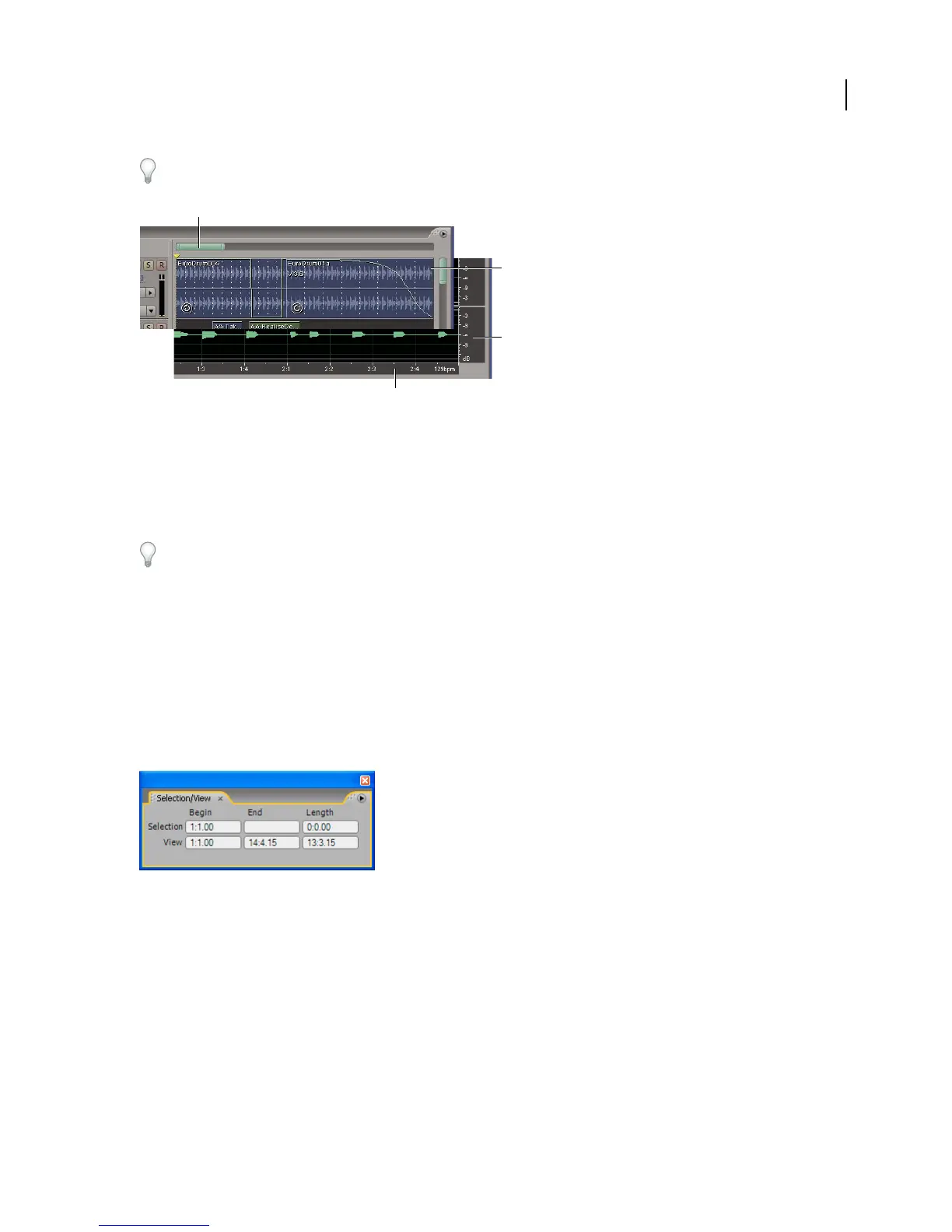
A. Horizontal scroll bar B. Vertical scroll bar (Multitrack View only) C. Vertical ruler (Edit View only) D. Horizontal ruler
• To scroll through time, drag the horizontal scroll bar, or drag left or right in the horizontal ruler.
• To scroll through audio amplitudes in Edit View, drag up or down in the vertical ruler.
• To scroll through tracks in Multitrack View, drag the vertical scroll bar.
To scroll through tracks with the mouse wheel, place the pointer over the track display, and roll the wheel.
See also
“Navigate with the Selection/View panel” on page 22
Navigate with the Selection/View panel
The Selection/View panel shows the start, end, and length of the current selection and view in the Main panel. The
panel displays this information in the current time format, such as Decimal or Bars And Beats. (See “To change the
time display format” on page 55.)
Selection/View Controls panel
1 To display the Selection/View panel, choose Window > Selection/View Controls.
2 (Optional) Enter new values into the Begin, End, or Length boxes to change the selection or view.
See also
“Monitoring time during recording and playback” on page 54
“Dock, group, or float panels” on page 23
A
B
D
C



 To Next Page