ADOBE AUDITION 3.0
User Guide
79
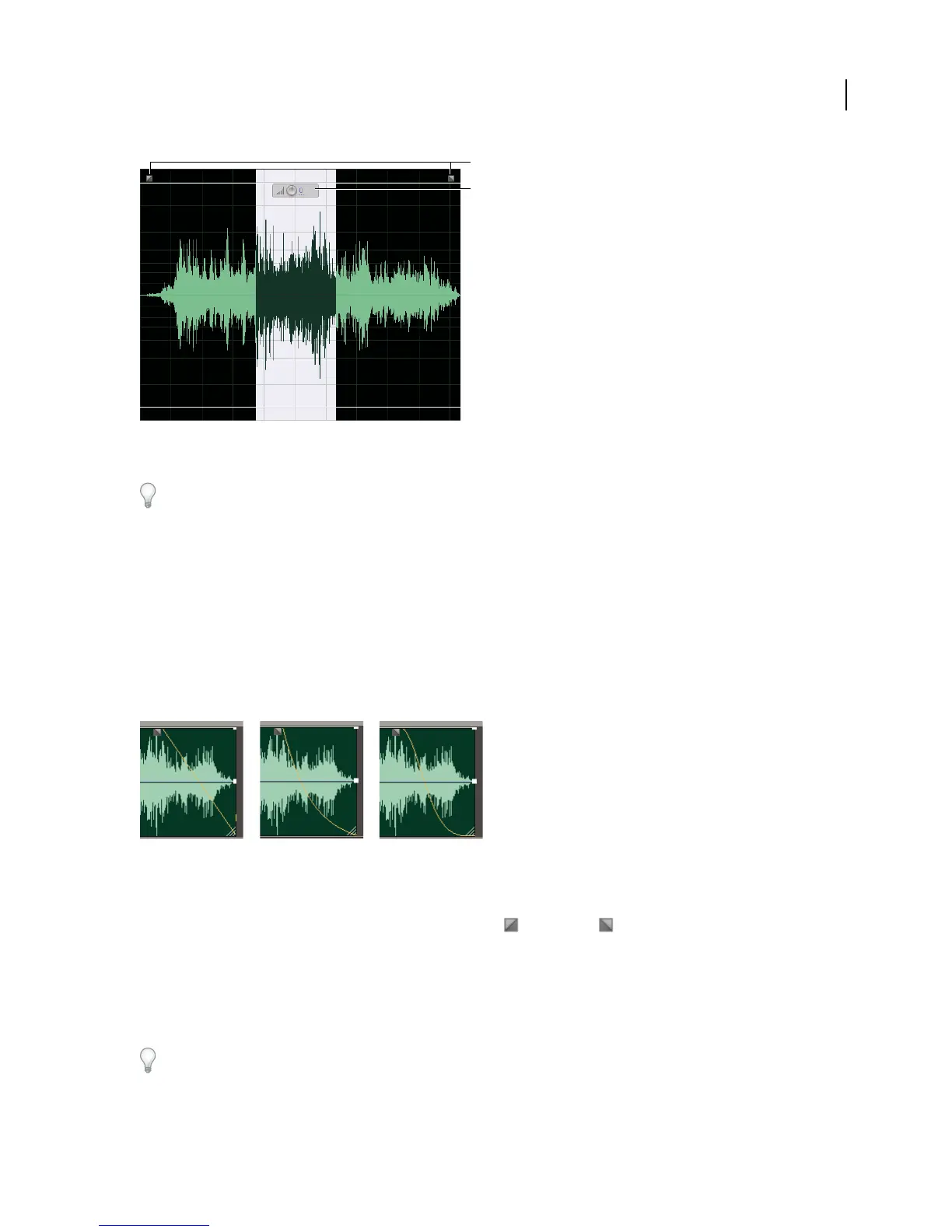
On-clip controls in the Main panel
A. Fade controls B. Gain control
If you find the on-clip controls visually distracting, deselect On-clip UI in the View menu.
Visually fade in or out
Adobe Audition offers three types of visual, on-clip fades:
• Linear fades produce an even volume change that works well for much material. If this fade sounds too abrupt,
however, try one of the other options.
• Logarithmic fades smoothly change volume slowly and then rapidly, or vice versa.
• Cosine fades are shaped like an S-curve, changing volume slowly at first, rapidly through the bulk of the fade, and
slowly at the finish.
Fade types
A. Linear B. Logarithmic C. Cosine
❖ In the upper left or right of the waveform, drag the Fade In or Fade Out handle inward, and do any of the
following:
• For a linear fade, drag perfectly horizontally.
• For a logarithmic fade, drag up or down.
• For a cosine (S-curve) fade, press Ctrl.
To create cosine fades by default and press Ctrl to create linear or logarithmic fades, choose Edit > Preferences, click
the General tab, and change the Default Fade setting.
B
A
AC
B



 To Next Page