ADOBE FRAMEMAKER 10
MIF Reference
181
...
# Create the math element in the first text line in the frame.
<TextLine
...
# Apply a specialized math font to the letter R.
<Font
<FTag `'>
<FFamily `MathematicalPi'>
<FVar `Six'>
<FWeight `Regular'>
> # end of Font
<String `R'>
> # end of TextLine
> # end of Frame
> # end of Page
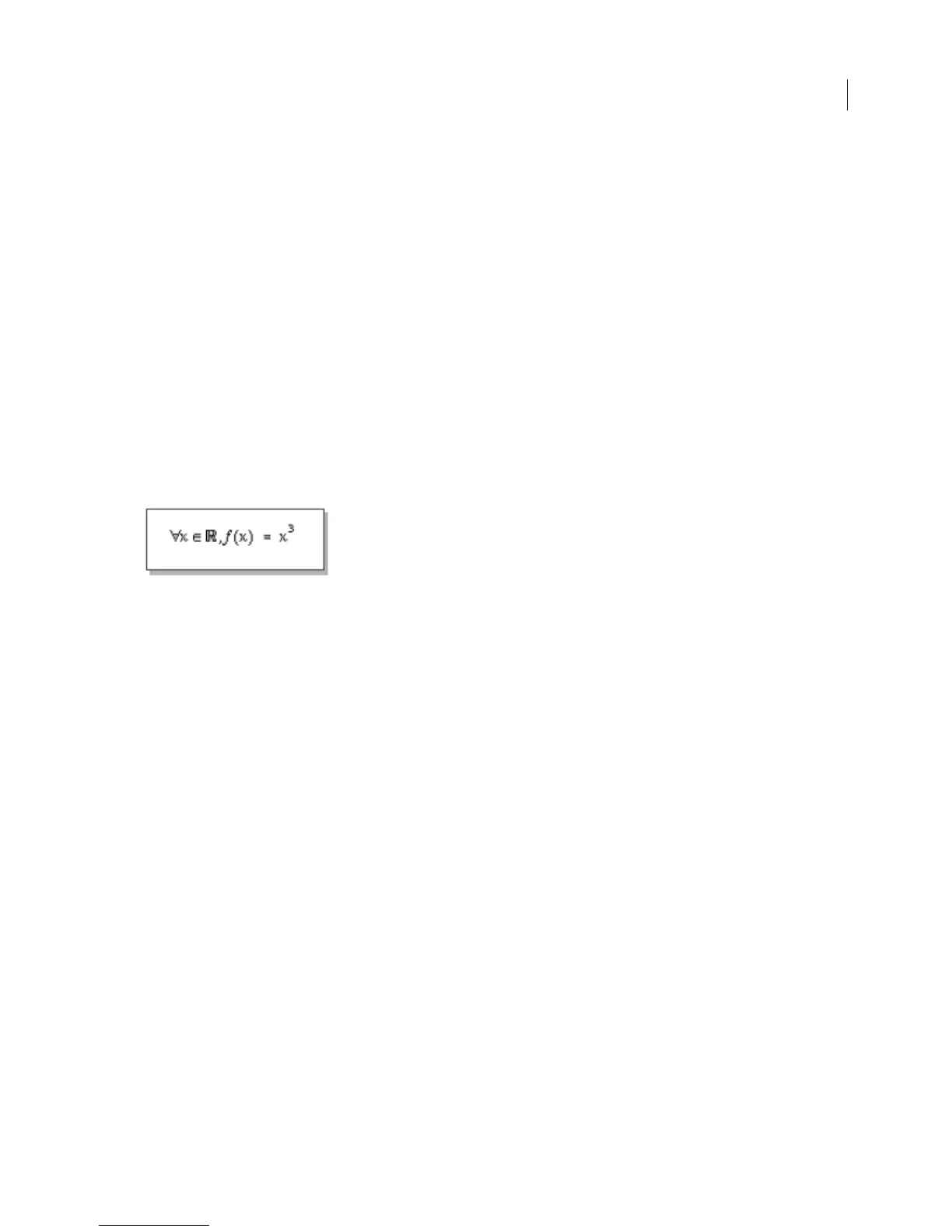
To insert the new element in an equation, use the char expression (see page 186) and the element’s name in a
MathFullForm statement as shown in the following equation:
<MathFullForm `equal[in[forall[char[x]], comma[char[(*T"Real Numbers"T*)New],
times[char[f],id[char[x]]]]], indexes[1,0,char[x],num[3.00000000,"3"]]]'
> # end of MathFullForm
The equation looks like this in the FrameMaker document:
You can change the appearance of a built-in math element, although you cannot change the element’s type or
behavior. For example, to redefine the built-in inverse sine function (asin) so that it appears as sin
-1
, add the
redefined element to the Math Catalog as follows:
<DMathCatalog
<DMathOpOverrides
# The name of the built-in operator as it appears in MIF.
<DMathOpName `asin'>
# Forces lookup from the reference page.
<DMathOpTLineOverride Yes >
> # end of DMathOpOverrides
> # end of DMathCatalog
Redefine the appearance of the element in a reference frame as follows:
<Page
# Create a named reference page.
<PageType ReferencePage >
<PageTag `FrameMath1'>
# Create a named, unanchored frame.
<Frame
<FrameType NotAnchored >
...
# The name of the built-in element as it appears in
# the Equations palette.
<Tag `Inverse Sine'>
# Define the element in the first text line in the frame.
<TextLine
...
# Apply a new font style and position to change the
# appearance of the math element.
<Font
<FTag `'>
<FWeight `Regular'>



 To Next Page