ADOBE FRAMEMAKER 10
MIF Reference
189
Using char for custom math elements
The char expression can contain a custom math element by using the following syntax:
<MathFullForm `char[(*T"
ElementName
"T*)New]'>
where
ElementName
is the name of the reference frame that contains the custom element.
Using char and diacritical for diacritical marks
The char and the diacritical expressions both describe diacritical marks around an operand.
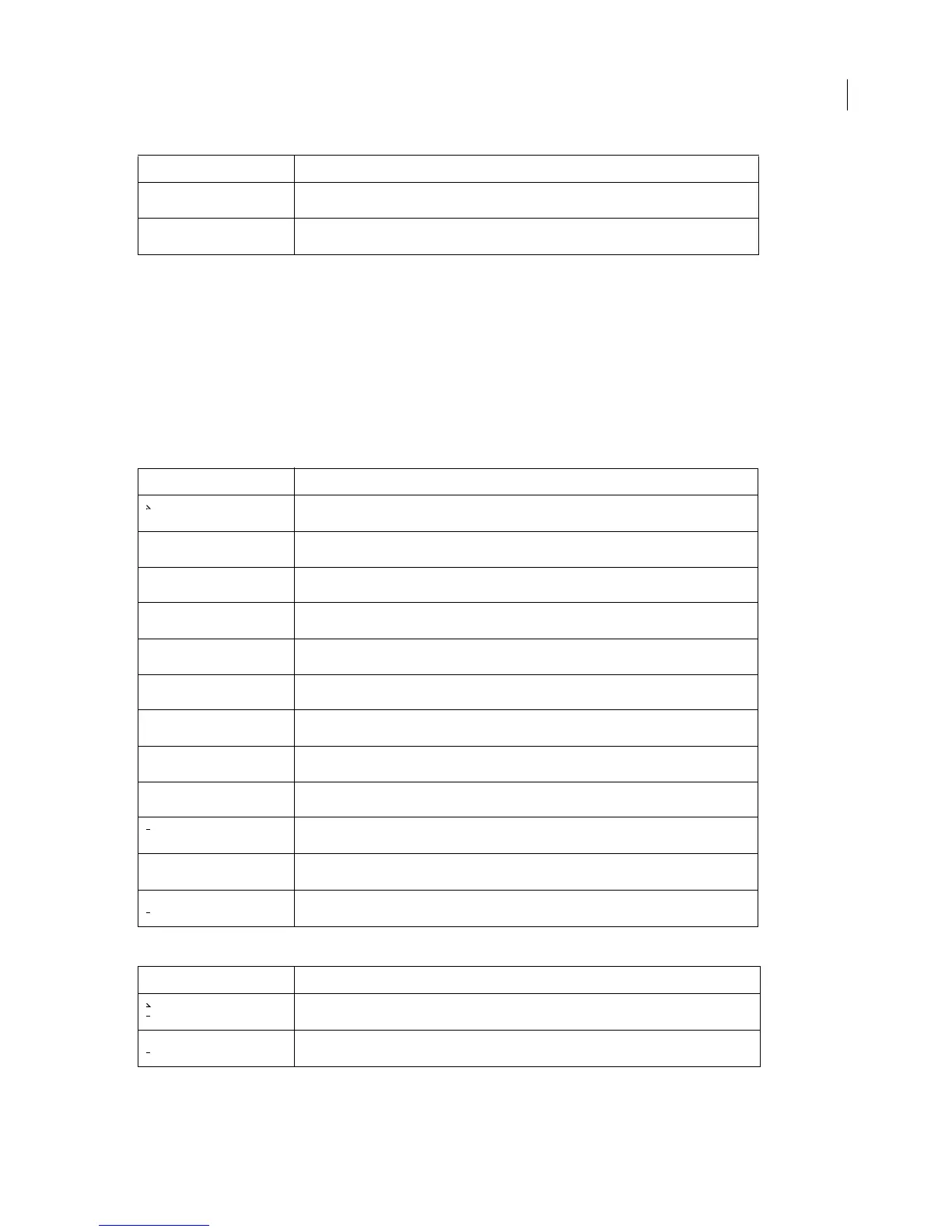
The char expression places diacritical marks around a single operand, as shown in the following table. The
char
expression is backward-compatible.
The
char expression can also describe composite diacritical marks. The following table contains examples.
<MathFullForm `char[Xi]'>
<MathFullForm `char[zeta]'>
Example <MathFullForm> statement
<MathFullForm `char[x,1,0,0,0,0]'>
<MathFullForm `char[x,2,0,0,0,0]'>
<MathFullForm `char[x,3,0,0,0,0]'>
<MathFullForm `char[x,0,1,0,0,0]'>
<MathFullForm `char[x,0,2,0,0,0]'>
<MathFullForm `char[x,0,3,0,0,0]'>
<MathFullForm `char[x,0,0,1,0,0]'>
<MathFullForm `char[x,0,0,2,0,0]'>
<MathFullForm `char[x,0,0,3,0,0]'>
<MathFullForm `char[x,0,0,0,1,0]'>
<MathFullForm `char[x,0,0,0,0,1]'>
<MathFullForm `char[x,0,0,0,0,2]'>
Example MathFullForm statement
<MathFullForm `char[x,1,0,0,0,2]'>
<MathFullForm `char[x,3,1,0,0,2]'>
Example MathFullForm statement



 To Next Page