6
DBC835 Wireless Doorbell Camera Installation
ADT Pulse Enrollment
This section provides instructions for wirelessly enrolling
the
DBC835 Doorbell Camera into the ADT Pulse network.
This process
uses the Wi-Fi Protected Setup (WPS) with PIN method
to wirelessly enroll the HD Camera to the gateway via the ADT Pulse
Portal or TS Installer App.
1.
Power up the camera and wait for the LED turning flashing red, as
described in the previous chapter.
2.
Launch an Internet browser and log in to the Pulse portal or TS
installer app.
3.
Enter the
Manage Devices
screen using one of these methods:
x For the Pulse portal, select the System tab and click Manage
Devices.
x For the TS installer app, click the following Pulse Devices link:
https://portal-aries.icontrol.com/myhome/9.6.0-323/access/signin.jsp
4.
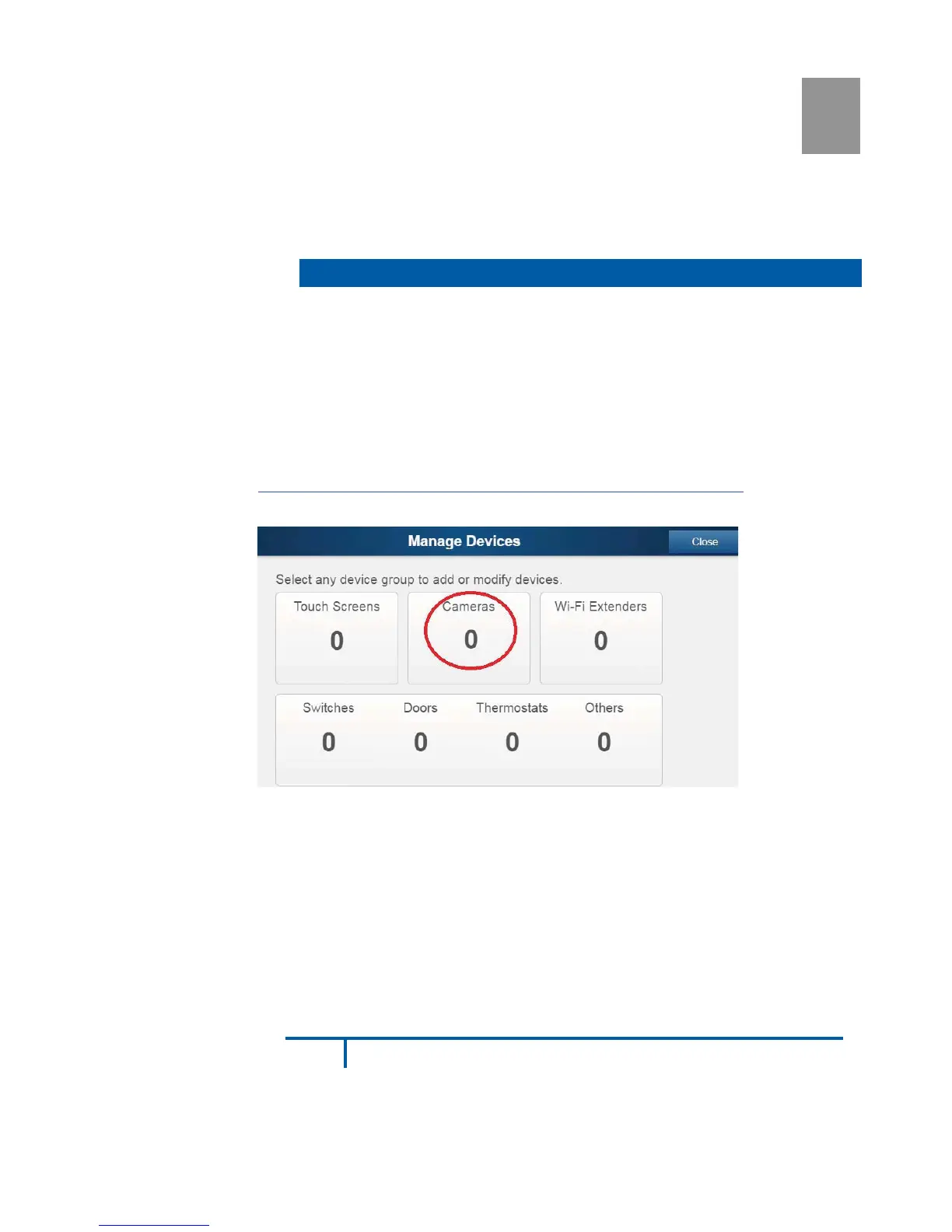
In the
Manage Devices
screen, click Cameras.
Figure 4: Clicking "Cameras" Button
Using WPS with PIN to Enroll the Doorbell Camera
3


 To Next Page