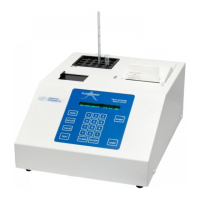
9. Push the back of the printer cover down
and into place.
10. Press the front of the printer cover down
to lock in place.
Changing an Ink Ribbon
When printing becomes faint or difficult to
see, the ribbon may be dried out or in need of
replacement. Before replacing the cartridge,
try advancing the ribbon to a new section by
holding down the paper feed switch for sever-
al seconds.
If the print impression is still weak, purchase
a new ribbon cartridge (Product #330541) and
install it using the following instructions.
1. Turn the printer offline by pressing the
left side of the rocker switch. The light
should go out.
2. Push down on the embossed grooves on
one or both sides of the printer cover until
the printer cover tilts.
3. Lift off the printer cover. Push down on
the right side of the ribbon cartridge
where it is marked “PUSH”, and remove
the cartridge.
4. Install the new cartridge. Be sure the ink
cartridge is inserted firmly to prevent
weak or irregular printing. The cartridge
must be properly seated and aligned for
best printing.
5. Turn the cartridge clockwise (marked by
an arrow) to stretch the ribbon.
6. Replace the cover. Replace the paper.
4MP540 Rev3
(4D35SM)
Page 3 of 7


 To Next Page