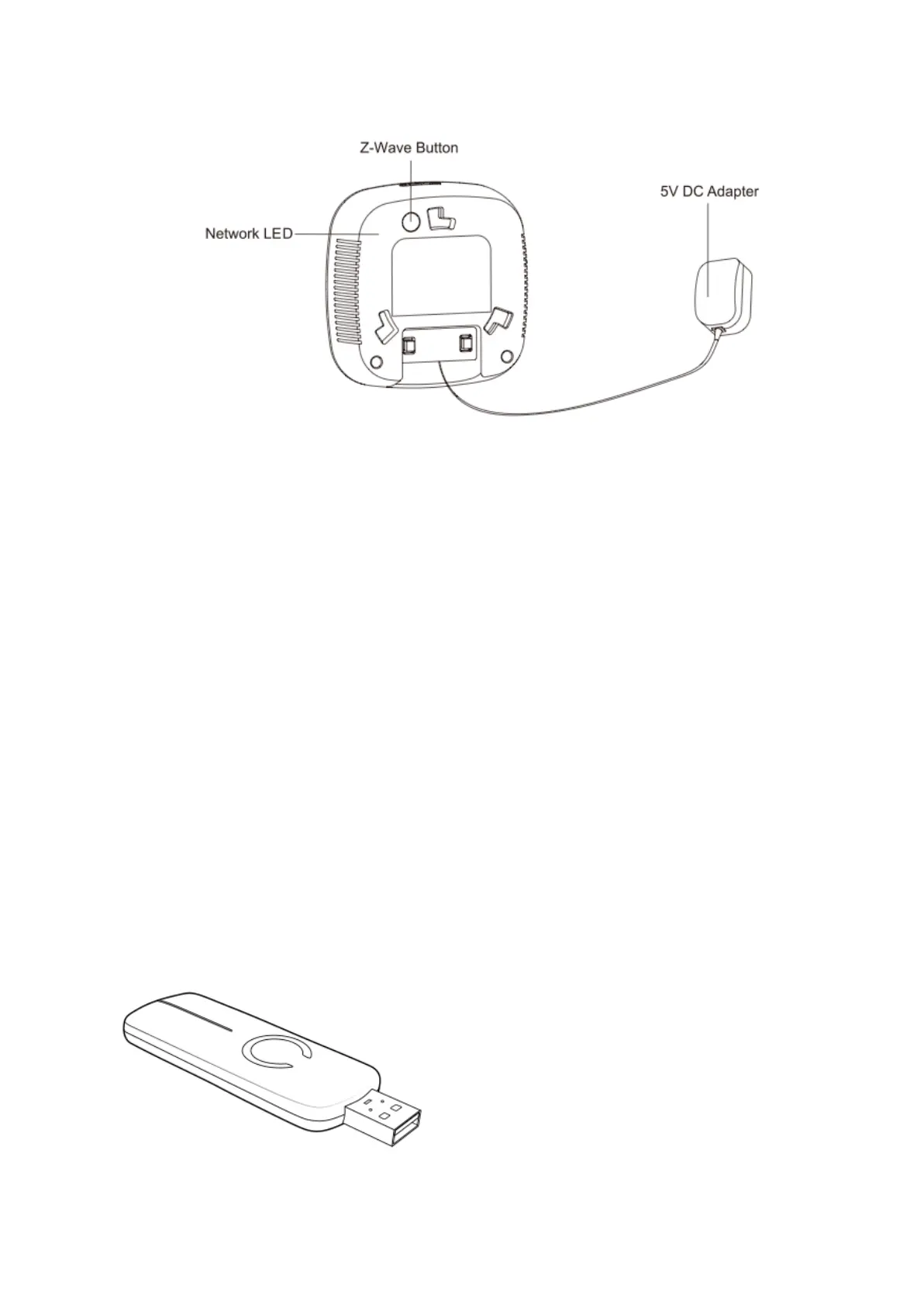
Power your Garage Door Controller by connecting the 5V DC Adapter to the input.
Now that your Garage Door Controller is powered on, you will see the Network LED blinking slowly. While the Network
LED is blinking, this indicates that the Garage Door Controller is ready to be included into a Z-Wave network.
2. Add/include/link your Garage Door Controller to a Z-Wave network.
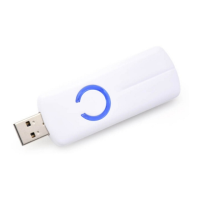
The following instructions will tell you how to link your Garage Door Controller to your Z-Wave network via an Aeotec by
Aeon Labs’ Z-Stick or Minimote controller. If you are using another Z-Wave controller as your main controller, please
refer to their respective manual on how add new devices to your network.
If you're using an existing gateway (ie. Vera, Smartthings, ISY994i ZW, Fibaro, etc):
You may need to refer to your gateway's method of including devices if you do not know how to pair a Z-Wave device.
1. Put your primary Z-Wave gateway into pair mode, your Z-Wave gateway should confirm that it is waiting to add a
new device
2. Press the Z-Wave Button on the Garage Door Controller. The LED on Garage Door Controller will blink rapidly,
followed by a solid LED for 1-2 second for a successful inclusion.
If you’re using a Z-Stick:


 To Next Page
 Loading...