EasyManua.ls Logo

AG Neovo PD-42 - User Manual

AG Neovo PD-42
80 pages
Print Icon
To Next Page IconTo Next Page
Loading...
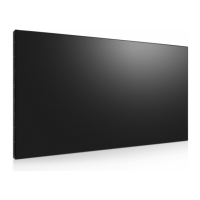
PD-42 & PD-55 LED-Backlit Display
User Manual

Table of Contents

Questions and Answers

  • H
    Hannah SuttonSep 10, 2025
    Why is the color abnormal on my AG Neovo Monitor?
    • A
      April PalmerSep 10, 2025
      If the color on your AG Neovo monitor appears abnormal, the signal cable might not be connected properly. Ensure that the signal cable is firmly attached to the back of the display.
  • C
    Casey JacobsAug 22, 2025
    What to do if my AG Neovo Monitor displays a distorted picture?
    • C
      Christina LaneAug 22, 2025
      If the picture on your AG Neovo monitor is distorted with abnormal patterns, it could be due to: * The signal cable not being connected properly. Ensure the signal cable is firmly attached. * The input signal exceeding the display's capabilities. Check the video signal source to ensure it is within the display's supported range. Refer to the specification section for the display's specifications.
  • M
    maryriceAug 25, 2025
    What to do if AG Neovo PD-42 color is abnormal?
    • A
      Ashley LunaAug 25, 2025
      If the color on your AG Neovo monitor appears abnormal, ensure that the signal cable is firmly attached to the back of the display. A loose connection can cause color distortion.
  • K
    Kevin StanleyAug 26, 2025
    What to do if I can hear sound but there is no picture on AG Neovo PD-42?
    • W
      William FloresAug 26, 2025
      If you can hear sound but there is no picture on your AG Neovo monitor, ensure that both the video and sound input cables are correctly connected. An improperly connected source signal cable can cause this issue.
  • J
    Jeremiah LawsonAug 27, 2025
    How to fix interference on AG Neovo PD-42 Monitor?
    • A
      alexander73Aug 27, 2025
      If you are experiencing interference or audible noise with your AG Neovo monitor, it may be caused by nearby electrical appliances or fluorescent lights. Try moving the display to another location to see if the interference is reduced.
  • G
    guerrakarenAug 29, 2025
    What to do if AG Neovo Monitor has no picture?
    • L
      Laura Scott PhDAug 29, 2025
      If your AG Neovo monitor is not displaying any picture: 1. Plug in the power cord. 2. Make sure the power switch is switched on. 3. Connect a signal connection to the display.
  • L
    lhuffSep 18, 2025
    What if some pixels don't light up on my AG Neovo Monitor?
    • S
      stephanie42Sep 18, 2025
      This AG Neovo display is manufactured using an extremely high level of precision technology; however, sometimes some pixels of the display may not display. This is not a malfunction.
  • N
    Nicholas CarrollSep 12, 2025
    What to do if my AG Neovo PD-42 has sound but no picture?
    • K
      Kristina YoungSep 12, 2025
      If you can hear sound but there is no picture on your AG Neovo monitor, the source signal cable may be improperly connected. Make sure that both video and sound inputs are correctly connected.
  • S
    Shelly SmithSep 8, 2025
    What to do if AG Neovo PD-42 Monitor picture is distorted?
    • T
      Taylor JimenezSep 8, 2025
      If the picture on your AG Neovo monitor is distorted with abnormal patterns, it could be due to a couple of reasons. First, make sure that the signal cable is firmly attached. Second, the input signal might be beyond the capabilities of the display. Check the video signal source to ensure it is within the supported range, referring to the display's specifications.
  • J
    Jeremy BrewerSep 5, 2025
    What to do if my AG Neovo Monitor has picture but no sound?
    • S
      Sarah LopezSep 5, 2025
      If you can see the picture but cannot hear any sound on your AG Neovo monitor, there might be several reasons. First, ensure that both the video and sound input cables are correctly connected. Second, check if the volume is turned all the way down, and if so, press the volume buttons to increase it. Also, verify that the MUTE function is turned off by using the appropriate button. Finally, if you are using external speakers, ensure they are connected properly and the volume is adjusted to a suitable level.

Summary

SAFETY INFORMATION

FCC Compliance Notice

Details FCC compliance for Class B digital devices and interference mitigation.

CE Declaration of Conformity

Lists standards product conforms to, including EMC and safety requirements.

PRECAUTIONS

Installation Safety Precautions

Precautions for placing the display to avoid damage or hazards.

Operational Safety Guidelines

Guidelines for safe operation, power cord handling, and avoiding damage.

CHAPTER 1: PRODUCT DESCRIPTION

Package Contents Verification

Lists all items included in the product package for user verification.

Installation Preparation Guidelines

Important considerations before installing the display, including power and ventilation.

Wall Mounting Installation Guide

Guidance on how to mount the display on a wall using a standard mounting kit.

Control Panel Overview

Identifies and explains the functions of the buttons on the display's control panel.

Input and Output Terminals Diagram

Diagrams showing the location of all input and output ports on the display.

Remote Control General Functions

Explains the functions of the buttons on the remote control for basic operation.

CHAPTER 2: MAKING CONNECTIONS

Connecting the Power Supply

Step-by-step guide to connect the display to a power source safely.

Connecting a Computer via VGA

Instructions for connecting a computer using the VGA input and audio.

Connecting a Computer via DVI

Instructions for connecting a computer using the DVI input.

Connecting a Computer via HDMI

Instructions for connecting a computer using the HDMI input.

Connecting a Computer via DisplayPort

Instructions for connecting a computer using the DisplayPort input.

CHAPTER 3: USING THE LCD DISPLAY

Turning the Display On and Off

Steps to power the display on, put it in standby, and turn it off completely.

Selecting Input Source Signal

How to choose the desired input signal source from a list of available inputs.

Playing Media Files from USB

Connect a USB device and play multimedia files like music, movies, and photos.

CHAPTER 4: ON SCREEN DISPLAY MENU

Navigating the On-Screen Display (OSD) Menu

Explains how to access, navigate, and adjust settings within the OSD menu.

CHAPTER 5: ADJUSTING THE LCD DISPLAY

Adjusting Picture Settings

Detailed guide to adjusting picture settings like style, brightness, color, and sharpness.

Adjusting Sound Settings

Guide to adjusting sound styles, bass, treble, balance, and audio output.

CHAPTER 6: APPENDIX

Troubleshooting Common Issues

Lists common symptoms, possible causes, and remedies for display problems.

CHAPTER 7: SPECIFICATIONS

Display Specifications Overview

Details screen size, aspect ratio, resolution, brightness, and contrast for PD-42/PD-55.

AG Neovo PD-42 Specifications

General IconGeneral
Screen Size42 inches
Resolution1920 x 1080
Panel TypeLCD
Aspect Ratio16:9
Brightness450 cd/m²
Response Time8 ms
Viewing Angle (H/V)178°/178°
Input PortsVGA, DVI, HDMI, Component, Composite, S-Video
Power Consumption180W (operating), <1W (standby)

Related product manuals