CHAPTER 7
48 49
SOLO 2 DL
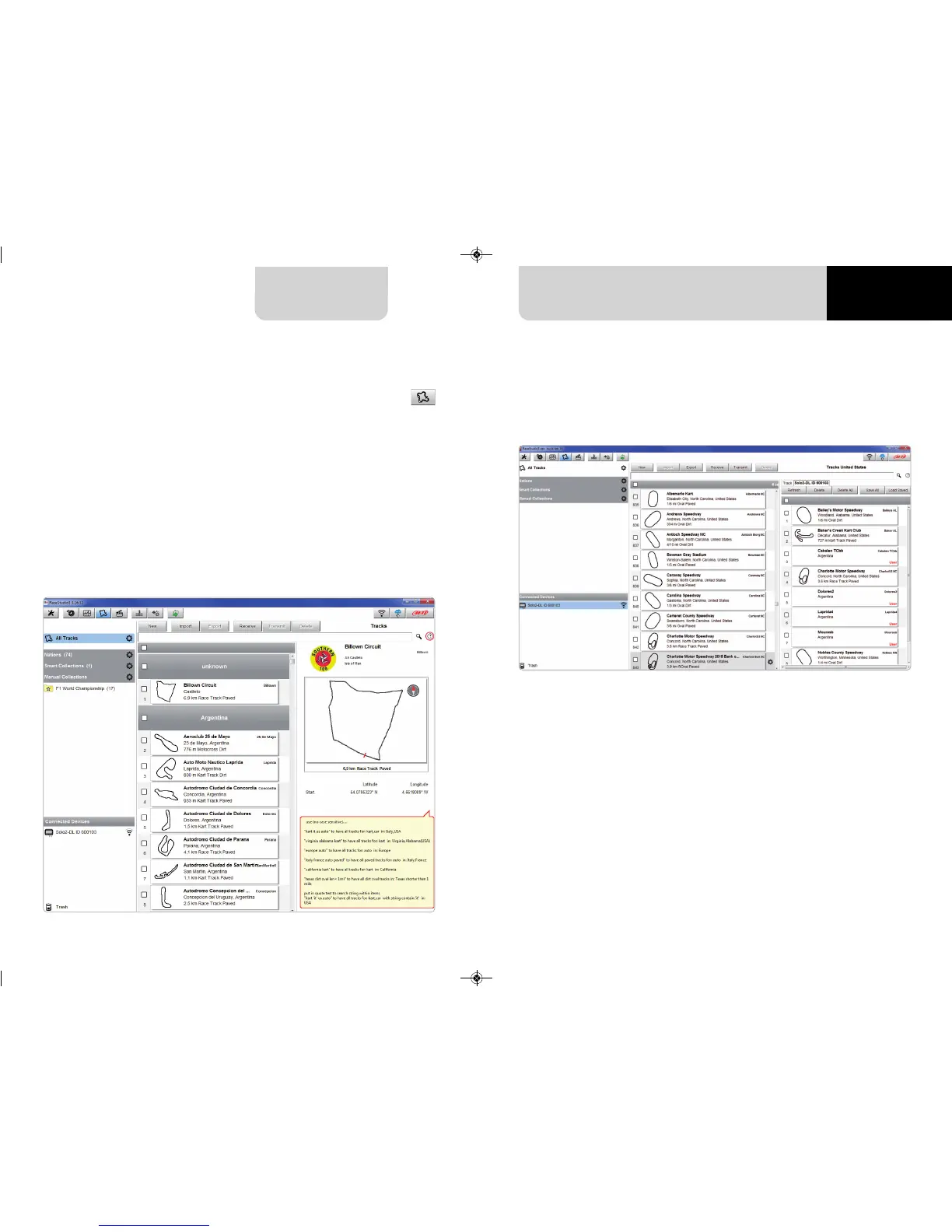
The main page is divided in three columns; on the left:
n
on top, the filters that allow to collect many tracks following customized
criteria; by default, all tracks are shown (light blue “All Tracks” filter in the
image below).
n
bottom left, the connected devices (in the image, “Solo 2-DL ID 600103”)
The column in the middle shows:
n
on top a fast search bar, that allows to select the tracks which satisfy your
personal research criteria; by pressing “?”a pop-up window shows research
examples (highlighted in red below).
n
all the tracks listed in Race Studio 3 database. It automatically updates at start
up if a connection to the Internet is available.
The column on the Right shows:
n
the data sheet of the track you are mousing over.
When your Solo 2 DL is connected it is shown on the left bottom part of the page as
said before.
Clicking on it all the tracks it contains are shown in the right column of the page.
The tracks you created are labelled “user” on the right of the track panel.
The page keyboards are used to manage the tracks.
7.4 Managing a track on Solo 2 DL with RS3
W
i
t
h
T
r
a
c
k
M
a
n
a
g
e
r
f
u
n
c
t
i
o
n
o
f
R
a
c
e
S
t
u
d
i
o
3
y
o
u
c
a
n
c
r
e
a
t
e
,
d
e
l
e
t
e
a
n
d
m
o
d
i
f
y
t
r
a
c
k
s
,
t
r
a
n
s
m
i
t
a
n
d
r
e
c
e
i
v
e
t
h
e
m
t
o
/
f
r
o
m
y
o
u
r
S
o
l
o
2
D
L
.
P
r
e
s
s
“
T
r
a
c
k
s
”
i
c
o
n
.


 To Next Page