CHAPTER 7
28 29
SOLO 2 DL
This situation is ideal for a team with multiple drivers and staff members and is desired
to communicate with one or more AiM devices using the same PC network.
Each Solo 2 DL can have its password that adds another security and privacy level to the
network.
Race Studio 3 will show all Solo 2 DL connected to the same network under “
Connected devices” label, bottom left of the software page: click your device.
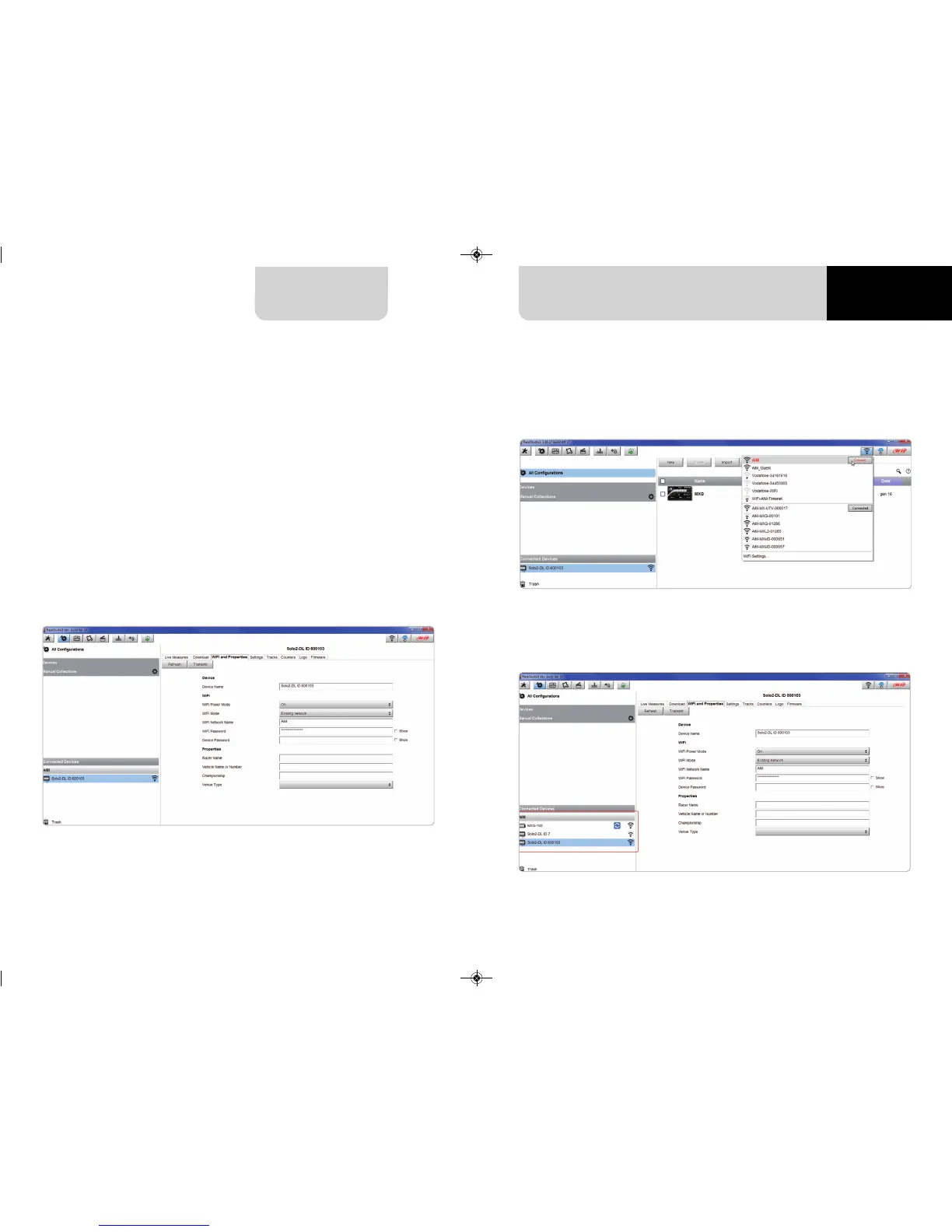
Enter “Wi-Fi and properties” tab and set it on “Existing Network”; fill in network name,
network password and device password. Transmit the network settings to your device
clicking “Transmit”: your device reboots and joins that network.
Please note: the only admitted password are those following WPA2-PSK standard.
To complete this procedure use Race Studio 3 software as here explained.
Here above you see a device “Solo2 DL-600103” that switched from AP to WLAN mode
(Existing Network).
Network name is “AiM” and does not work with free access because is protected by a
password.
7.1.3 Adding Solo 2 DL to an existing network
To obtain connectivity on the device the PC has to be authenticated to the same
network as shown here below.
When the PC is authenticated to the network called “AiM” it can see all devices you
configured to access the same network. In the image below three AiM devices are
connected to the same “AiM” WLAN.


 To Next Page