CHAPTER 7 CHAPTER 8
54 55
SOLO 2 DL
7.6 The device window
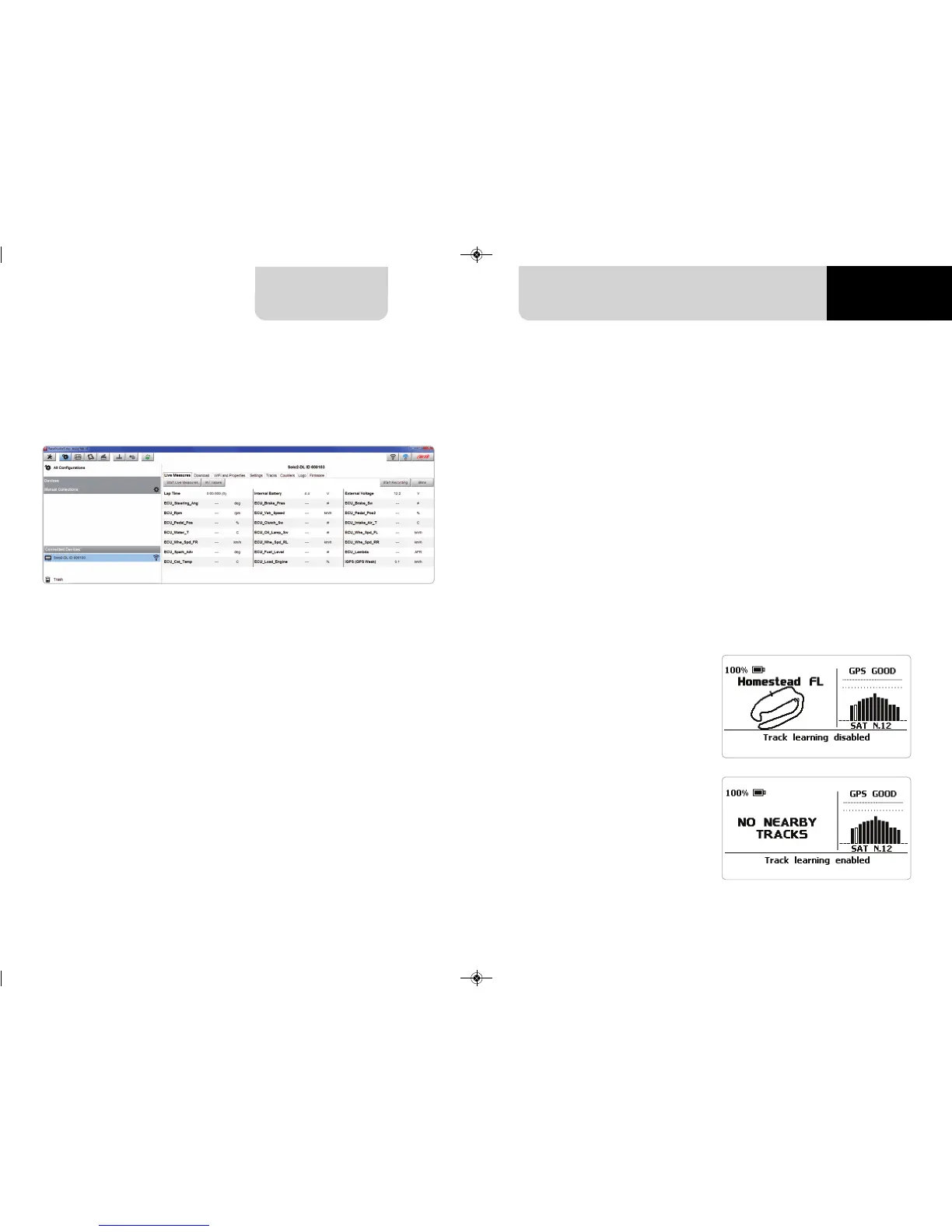
If you click your Solo 2 DL you enter the device window and have these options:
n
Live Measures: to check all Solo 2 DL channels;
n
Download: to download data, see the related chapter;
n
Wi-Fi and Properties: to manage the Wi-Fi configuration – see the related paragraph;
n
Settings to:
n
set date format
n
enable/disable daylight time
n
set time format and time zone
n
set backlight colour
n
enable/disable night vision
n
Tracks: to manage the tracks stored in the device memory
n
Counters: to set each user odometer decimal places as well as reset it
n
Logo: transmit/receive the logo that shows up when switching Solo 2 DL
on; supported image format are JPEG or BMP; always use the most recent
Windows
TM
versions (Windows8 or Windows10) whose graphic libraries are more
updated
n
Firmware: to check or update your Solo 2 DL firmware version.
Some Solo 2 pages are available for online visualization. To scroll them press “NEXT”
(“Type of Race: Speed” only).
Pages can change according to the device configuration.
This is the first page that appears when
you switch Solo 2 DL on and can be re-
called pressing “TRACK” button. When
you start the engine of your car it goes
away automatically. It shows:
n
on the left the selected track;
you can select a new one manually
or automatically (“MENU”/ Track
Management); in case of “Automatic”
selection the track is selected
according to the coordinates of your
vehicle; in case the track you are
running on is not included in your
Solo 2 DL database the laptimer
switches to “learning mode” as shown
in the bottom image here on the right
n
on the right the satellite bar (visible
satellites and signal level of each one)
useful to evaluate the status of the
GPS signal.
8.1 Track page
8. On the track


 To Next Page