* PCM audio signals (44.1KHz/48KHz/96KHz/192KHz) only functions in USB mode.
* If connecting the speakers to a PC, driver program must be installed first for system to perform properly.
* USB driver in Mac operating system supports USB Audio Class 1 and Class 2 audio transmission by default, therefore driver program installation is not
needed.
Install the special driver program (only for Windows)
Please install the special driver program on the PC before connecting the PC to this product.
1. Download and extract the special driver program “A80 USB Driver” in the following website: http://www.airpulseaudio.com
2. After installation is complete, exit from all applications.
Connect PC to speakers
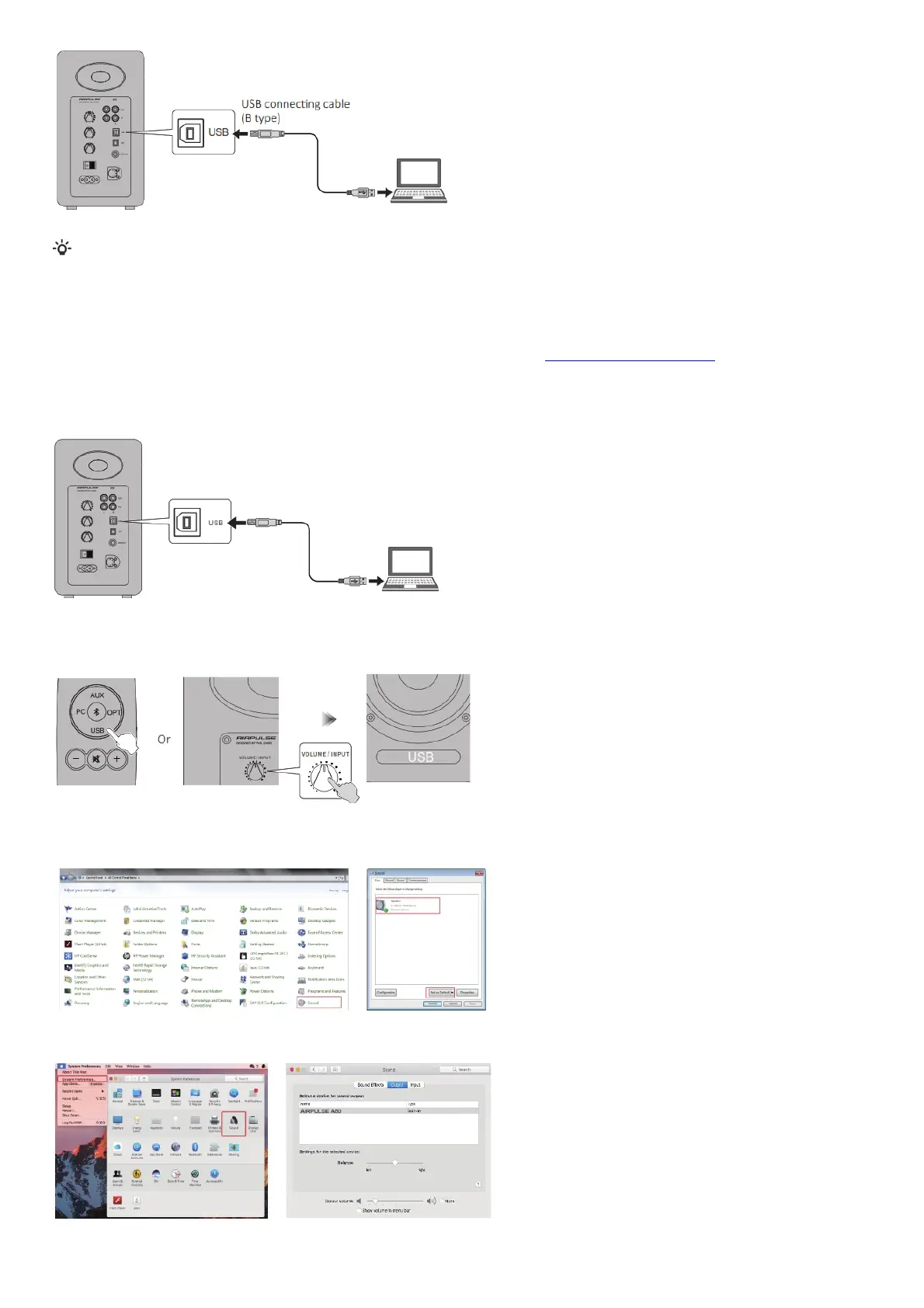
Connect Windows PC already installed with USB driver or Apple Mac to the speakers using USB connecting cable.
Set this product as the audio output device of PC
1. Press the “USB” button on the remote control or press the “VOLUME / INPUT” button on the rear panel of the active speaker to select USB input mode,
LED indicator on the active speaker will display “USB”.
2. Set this product as the audio output device of PC
For Windows users, please open “Control panel” → “Sound” → “Play” → “Set as Default” Tab to set “XMOS USB Audio” as the current audio output device.
For Mac users, please open “System Preferences” → “Sound” → “Output”Tab to select “AIRPULSE A80”as the current audio output device.
Play music on the PC



 To Next Page