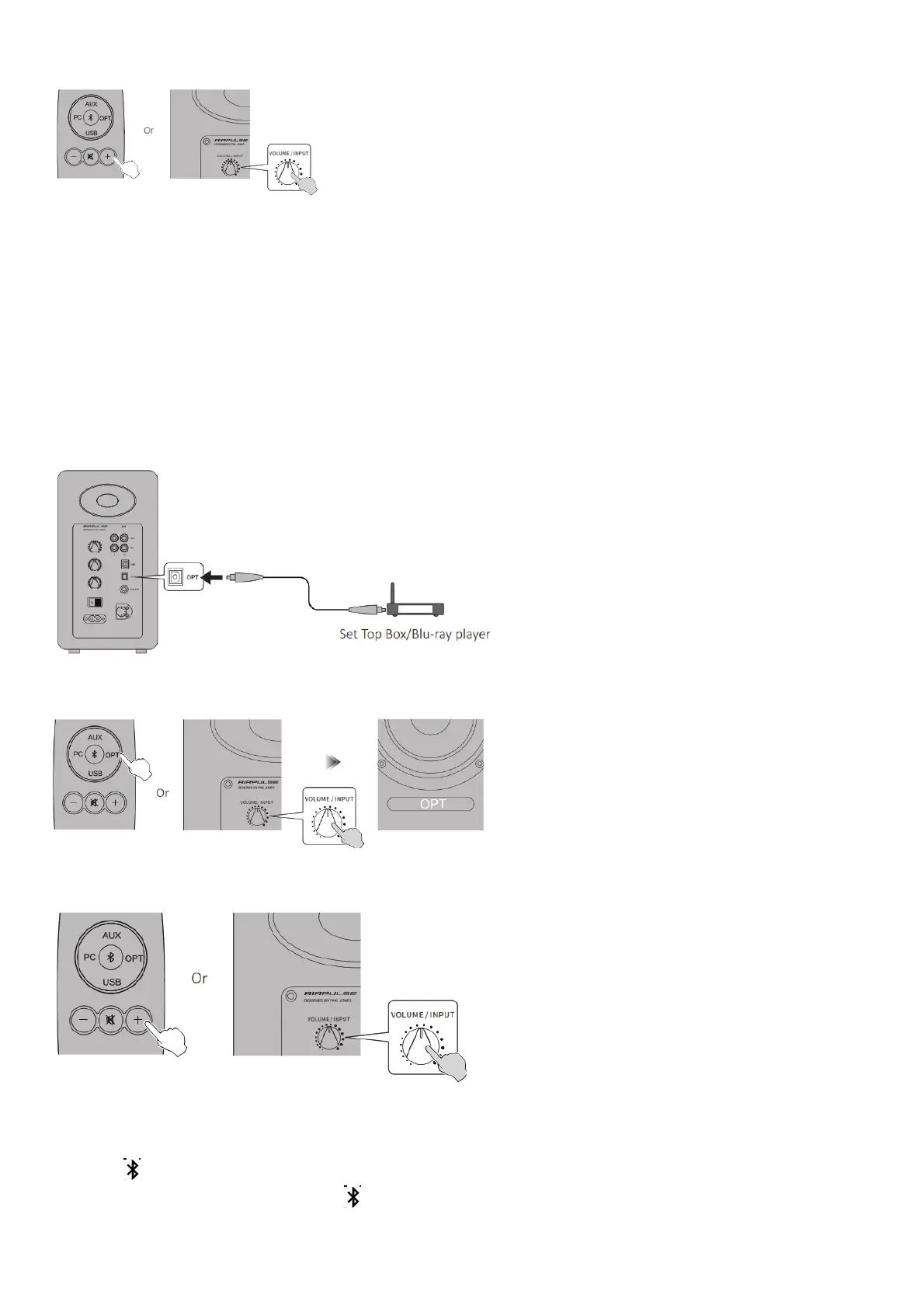
Play music on the connected device, press the “+/-” button on the remote control or press the “VOLUME / INPUT” button on the rear panel of the active
speaker to adjust volume to a desired level.
* The play control under USB input belongs to USB HID control. This control needs support of player software,and so there may be compatibility differences
for different audio player software.
* USB driver in Mac operating system supports USB Audio Class 1 and Class 2 audio transmission by default, therefore driver program installtaion is not
needed.
* Windows 7/ windows 10 operating system have self USB driver, only support USB Audio Class 1 type USB audio transmission (only support 2 channel
audio signal, the highest sampling rate is 96KHz), The USB connecting chip of A80 uses USB Audio Class 2 type audio transmission to support 192KHz
audio signal, so for Windows 7/ windows 10 operating system users, using the A80 speaker needs to download the special driver program.
* When USB input is disconnected or in other modes, please reset on the PC to re-select USB input. Please see “Set this device as the audio output device
of PC” for details.
* As Microsoft Company had stopped maintaining the XP system, we can’t provide the driver program with Microsoft digital signed.
* If you need to buy USB A type to B type connecting cable, you can search and buy it on the various e-commerce platforms.
Optical Input Mode
1. Connect this product to audio source device with optical digital output port using fiber optic input audio cable.
2. Press the “OPT” button on the remote control or press the “VOLUME / INPUT” button on the rear panel of the active speaker to select optical input mode,
LED indicator on the active speaker will display “OPT”.
3. Play music on the connected device, press the “+/-” button on the remote control or press the “VOLUME / INPUT” button on the rear panel of the active
speaker to adjust volume to a desired level.
* Only the standard PCM audio signals (44.1KHz/48KHz/96KHz/192KHz) function in optical mode.
* If the optical digital output of playing device is ACC, such as on a TV, please switch it to PCM.
Bluetooth Input Mode
1. Press the “ ” button on the remote control or press the “VOLUME / INPUT” button on the rear panel of the active speaker to select Bluetooth input
mode, LED indicator on the active speaker will display “ ”.



 To Next Page