6
Adding a unit
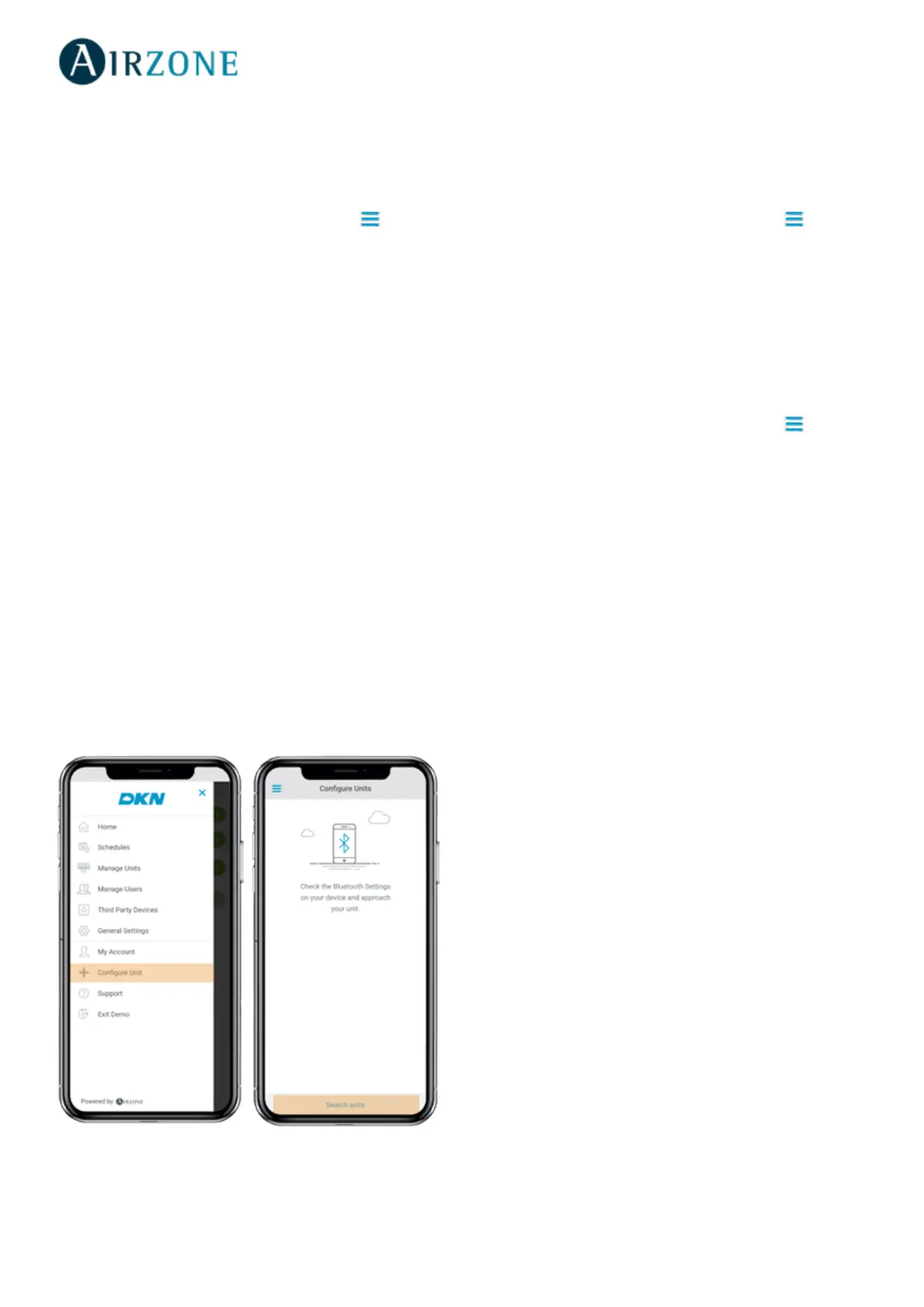
From the Home screen tap on the Menu icon and tap
Congure Unit.
To add a new Daikin unit, tap Search units and follow the
steps below.
Important: The Bluetooth connection must be enabled on
your smartphone to add the unit.
Important: Depending on your device, a notication may
show up requesting access to the geolocation, conrm and
continue.
1. Select the unit from the list of available units to
add.
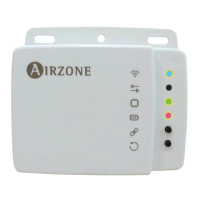
Note: If your unit does not appear, conrm if the bluetooth
function is enabled on your iOS or Android device and the
DKN Cloud Wi-Fi Adaptor LED operation light is green and
blinking.
2. Tap the selected unit again to access.
3. Tap Connect to Network to choose the network to
connect, select the network and enter its password.
Note: If the Wi-Fi connected status is displayed red,
please verify that the password is correct.
4. Tap Associate.
5. Set the name, group and unit icon. If there is no
group, create a new one and set the name, temperature
units and time zone of the group.
If the unit has already been added and it needs to be
released in order to be added by other user, tap Release
and enter the pin code located in the DKN Cloud Wi-Fi
Adaptor.
UNITS MANAGEMENT
Releasing unit
From the Home screen tap on the Menu icon and tap
Congure Unit.
To nd a Daikin unit, tap Search units.
Important: The Bluetooth connection must be enabled on
your smartphone to add the unit.
Tap Release and enter the pin code located in the DKN
Cloud Wi-Fi Adaptor if required.
Changing unit network
From the Home screen tap on the Menu icon and tap
Congure Unit.
To add a new Daikin unit, tap Search units and follow the
steps below.
Important: The Bluetooth connection must be enabled on
your smartphone to add the unit.
1. Select the unit from the list of available units to add.
Note: If your unit does not appear, conrm the Bluetooth
function of your iOS or Android is activated and the DKN
Cloud Wi-Fi Adaptor LED operation light is green and blinking
2. Tap the selected unit again to access.
3. Tap Change Network to change the network to connect,
select the network and enter its password.
Note: If the Wi-Fi connection status is displayed red, please
verify that the password is correct.



 To Next Page