7
Editing unit data
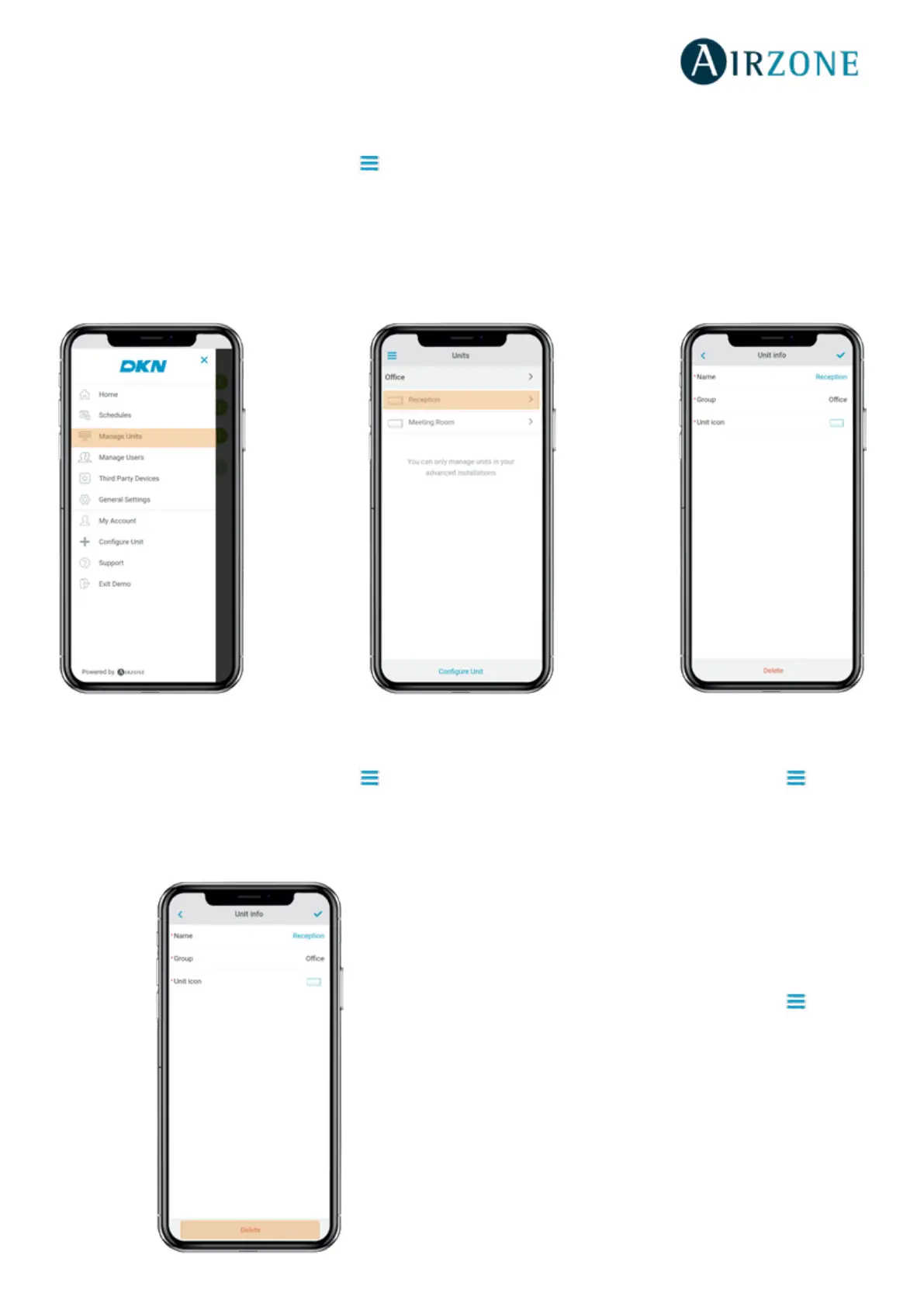
From the Home screen tap on the Menu icon and tap
Manage Units.
Select the unit to be edited.
Edit the parameters: Name and Unit icon.
Tap Delete to remove the unit.
If there is no unit, tap Congure Unit and enter the
following parameters:
Removing the unit from the app
From the Home screen tap on the Menu icon and tap
Manage Units.
Tap the unit to be removed or restored.
Tap Delete to remove the unit.
Editing group data
From the Home screen tap on the Menu icon and tap
Manage Units.
Tap the group to edit and set the following parameters:
Group parameters: Name and Time zone.
Units: Select the units which belong to the group.
Tap the conrmation icon to save changes.
Tap Delete to remove the group and unlink the units
associated.
Removing a group
From the Home screen tap on the Menu icon and tap
Manage Units.
Tap the group to be removed.
Tap Delete to remove the group and unlink the units
associated with the app.



 To Next Page