HDP3 Mini-Converter v1.0 www.aja.com
18
Update Screen
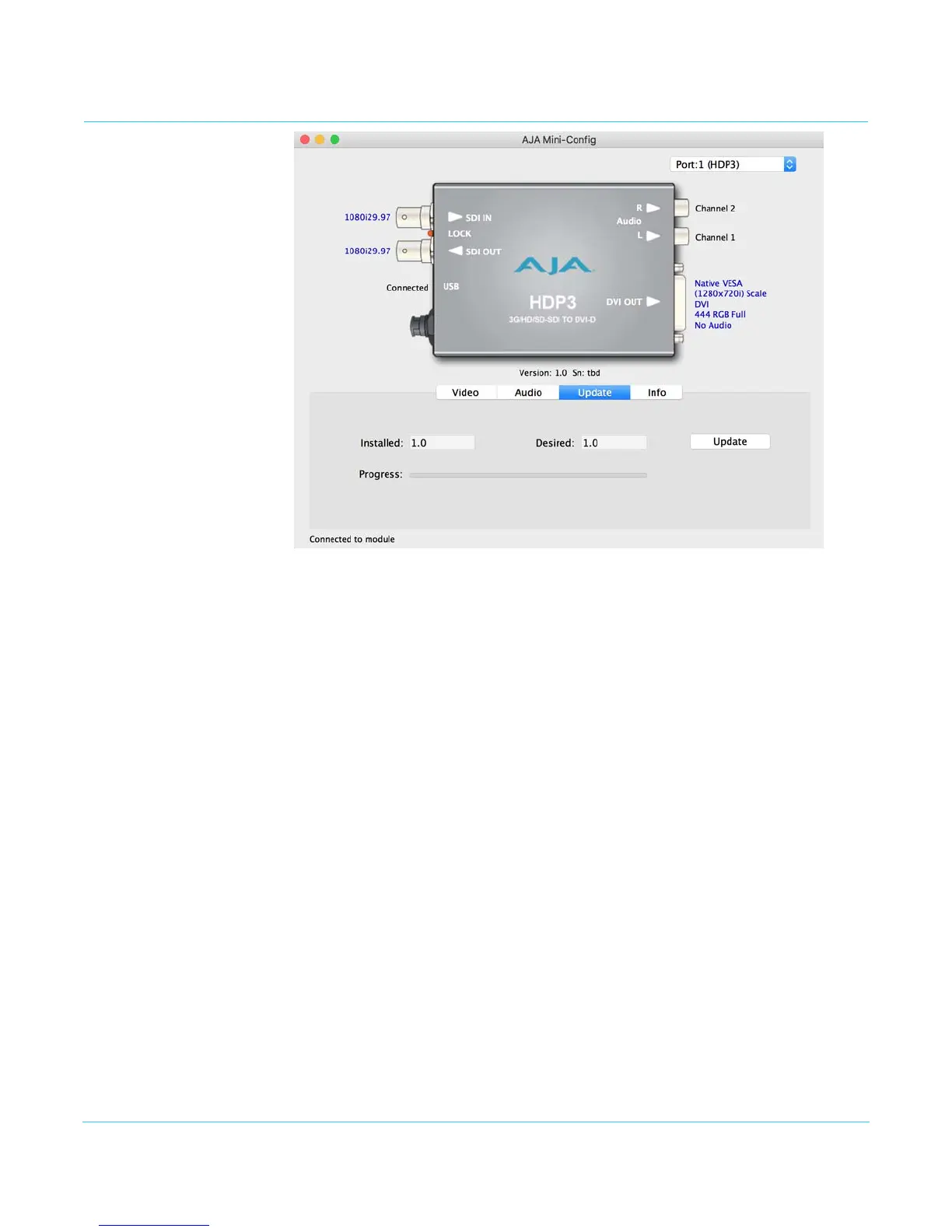
Use this Update screen to view the software version currently installed on the converter
or install new software.
NOTE: When discussing Mini-Converters, “Firmware” is software that will be stored in the Mini-
Converter’s non-volatile memory and used when it is powered up. This is something different
than the Mini-Config application software. The version numbers shown in the Update screen
refer only to the firmware.
Installed: This field shows the version of the firmware currently installed inside the Mini-Converter.
Desired: This field shows the version of firmware embedded in the Mini-Config application which
you can install into the Mini-Converter by clicking the Update button.
Update This button initiates a firmware update operation loading the “Desired” version of
firmware into the Mini-Converter’s non-volatile memory.
Progress: This indicator bar shows the progress of firmware installation.
Software Update
Procedure
1. Check the AJA website for new Mini-Config software for your Mini-Converter. If new
software is found, download it and uncompress the file archive (zip). Here is the URL
to use when checking:
http://www.aja.com/en/products/mini-converters/mini-config-software
2. Connect the Mini-Converter to a Mac or PC via a USB port on the computer and run
the new Mini-Config software just downloaded.
3. Click on the Update tab.
4. Check the Installed version level against the Desired version level. If the Desired is
newer, then click the Update button to download the new firmware to the Mini-
Converter; progress will be shown via the “Progress” thermometer bar.


 To Next Page