— 27 —— 26 —
REMOTE ACCESS
Information Screen Options
w
ANDROID DEVICES: To set up the App
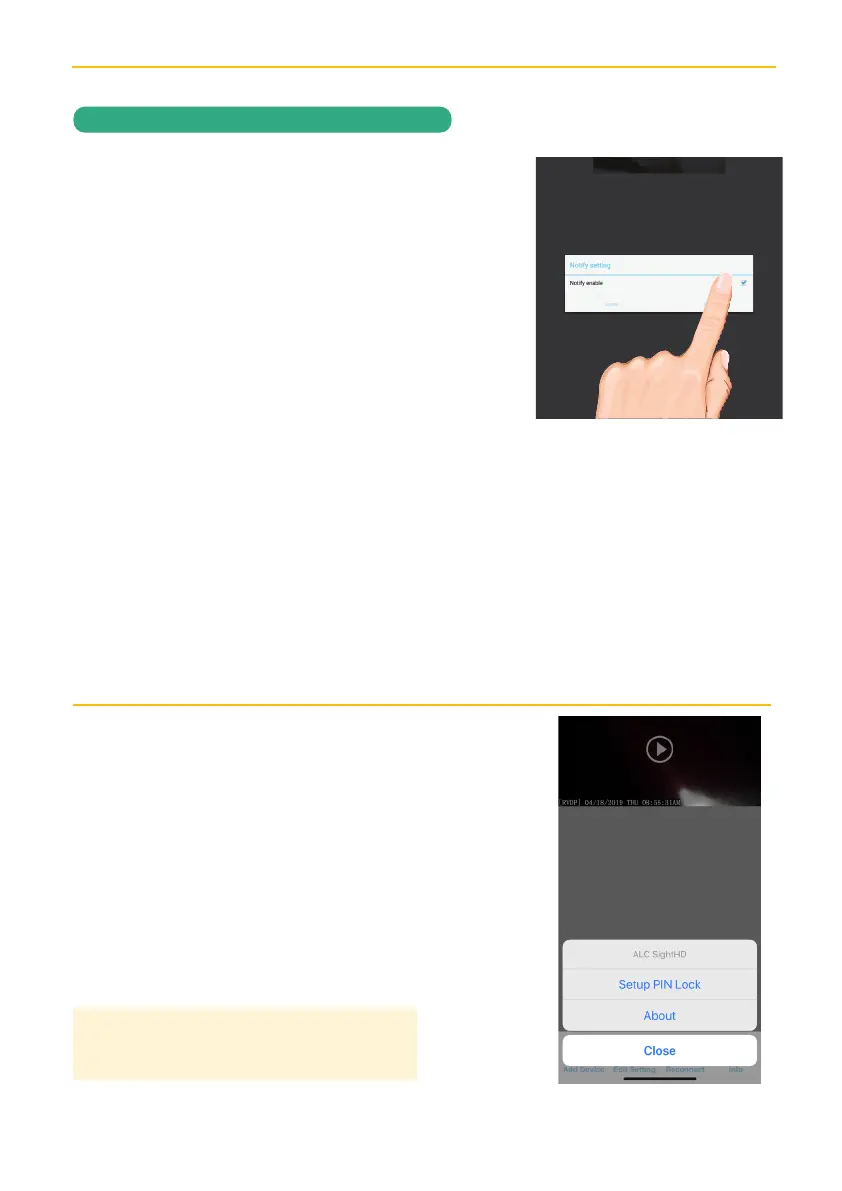
so you will get notified when motion has
been detected, tap Notify.
Tap the Notify Enable box, then tap OK.
When motion is detected, you will receive
notifications.
This Notification setting is for all cameras
and doorbells in the SightHD app. To turn
off Notifications for individual cameras, go
to Advanced Settings for that camera.
Tap Video Hardware Acceleration, then
tap the Video Hardware Acceleration
box and then tap OK to activate Video
Hardware Acceleration.
TIP: Setting a PIN Lock code will prevent others
from activating the app and viewing your camera
images.
APPLE DEVICES:
u Launch Settings/System Preferences from your Home screen on the Apple device.
v Tap Notification Center; a list of Apps will appear.
w Scroll down to find “ALC SightHD” App and click on it.
x The Setting screen displays. Turn the notification ON or OFF as desired.
Note: It takes time for the changes to take effect in iOS, normally within two hours.
x
To Setup the Pin Lock, tap Setup PIN Lock.
Tap the Enable Lock When Starting switch
to enable, or disable the Pin Lock.
Using the keyboard, enter a four digit code.
Then confirm this exact code.
Now that the Pin is set and enabled, whenever
the App is opened you must enter this code.


 To Next Page