48 49
5.3 Calculator ....................................................................
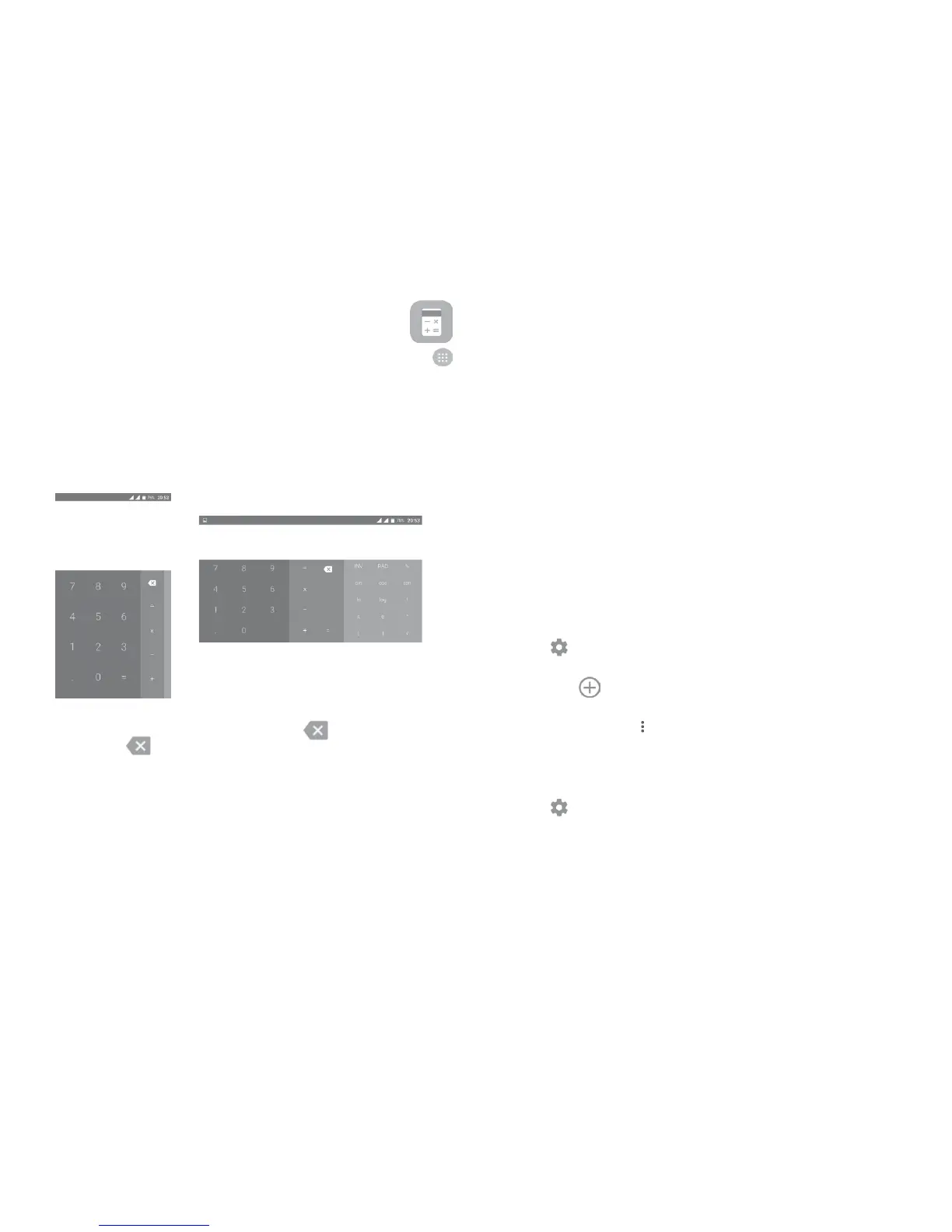
To solve mathematical problems with Calculator, touch the Application tab
from the Home screen, then touch Calculator.
There are two panels available: Basic calculation and Scientific calculation.
To switch between panels, select one of the following two ways:
•Swipe the basic calculation screen to the left to open the scientific calculation.
•Or turn the device to the landscape mode from the basic panel to open the
scientific calculation. This option only available if Settings > Display > Auto-
rotate screen > Rotate screen contents is on.
Enter a number and the arithmetic operation to be performed, enter the second
number, then touch “=” to display the result. Touch
to delete digits one by
one, or long press
to delete all at once.
6
Getting connected ..................................
Your phone can connect to the Internet using either GPRS/EDGE/3G/4G or
Wi-Fi.
6.1 Connecting to the Internet
6.1.1 GPRS/EDGE/3G/4G
The first time you turn on your phone with your SIM card inserted, it will
automatically configure a cellular network service: GPRS, EDGE , 3G or 4G. If
the network is not connected, you can turn on mobile data in Settings > Data
usage.
To check the network connection you are using, touch the Application tab on
the Home screen, then go to Settings > More > Mobile networks > Access
Point Names or Network carriers.
To create a new access point
A new mobile network connection can be added to your phone with the
following steps:
1 Touch
on the Quick settings bar to get to Settings.
2 Touch More > Mobile networks > Access Point Names.
3 Then touch
to add new APN.
4 Enter the required APN information.
5 When finished, touch
and Save.
To activate/deactivate Data roaming
You can connect or disconnect to a data service according to your needs when
roaming:
1 Touch
on the Quick settings bar to get to Settings.
2 Touch More > Mobile networks > Data roaming, choose a roaming mode,
to disable it.
3. When data roaming is disabled, you can still perform data exchange with a
Wi-Fi connection (see “6..1..2 Wi-Fi”).



 To Next Page