36 37
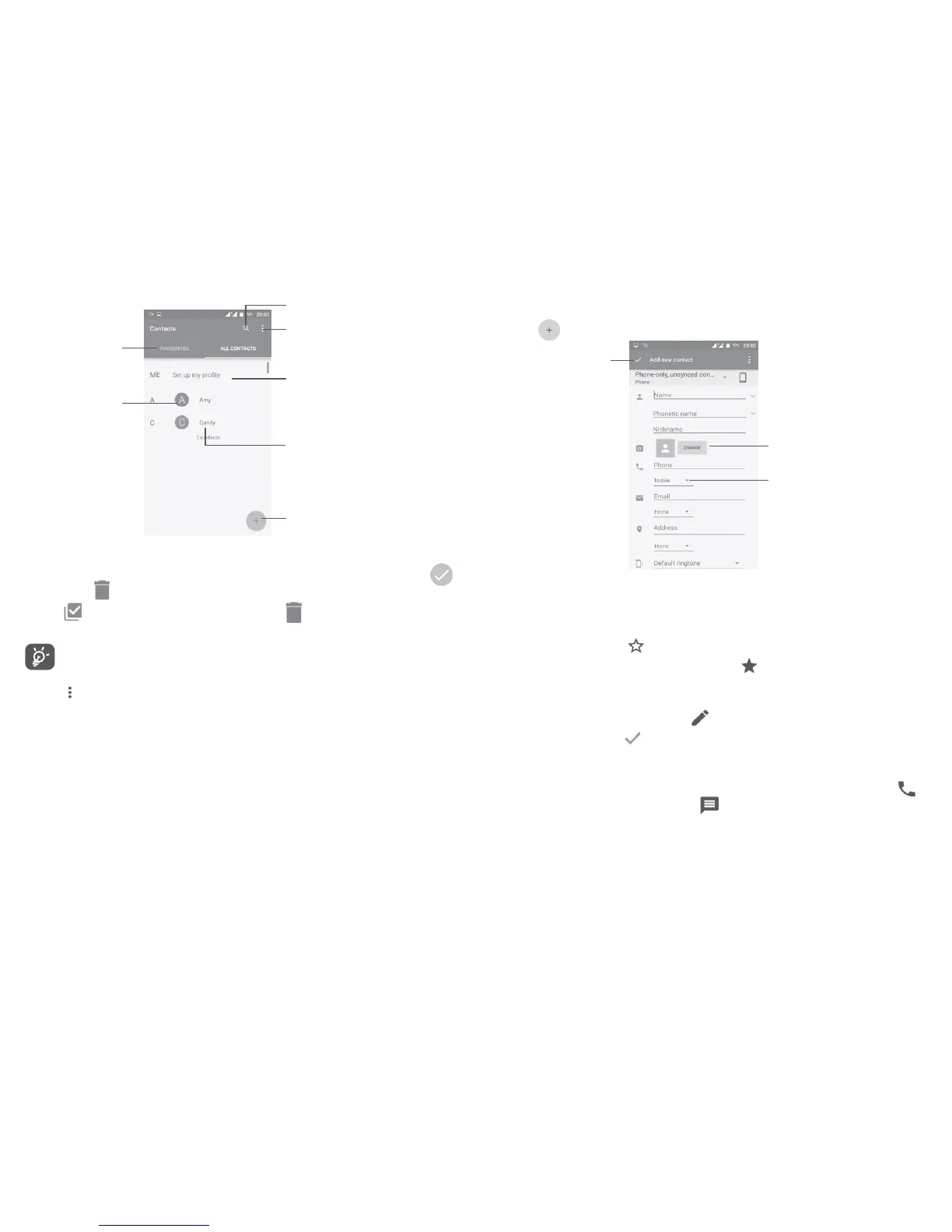
Add a new contact
Touch a contact
to open the Quick
Contact panel and view
the contact’s detailed
information
View your
favourite contacts
Long press to
be selected for
further options
Search Contacts
Contacts list option menu
After setting up your
profile, your picture will
show and the icon in
quick settings screen will
be the same
Long press the contact you want to delete untill the contact photo turns to
, then touch and confirm to delete.
Touch
to select all contacts, then touch and confirm to delete all
contacts.
The contact you have deleted will also be removed from other applications
on the phone or web the next time you synchronise your phone.
Touch
to display the contacts list option menu.
Following options are available:
•Contacts to display Choose which contacts to be displayed.
• Import or export contacts between accounts, phone,
SIM card, internal storage, and SD card.
•Block contacts Show your blocked contacts. You can also unblock
desired contact by touching the corresponding app icon.
•Accounts Manage the synchronisation settings for different
accounts.
•Settings Open the contacts display settings.
3.3.2 Adding a contact
Touch in the contact list to create a new contact.
Select a picture or take a
photo for the contact
When finished,
touch the icon
to save
Touch to open available
labels
Scroll up and down the screen to move from one field to another.
To add a contact to favourites, you can touch a contact to open contact details
screen and then touch
to add the contact to favourites.
To remove a contact from favourites, touch
on the contact details screen.
3.3.3 Editing your contacts
To edit contact information, touch on the contact details screen.
When finished, touch
to save.
3.3.4 Use Quick contact for Android
Touch a contact to open Quick contact for Android, then you can touch or
the number to make a call, or touch
to send a message.
(1)
Only phone and account contacts can be added to Favourites.



 To Next Page