46 47
5
Calendar & Alarm clock & Calculator
5.1 Calendar ........................................................................
Use Calendar to keep track of important meetings, appointments, etc.
To open Calendar, touch the Application tab
from the Home screen, then
touch Calendar.
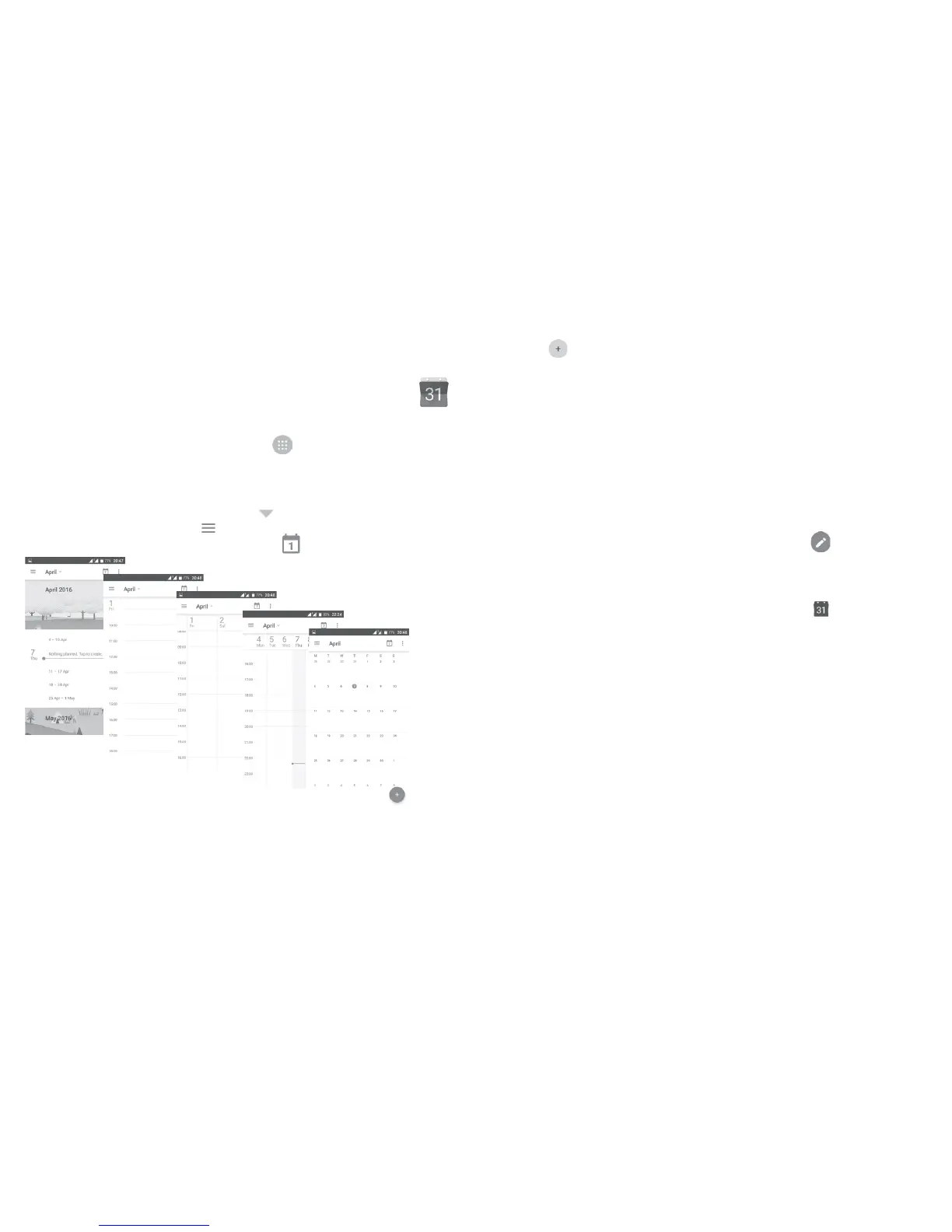
5.1.1 Multimode view
To change your Calendar view, touch the icon besides the month title to
open the month view, or touch and select or
Month to open different views. Touch the icon
(1)
to return to Today’s view.
Schedule view
Month
view
3-day view
(1)
The number indicates the date.
5.1.2 To create new events
You can add new events from any Calendar view.
•Touch
.
•Fill in all required information for this new event. If it is a whole-day event,
you can turn on the switch.
•Invite people to the event. Enter the email addresses of the guests and
separate with commas. Then all guests will receive an invitation from
Calendar and Email.
•When finished, touch or SAVE from the top of the screen.
Before you can add an event, you must add at least one Calendar account and
make a calendar visible.
5.1.3 To delete or edit an event
•Touch an event to open its details screen, then touch to edit the event,
or touch to delete.
5.1.4 Event reminder
If a reminder is set for an event, the upcoming event icon will appear on the
Status bar as a notification when the reminder time arrives.
Touch and drag down the status bar to open the notification panel, touch an
event name to view the Calendar notification list.
Touch the Back key to keep the reminders pending in the status bar and the
notification panel.



 To Next Page