EasyManua.ls Logo

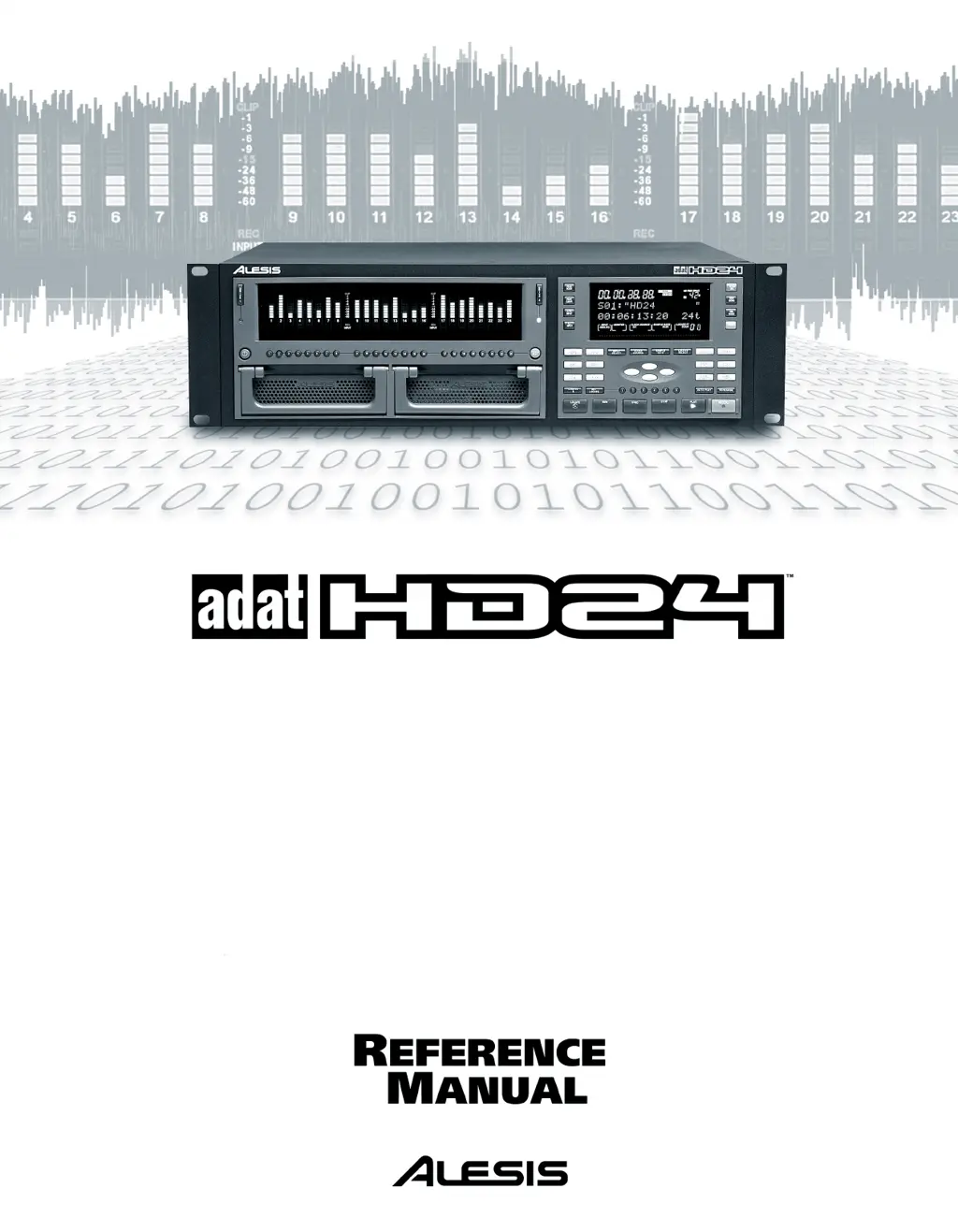
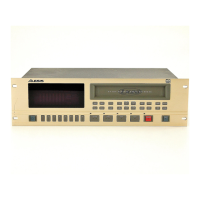
Alesis ADAT-HD24 - User Manual

Alesis ADAT-HD24
102 pages
Print Icon
To Next Page IconTo Next Page
Loading...

Table of Contents

Questions and Answers

  • B
    Benjamin SalazarAug 17, 2025
    How do I eliminate AC hum in my Alesis Recording Equipment setup?
    • T
      Tara MullinsAug 17, 2025
      To reduce AC hum, consider these points: * Use only balanced connections in the studio to avoid noise induced in unbalanced lines. * Ensure all equipment in the studio shares a common ground to prevent ground differences traveling through cables.
  • W
    wstoneAug 20, 2025
    How to troubleshoot no audio from Alesis Recording Equipment outputs?
    • T
      theresawallerAug 20, 2025
      If you're not getting any audio from the outputs, here are a few things to check: * First, test with a known good input to rule out any issues with your source audio. * Next, replace the cables to eliminate the possibility of bad cables. * Also, verify that the mixer or amp the Alesis Recording Equipment is connected to is turned up and properly connected. * Finally, if the song is defined as having fewer tracks than you are trying to output, copy all tracks and paste them into a new song with a higher track count.
  • K
    kleinaudreyAug 23, 2025
    Why is there a buzz from my Alesis Recording Equipment outputs?
    • M
      Matthew HancockAug 23, 2025
      A buzzing sound from the outputs can be caused by several factors: * Ensure that the ADAT HD24 and its audio cables are kept away from power cables, power transformers, and wall warts. * Try replacing the cable with a new, high-quality cable. * To check if the problem is with the source, bypass the ADAT HD24 by connecting the input cables directly to the output cables.
  • M
    Matthew BakerAug 26, 2025
    What to do if there is no audio input or output on certain Alesis Recording Equipment channels?
    • S
      stephaniechandlerAug 26, 2025
      If you're experiencing a lack of audio input or output on specific channels, consider the following: * If you're trying to record onto a track higher than the current Song allows, copy all tracks and paste them into a new song defined as having more tracks. * Check if the INPUT SELECT is set to 2, 4, 8 or 12- input mode. If so, reset INPUT SELECT for 24 input mode. * If EDIT PREVIEW plays back only tracks selected for editing, deselect any tracks armed for editing using TRACK EDIT to hear all tracks.
  • K
    kathyburnsAug 28, 2025
    How to fix Alesis Recording Equipment when the drive will not mount?
    • C
      Christopher PhillipsAug 28, 2025
      If the drive isn't mounting, try these steps: 1. Ensure an IDE drive is installed in the caddy. 2. Remove and reinsert the drive, firmly pushing on the edges of the handle. 3. Power down the unit and try the caddy in another drive bay to check for foreign material in the drive socket. 4. Remove the drive from the caddy and change the jumper from 'slave' to 'master' or 'single' mode. 5. If the drive file system was corrupted by installing the drive in a computer, use Utility 3 to scan the disk for errors and recover data. 6. Open the drive caddy and re-attach connectors to fix loose connectors.
  • V
    Victor MillerAug 31, 2025
    What to check if my Alesis Recording Equipment has no power?
    • D
      danielgibsonAug 31, 2025
      If your device isn't powering on, here are a couple of things to check: * Ensure the power is connected. * Make sure the rear panel power switch is turned on; note that the STOP LED will always remain lit.
  • J
    john76Sep 2, 2025
    What should I do if my Alesis Recording Equipment has no power and the STOP LED won't turn on?
    • J
      Jessica SpencerSep 2, 2025
      If there's no power and the STOP LED doesn't light up when the rear panel power switch is on, it could be due to a blown fuse. Correct any problem that may have caused the fuse to blow, and replace the fuse with the proper type.
  • L
    Larry ZunigaSep 5, 2025
    Why does my Alesis Recording Equipment song show incorrect data on the screen?
    • W
      Walter MooreSep 5, 2025
      If the song displays incorrect data, it might be due to errors on the hard drive. In this case, use Utility 3 to scan the disk for errors and recover data.
  • X
    xloganSep 8, 2025
    Why do I hear blips at the edit points after pasting audio with my Alesis Recording Equipment?
    • B
      Brandi CruzSep 8, 2025
      Hearing blips at edit points after pasting audio can happen due to several PASTE operations at the same points. Use PASTE UNDO when doing repetitive editing.
  • J
    jenniferguerreroSep 12, 2025
    Why won't my Alesis Recording Equipment HD24 synchronize to SYNC IN?
    • R
      robinsoncodySep 12, 2025
      The HD24 may fail to synchronize if the song is less than 10 seconds long. Record at least 10 seconds in a song before synchronizing.

Summary

ADAT HD24 Features

Key Features List

A numbered list outlining the main technical specifications and capabilities of the ADAT HD24.

Important Safety Instructions

Product Use Precautions

Lists essential safety precautions and warnings for operating the ADAT HD24.

Quick Start Guide

Step 1: Mixer Connection

Initial steps for connecting the ADAT HD24 to a mixer for basic audio routing.

Step 2: Drive Setup and Selection

Instructions for preparing and selecting the hard drive for recording and playback.

Step 3: Basic Recording Test

A guide to performing a simple test recording and playback to verify functionality.

Connections

Power Connections

Details on connecting the AC power cable and proper grounding procedures.

Basic Recording and Playback

Making a Recording

Step-by-step guide on the process of recording audio onto the ADAT HD24.

Track Setup and Level Adjustment

Covers arming tracks for recording and setting appropriate input and recording levels.

Input Selection and Monitoring

Details how to select input sources (Analog/Digital) and control input monitoring.

Playback and Scanning Operations

Instructions for playing back recordings, scanning through songs, and scrubbing audio.

Using Locate Points

Locating and Special Point Functions

Introduces locating points and special points with automated function capabilities.

Creating Playback;Record Loops

Details how to set up loops using locate points for continuous playback or recording.

Automated Recording Procedures

Instructions for setting up automated punch-in and punch-out recording.

Working with Drives

Drive Mounting and Selection

Explains how drives are mounted, selected, and how their status is indicated.

Drive Dismounting Procedures

Details the process for safely dismounting drives before removal.

Drive Management Operations

Covers manual drive selection, adding drives, and disk formatting procedures.

Drive Installation and Information

Guides on installing IDE drives into caddies and obtaining drive information.

Backing Up Your Work

Instructions for backing up songs and entire drives for data safety.

Editing Audio

Cut and Copy Operations

Details the procedures for cutting and copying audio regions between tracks or songs.

Paste Command Procedures

Explains how to paste audio regions into different locations, tracks, or songs.

Undo Functionality and Edit Buffer

Describes the Undo command and how the edit buffer manages undo levels.

High Resolution Operation

Synchronization and MIDI

Synchronization Methods

Overview of synchronization techniques including MIDI Time Code and SMPTE.

Using Ethernet and Networking

IP Parameter Configuration

Guides on setting the IP address, subnet mask, and gateway for the ADAT HD24.

Troubleshooting

Technical Specifications

Alesis ADAT-HD24 Specifications

General IconGeneral
BrandAlesis
ModelADAT-HD24
CategoryRecording Equipment
LanguageEnglish

Related product manuals