88 | Troubleshooting
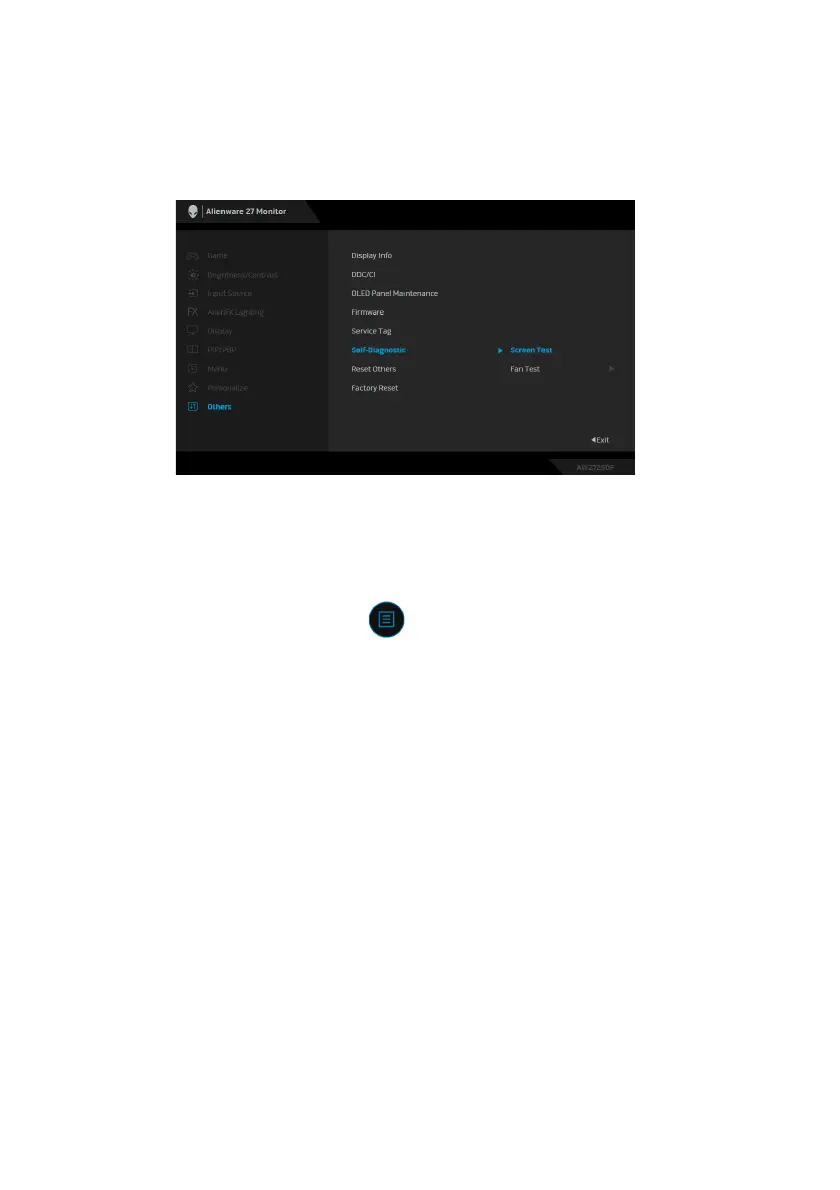
Built-in diagnostics
Your monitor has built-in diagnostic tools that help you determine if the screen
abnormality or audible noise you are experiencing is an inherent problem with
your monitor.
Screen test
To run the test:
1. M
ove or press the joystick to launch the Menu Launcher.
2. M
ove the joystick up to select and open the Main Menu.
3. M
ove the joystick to navigate and select Others > Self-Diagnostic >
Screen Test.
4. Ens
ure that the screen is clean (no dust particles on the surface of the
screen).
5. Pr
ess the joystick to initiate the built-in diagnostics. A gray screen is
displayed.
6. O
bserve if the screen has any defects or abnormalities.
7. Togg
le the joystick once again until a red screen is displayed.
8. O
bserve if the screen has any defects or abnormalities.
Repeat steps 7 and 8 until the screen displays green, blue, bl
ack, and white
colors. Note any abnormalities or defects.
The test is complete when a text screen is
displayed. To exit, toggle the joystick
control again.
If you do not detect any screen abnormalities
upon using the built-in diagnostic
tool, the monitor is functioning properly. Check the video card and computer.












 To Next Page