Need help?
Do you have a question about the Alienware AW720H and is the answer not in the manual?
Details the physical components and buttons of the headset.
Information on charging times and LED indicators for battery status.
Instructions for powering the headset on and off.
Explanation of the automatic power-off feature and how to re-enable the headset.
Lists the necessary hardware and software for connecting the headset.
Steps to connect the headset using the wireless dongle.
Steps to connect the headset using the 3.5mm audio cable.
Introduces Alienware Command Center for managing headset features and settings.
Instructions for installing the AWCC software on your computer.
Steps to install AWCC using the Windows Update feature.
Steps to install AWCC by downloading from the Dell support website.
Manual steps to update the headset firmware.
Manual steps to update the USB wireless dongle firmware.
Instructions on how to adjust the headband for a comfortable fit.
How to control the audio volume using the headset's volume control.
How to balance game and chat audio levels.
Instructions for muting and unmuting the microphone.
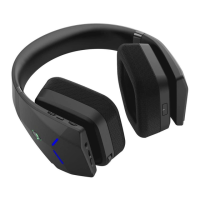
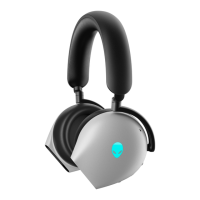
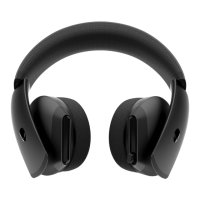
The Alienware Dual Mode Wireless Gaming Headset AW720H is a versatile audio device designed for an immersive gaming experience and general audio use. This headset offers both wireless and wired connectivity options, ensuring compatibility across a range of devices including Windows computers, PlayStation, Xbox, and mobile devices.
The AW720H headset provides high-quality audio output and clear microphone input for communication. Its dual-mode functionality allows users to connect wirelessly via a USB dongle for freedom of movement or through a 3.5mm inline audio cable for a stable, wired connection. The headset is optimized for gaming, offering features like game/chat balance control to fine-tune audio levels between in-game sounds and voice communication. It also supports Dolby Atmos for Headphones, providing an enhanced spatial audio experience on compatible Windows systems.
The headset is designed with user convenience in mind, featuring several accessible controls and adjustable components.
To power on/off the headset, users simply press and hold the power button located on the right ear cup for two seconds. An auto-power off feature conserves battery life by automatically turning off the headset after 30 minutes if the USB wireless dongle connection is lost (e.g., computer turned off or dongle removed). To reconnect, press and hold the power button for two seconds.
For wireless connection, the USB wireless dongle is inserted into a USB port on the computer, optionally using a USB-A to USB-C adapter. A blue LED on the dongle indicates a successful connection.
For wired connection, the 3.5mm inline audio cable is used. One end, specifically the audio plug closer to the inline microphone, connects to the headset's inline audio cable port, and the other end connects to the headphone/headset port on the computer or mobile device. When using the wired connection, both audio and microphone functions are available, but the headset's buttons and LEDs are disabled if the headset is turned off. The 2.4G wireless mode is automatically restored once the audio cable is removed.
Volume adjustment is intuitive, with a volume control wheel on the headset allowing users to scroll up to increase volume and scroll down to decrease it.
The game/chat balance control is a key feature for gamers. By pushing up the game chat balance button, users can increase game volume and decrease chat volume. Conversely, pushing down the button increases chat volume and decreases game volume. It is recommended to keep game and chat device volume on Windows at 100% and use the headset's volume dial for adjustments.
The headset features a retractable microphone. When fully retracted into the headset, the microphone is muted, and the mic mute button is disabled. When extended, the microphone can be muted or unmuted by pressing the microphone mute button. A red LED light indicates when the microphone is muted. For optimal voice clarity, the microphone should be positioned approximately two centimeters away from the user's mouth. If using the 3.5mm inline audio cable, a mute slider on the cable controls the microphone's mute status.
The headband is adjustable to ensure an optimal fit, with an elastic band that can be shifted up and down. The elastic band is also detachable.
The Alienware Command Center (AWCC) software allows users to customize the headset's lighting color and animation through the "Lighting" tab within the "FX" menu.
The AW720H headset incorporates features and software support for maintenance, including firmware updates and battery management.
The headset is charged by connecting the USB-C end of the USB-A to USB-C charging cable to the USB-C port on the headset, and the other end to a USB port on a computer. For best results, the battery should be fully charged before first use. A complete charge from empty takes less than 2.5 hours.
Battery status is indicated by both the power LED and the Alienhead logo LEDs. When fully charged, the power LED stays green, and the Alienhead logo displays the last selected lighting effect. While charging, the power LED and Alienhead logo alternate between amber and green for 12 seconds before returning to the previous lighting effect (if powered on) or staying green (if powered off). When the battery is below 20%, the power LED slowly blinks amber, and the Alienhead logo fast-blinks amber until the battery reaches 0%. To extend battery life, it is recommended to turn off the headset when not in use.
To ensure optimal performance, both the headset and the USB wireless dongle firmware should be kept up-to-date. Firmware updates are performed manually by downloading specific update tools from the Dell support website. For the headset firmware:
For the USB wireless dongle firmware:
AWCC is a central application for managing headset features and lighting effects. If AWCC 5.0 or later is pre-installed, the headset can be configured directly. Otherwise, AWCC needs to be installed via Windows Update or downloaded from the Dell Support website. Installation via Windows Update:
Ear pads can be replaced by firmly holding the ear pad, twisting it towards the back of the headset, and pulling it straight out. When replacing, match the arrow marks on the ear pad with those on the ear cup, noting that left and right ear pads are different.
The manual provides solutions for common issues such as no sound, microphone not working, abnormal sounds, unbalanced sound, headset lights not working, short wireless range, and AWCC not recognizing the headset. These solutions often involve checking connections, power status, mute settings, software settings (like playback and recording devices in Windows Sounds settings), and ensuring the headset is within range of the wireless dongle.
 General
| Microphones | Noise Reduction microphone |
|---|---|
| Speaker | 40 mm Dynamic PureSound speaker (Hi-Fi) |
| Speaker maximum input power | 50 mW |
| Speaker frequency range | 20Hz to 40kHz |
| Operating temperature | 5°C to 40°C (41°F to 104°F) |
| Storage temperature | -5°C to 45°C (23°F to 113°F) |
| Operating humidity | 5% to 90% relative humidity |
 Weight and Dimensions
| Headset weight | 348 g |
|---|---|
| Headset dimensions | Length: 183.91 mm (7.24 inches) Width: 111.67 mm (4.40 inches) Height: 214.39 mm (8.44 inches) |


 To Next Page