EasyManua.ls Logo

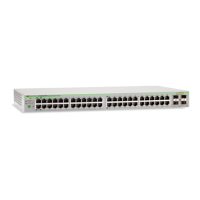
Allied Telesis AT-GS924MX - User Manual

Allied Telesis AT-GS924MX
118 pages
Print Icon
To Next Page IconTo Next Page
Loading...
613-002085 Rev. A
AT-GS900MX Series
GIGABIT ETHERNET SWITCHES
AT-GS924MX
AT-GS924MPX
AT-GS948MX
AT-GS948MPX
Installation Guide for VCStack

Table of Contents

Questions and Answers

Allied Telesis AT-GS924MX Specifications

General IconGeneral
Weight3.5 kg
ManagementWeb-based, CLI, SNMP
Quality of Service (QoS)Yes
Product TypeManaged Switch
Ports24 x 10/100/1000BASE-T ports, 4 x 10G SFP+ ports
MAC Address Table Size16, 000
Jumbo FramesUp to 9, 216 bytes
Dimensions (W x D x H)44 mm
Power over Ethernet (PoE)No
Power SupplyInternal
Operating Temperature0 to 50 °C
VLAN SupportYes
Security FeaturesPort security

Summary

Electrical Safety and Emissions Standards

U.S. Federal Communications Commission

Details FCC standards for emissions and interference compliance.

Industry Canada

Details Canadian standards for emissions and interference compliance.

Chapter 1: Overview

Document Conventions

Explains document symbols, notes, cautions, and warnings.

Contacting Allied Telesis

Provides contact information and support resources.

Features

Lists AT-GS900MX Series switch models and their core features.

Installation Options

Outlines methods for installing switches in a stack.

Front and Back Panels

Illustrates the physical layout of switch front and back panels.

Management Panel

Identifies the components of the switch's management panel.

10;100;1000 Base-T Twisted Pair Ports

Details the specifications and capabilities of twisted pair ports.

Power over Ethernet

Explains PoE functionality, standards, and power budget.

SFP Slots

Describes the types of SFP transceivers supported and their use.

Combo Twisted Pair Ports and SFP Slots

Explains how twisted pair and SFP ports form combo pairs.

Stacking Slots

Details the S1 and S2 slots for VCStack and stacking transceivers.

eco-friendly Button

Explains the function of the eco-friendly button for LED control.

LEDs

Describes the function and meaning of various switch LEDs.

USB Port

Details the function and compatibility of the switch's USB port.

Console Port

Explains the use and connection specifications for the console port.

Power Supply

Describes the switch's AC power supply and connector.

Chapter 2: Virtual Chassis Stacking

Overview

Introduces the VCStack feature and its benefits for managing switches.

Stacking Slots and Transceivers

Discusses the S1/S2 stacking slots and required transceivers.

Stacking Port Topologies

Explains the linear and ring topologies for connecting switches.

Master and Member Switches

Defines the roles of master and member switches in a VCStack.

Specifying Ports in the Command Line Interface

Details how to reference individual ports via CLI commands.

Chapter 3: Beginning the Installation

Reviewing Safety Precautions

Lists critical safety warnings and precautions for installation.

Selecting a Site for the Stack

Provides guidelines for choosing an appropriate installation location.

Planning a Stack

Outlines key considerations and guidelines for planning a switch stack.

Unpacking the Switch

Instructions for unpacking the switch and its included components.

Chapter 4: Installing the Switch on a Table or in an Equipment Rack

Installing the Switch on a Table

Procedure for safely placing the switch on a table or desk.

Installing the Switch in an Equipment Rack

Step-by-step guide for mounting the switch in a rack.

Chapter 5: Verifying the Status of VCStack

Verifying the Status of VCStack

Method to check if the VCStack feature is enabled on switches.

Activating the VCStack Feature

Procedure to enable the VCStack feature using local management.

Chapter 6: Cabling the Stacking Ports

Chapter 7: Powering On the Stack

Installing the Power Cord Retaining Clip

Instructions for installing the power cord retaining clip.

Powering On the Switches Individually

Procedure for powering switches on one by one for ID assignment.

Powering On the Switches Simultaneously

Procedure for powering on all switches at once for auto ID assignment.

Verifying the Stack

How to confirm the stack is operational and configured correctly.

Setting the Priority Numbers

Optional procedure to configure switch priority for master selection.

Monitoring the Initialization Processes

How to monitor switch startup messages via console.

Chapter 8: Cabling the Networking Ports

Cabling the Twisted Pair Ports

Guidelines for connecting twisted pair network cables to ports.

Installing SFP Transceivers

Procedure for installing SFP transceivers into switch slots.

Chapter 9: Troubleshooting

Appendix A: Technical Specifications

Physical Specifications

Details dimensions and weights of the AT-GS900MX Series switches.

Environmental Specifications

Specifies operating and storage conditions for the switches.

Power Specifications

Lists input voltages and maximum power consumption.

Certifications

Lists compliance standards and marks for the switches.

RJ-45 Twisted Pair Port Pinouts

Shows the pin layout for RJ-45 network ports.

RJ-45 Style Serial Console Port Pinouts

Details the pin signals for the serial console port.

Related product manuals