Allworx Server User Guide Version 7.6
Page 22 1-866-ALLWORX * 585-421-3850
wwww.allworx.com
Revised: 11/25/13
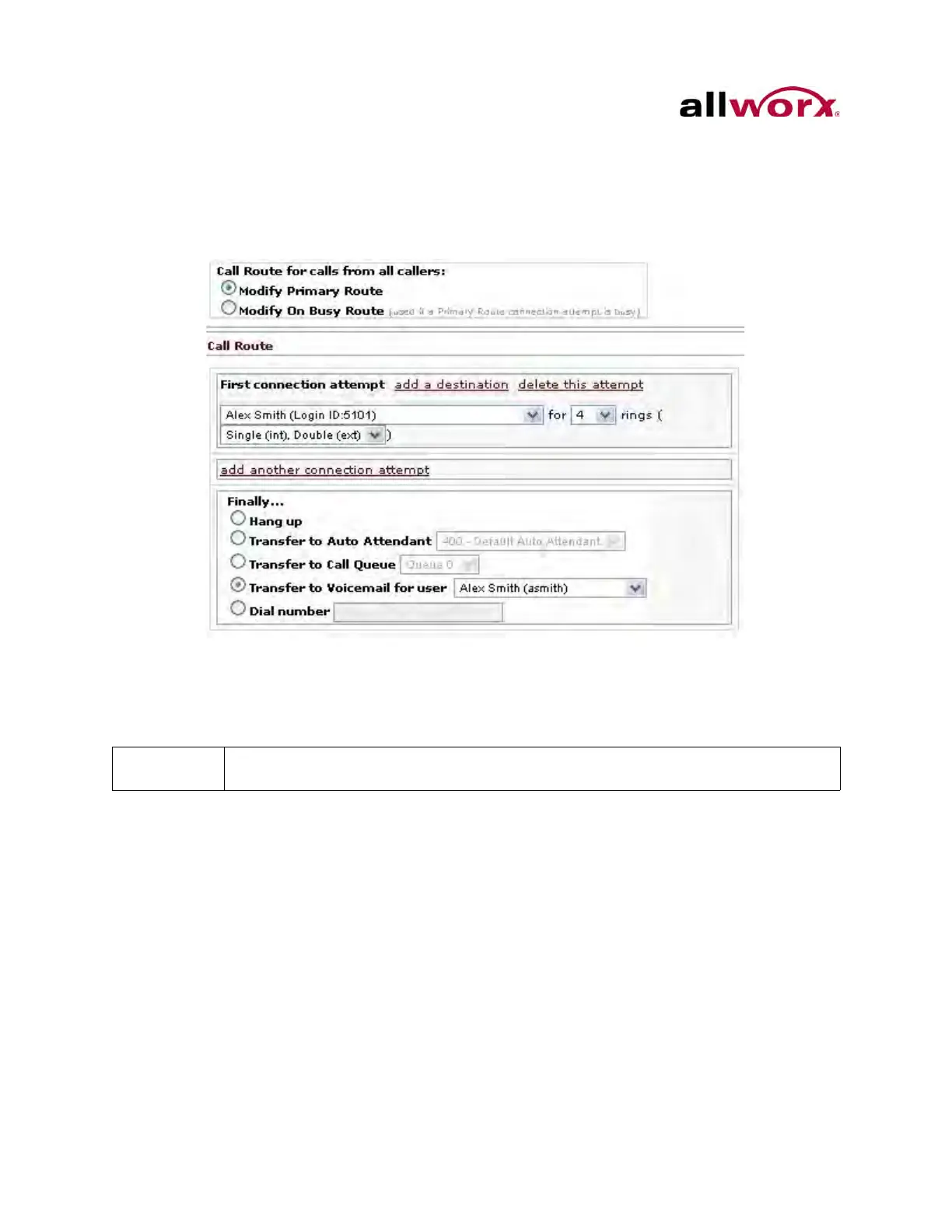
2. Locate the Call Route for calls from all callers section, and click the Modify On
Busy Route radio button.
3. Locate the Call Route section, and click the Use Call Route below: radio button.
A new call route section displays.
4. Set up the call route using the previous procedures.
5. Click the Update Call Route to save the changes.
The system ignores additional call attempts when configuring the busy route to use a call
route instead of treating a busy as no answer.
2.4.2 Follow-Me-Anywhere
Users can forward calls to other phones outside of the Allworx System such as cell or
home phones. If the recipient does not answer the call, the system directs the call back
to follow the rest of the configured call route. In following the remainder of the call route,
the system may direct unanswered Follow Me calls to the Finally route, which enables
callers to leave messages in the default voicemail inbox. If users prefer to have callers
leave a message in the personal phone voicemail, use the Finally route to direct calls to
the cell or home phone by entering the phone number into the Dial number text box. Do
Create and save the primary call route (Update Call Route button) before creating or
modifying the On Busy Route



 To Next Page