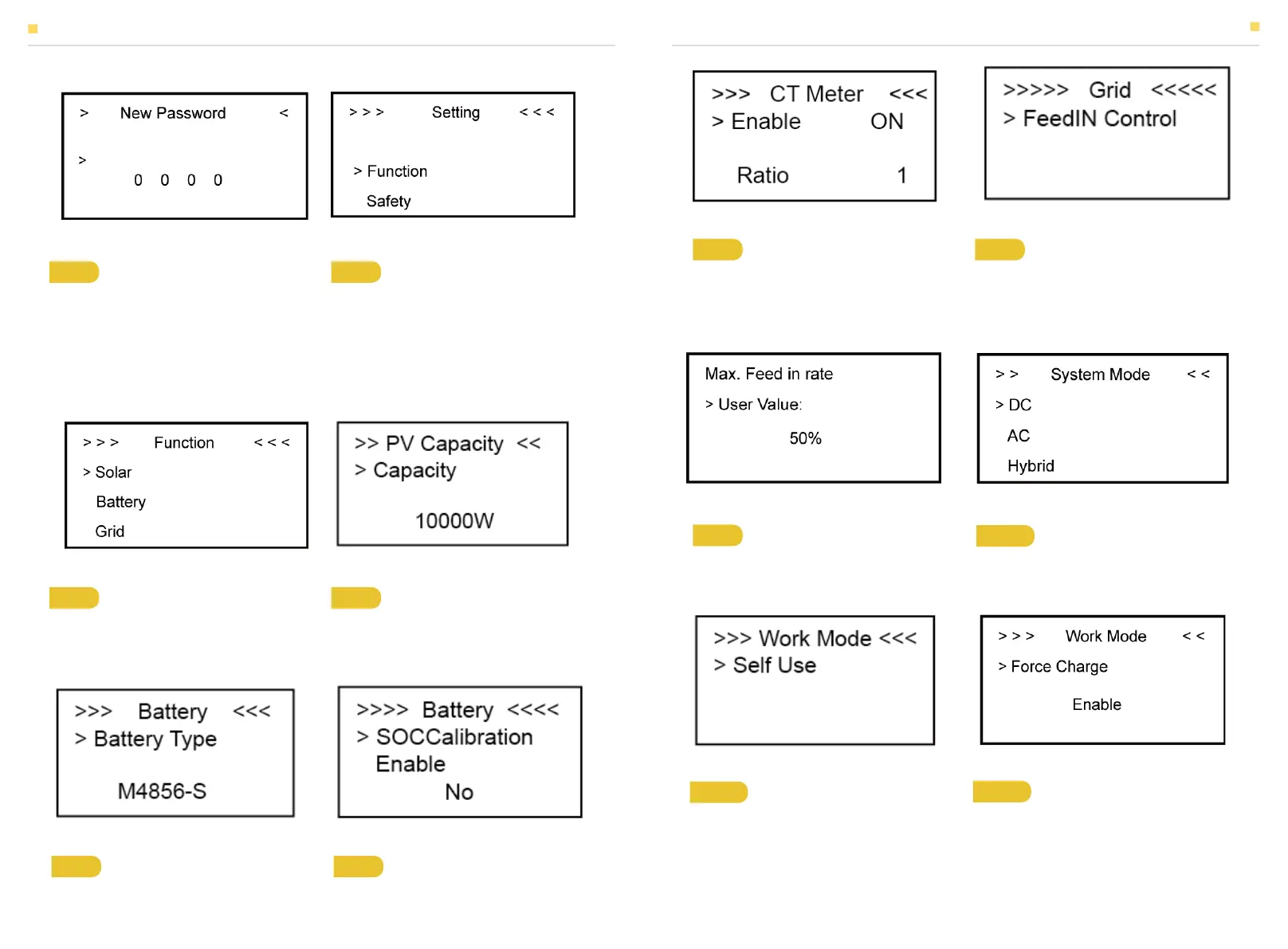
Figure 43 Password Interface
Figure 45 Function Interface Figure 46 Solar Setting Interface
Figure 44 Setting Menu
Figure 47 Battery Model Interface Figure 48 SOC Calibration Interface
4.2 Setting
Step 1 Click setting and enter the
password.
The installation's password is four-digit
password: 1111, after the password is
correctly entered, you shall be at the main
Setting interface (administrator
permissions).
Step 3 Click Solar to set the Solar relevant
information.
Step 4 Set PV capacity, the total capacity
of PV capacity of T10-INV and PV inverter
(if it is installed).
Step 2 Click Function to enter function
setting.
Step 5 Click the Battery Function and
check battery type M4856-S.
Step 6 Check SOC Calibration function set
No.
Figure 49 CT Meter Option Interface
Figure 50 Grid Setting InterfaceInterface
Step 7 Choose CT Meter. If you use CT,
please enter the relevant CT ratio. If you
don’t use CT, please enter the ratio as 1.
Step 8 Click the Grid Function to set up
relevant parameters about the grid.
Figure 51 Max. Feed in rate Setting
InterfaceInterface
Figure 52 System Mode Setting
Interfaceterface
Step 9 Set the Max. Feed in rate value. Step 10 Click Function-System Mode to
set system mode: DC, AC, Hybrid.
Figure 53 Work Mode Setting
Interface
Figure 54 Force Charge Setting Interface
Step 11 Click the mode then set up work
mode.(self-use or force time charge)
Step 12 If you want to use force charge,
set Enable here.
EMS INTRODUCTION AND SET UP
EMS INTRODUCTION AND SET UP
33 34


 To Next Page