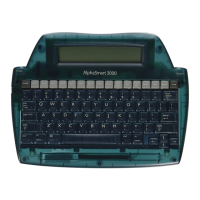
2. Turn on the AlphaSmart and open the file you want to
transfer to the Mac.
3. Point the AlphaSmart at the IR wireless pod for Mac and
press the Send key on the AlphaSmart. The screen on the
AlphaSmart should display the message “Connecting to IR
Get Utility. Press esc to exit. Sending File x”.
4. No text will show up in the program window until the file
transfer is complete then the entire text will be pasted
into the active program.
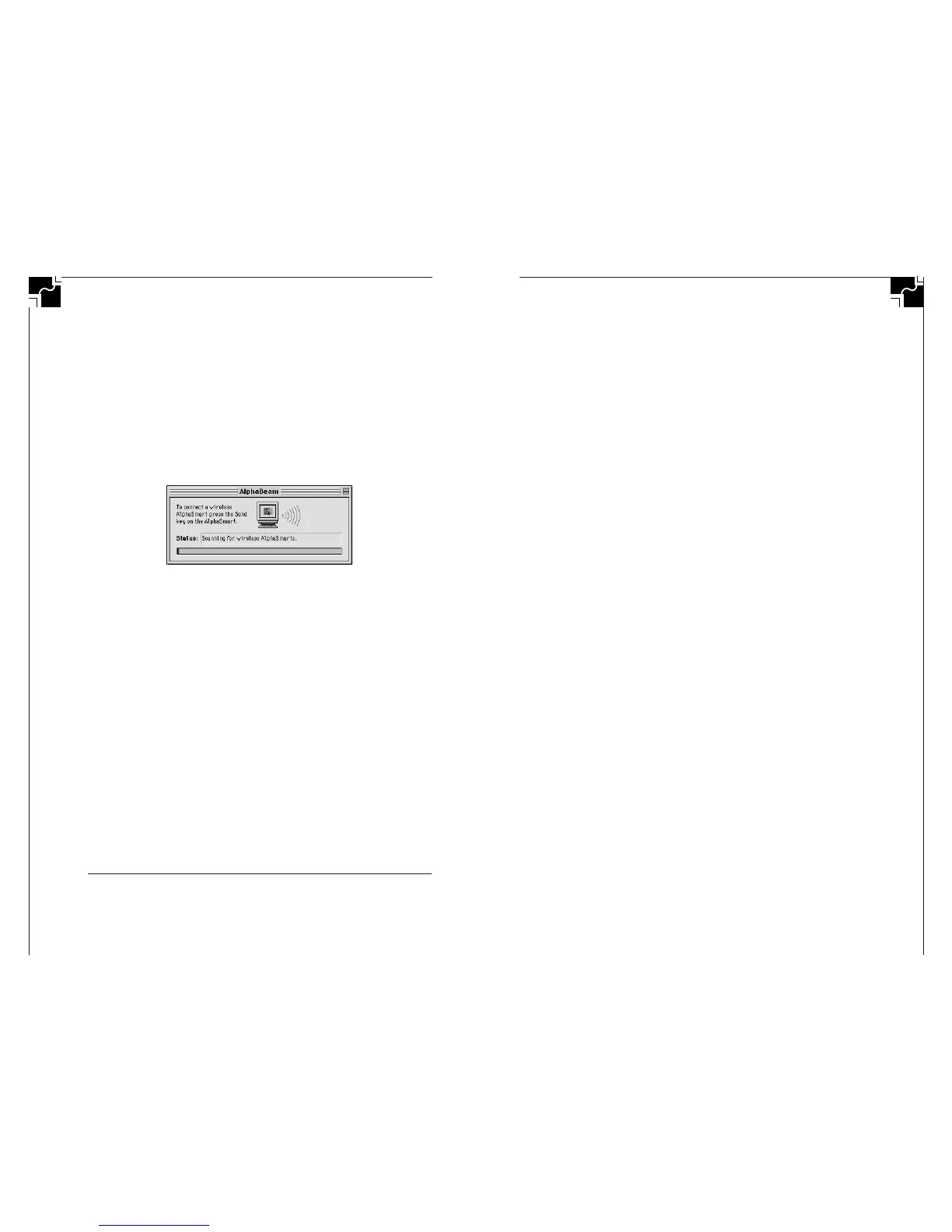
Figure 5. AlphaBeam for Mac
To send another AlphaSmart file to the Mac, it is not neces-
sary to quit AlphaBeam and rerun it, just return to Step 3.
Tips on using AlphaBeam
For Macs that have a built-in IrDA transceiver, make sure
that the Infrared Control Panel has been set to IrDA.
The text from the AlphaSmart will be pasted in the active
program or application on the computer. If AlphaBeam is
the front most program then the text from the AlphaSmart
will be placed in the Clipboard. In order to see the text, you
must open another program and do a Paste which will place
the Clipboard contents into your program.
You can arrange your windows so that when AlphaBeam is
in the background (not the active program) you can watch
the progress indicator show how the transfer is progressing.
AlphaBeam™ for PC v1.0
AlphaBeam™ for PC v1.0 is a software program that allows
the user to send text to a PC, that is equipped with a built-
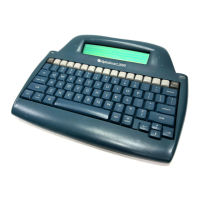
in IrDA transceiver or a wireless pod, from an AlphaSmart
AlphaSmart 2000
1918
AlphaSmart 2000
2000 equipped with the optional IR module. Your PC must
be running Windows 95 or Windows 98. The program trans-
fers the contents of the open file on the AlphaSmart into the
Windows Clipboard and to the user’s word processor if it is
running.
This version of the program does not support DOS, Windows
3.1 or Windows NT.
Installing AlphaBeam for PC
1. Plug IR wireless pod for PC into a COM port on the PC. A
COM port is either a 9 pin or 25 pin male DB connector.
Be sure and note which COM port the wireless pod for PC
is plugged into. (ie. COM1 COM2 etc.)
2. Insert CD or floppy disk into drive.
3. Select Run, from the Windows File menu or the Start
Menu in Windows 95.
4. In the command line box enter: a:\SETUP where “a” is
the drive letter of the floppy drive.
5. During the setup you will be asked which COM port the
IR wireless pod for PC is plugged into. You will also be
asked to set up a simulated COM port. The program
selects a valid COM port and all you have to do is press
the Next button.
Sending text from an AlphaSmart to a PC
1. Run AlphaBeam for PC (double click on its icon). At this
point AlphaBeam will begin scanning for IR enabled
AlphaSmarts.
2. Point the AlphaSmart at the IrDA wireless pod for PC and
press the Send button.
3. The AlphaSmart will display the message “Connecting
to computer (wireless mode). Press esc to exit. Sending
File x.”
4. After a few seconds, AlphaBeam will show that an Alpha-
Smart has been found (Figure 6).
5. At this point the AlphaSmart will begin sending its file to
the PC. After the send is completed, AlphaBeam will put


 To Next Page