AlphaSmart 2000
17
then the AlphaSmart should also be able to connect, type,
and send information to your laptop.
■ TRANSFERRING TEXT USING
INFRARED
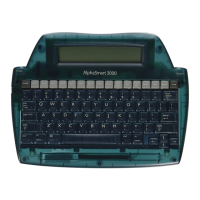
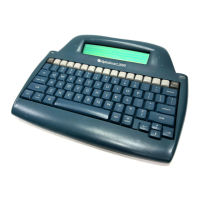
If your AlphaSmart 2000 has a built-in IR module, then you
can send text via infrared to a Mac, PC or printer. Since the
AlphaSmart uses the industry standard for infrared (IrDA), it
will transfer text to any computer or printer with a built-in
IrDA transceiver
It’s easy to use. Point the AlphaSmart towards the computer’s
IR transceiver and hit the Send key. Text will be transferred
to the document or file that is open on the computer. To
print, hit the Print key on the AlphaSmart while pointing it
towards the printer’s IR transceiver or IR module. The
AlphaSmart can be up to three feet (1 meter) away to transfer
text to and from a computer.
There is a new version of the Get Utility which allows text to
be sent from a Mac or PC to an AlphaSmart via infrared.
Note: If the computer or printer does not have a built-in IrDA
transceiver, you need to purchase an IrDA wireless pod for Mac or
PC from IPD, Inc. For a list of companies that make the printer
pods, please see our web site www.alphasmart.com.
AlphaBeam for Mac v1.0
AlphaBeam for Mac v1.0 is a software program that allows
the user to send text to a Mac, that is equipped with a built-
in IrDA transceiver or a wireless pod, from an AlphaSmart
2000 equipped with the optional IR module. The program
can insert the text from the AlphaSmart into any Mac pro-
gram that allows text input.
You can download the most current version of AlphaBeam
(at no cost) from the Support Section of our home page at
http://www.alphasmart.com.
Some of the Macs that are equipped with a built-in IrDA trans-
ceiver are iMacs, Powerbook 3400C, Powerbook G3, etc.
16
AlphaSmart 2000
Note: If the Mac does not have a built-in IrDA transceiver, you
need to purchase an IR wireless pod for Mac from IPD, Inc.
Installation Instructions
If the computer has a built-in IrDA transceiver, then go
directly to Step 3.
1. Plug the IR wireless pod for Mac into a serial port (Modem
or Printer) on the Mac.
2. Be sure and note which serial port the wireless pod for
Mac is plugged into.
3. Insert the disk into drive, and start the Installer by double
clicking on it.
4. The Installer will place the program in the folder that you
select.
5. Once the installation is finished, double click on the pro-
gram.
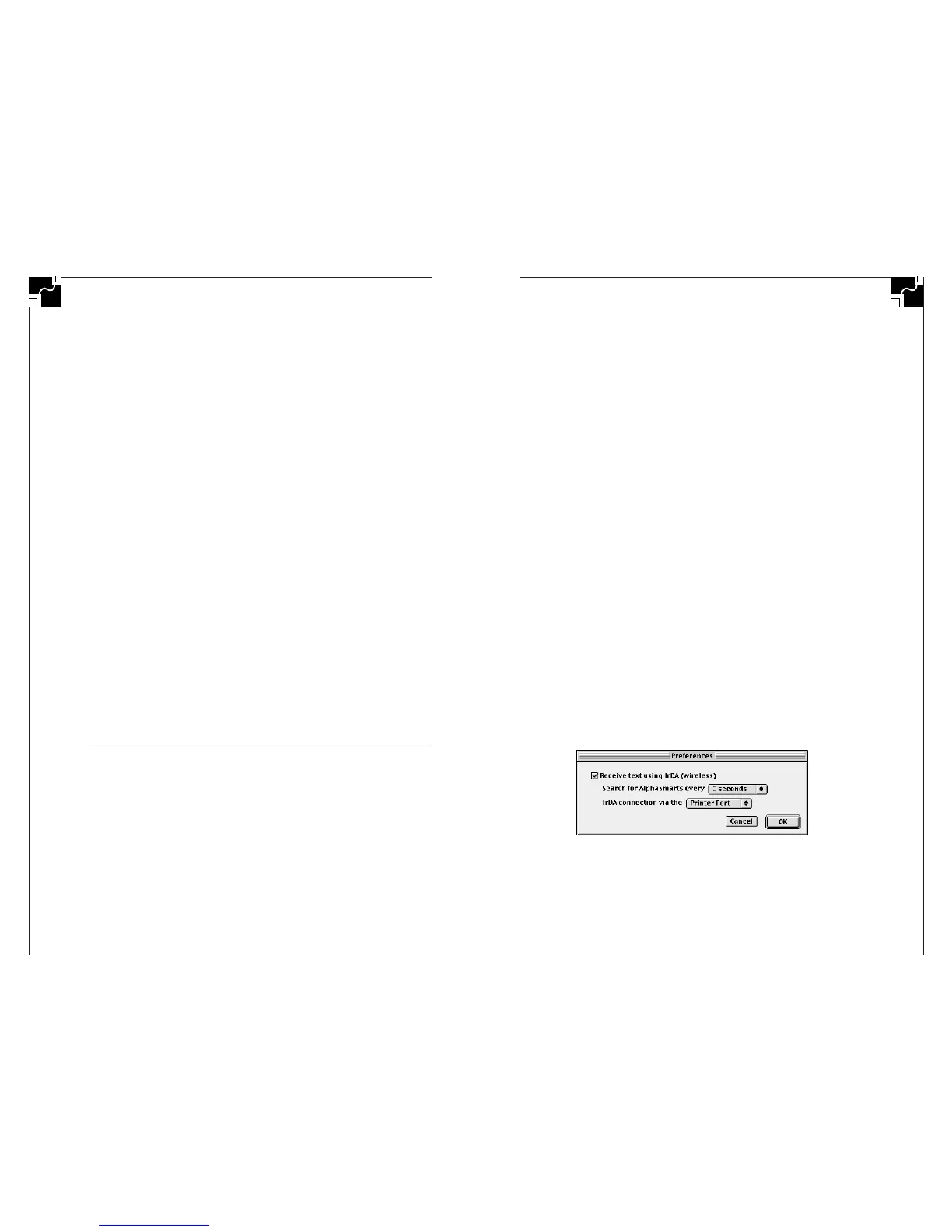
6. The Preferences window will be displayed the first time
that you select the program.
7. In the Preferences dialog click on the Receive text using
IrDA Wireless checkbox and then select the correct port
(modem, printer or built-in IrDA) that you plugged the IR
wireless pod for Mac into. The frequency at which to look
for IR AlphaSmarts can be adjusted, but the default selec-
tion of 3 seconds is adequate. Select OK and then the pro-
gram will look for IR AlphaSmarts. These settings will be
saved so that the next time you start the program you will
not need to go into the Preferences.
Figure 4. IrDA Preferences for AlphaBeam
Sending text from an AlphaSmart to a Mac
1. Open the program that you want to transfer the Alpha-
Smart file into.


 To Next Page